
Spline Asset Placer
Spline Asset Placer
Section titled “Spline Asset Placer”Module: Art · Category: Scatter · Tool ID:
SplineAssetPlacer
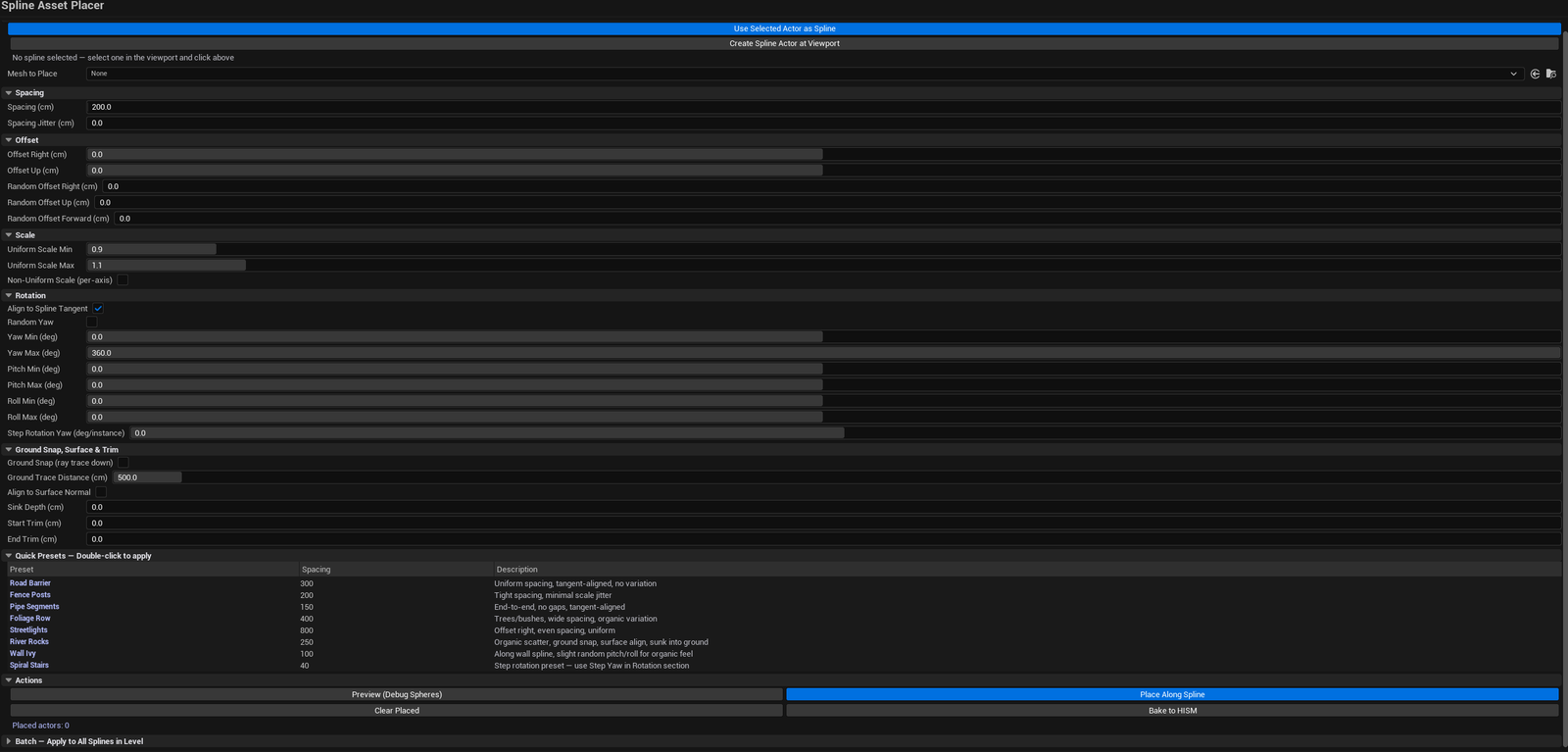
Artist-friendly spline-driven mesh distribution. Pick a spline actor in the level, pick a mesh, set spacing, click Place. Includes tangent alignment, ground snap with surface-normal alignment, scale randomization (uniform or per-axis), random rotation, lateral/vertical offset, quick presets (Road / Fence / Pipe / Foliage Row / Streetlight), and batch mode for applying the same setup to all spline actors in the level.
When to use it
Section titled “When to use it”- Distributing repeating meshes along a path: roads, fences, pipes, cables, streetlights, foliage rows
- Quick rope bridge / chain link / row-of-anything authoring
- Ground-snapped foliage rows that follow terrain
- Batch placement on multiple splines at once
When not to use it
Section titled “When not to use it”- Don’t use this for irregular scatter — use Procedural Scattering & Placement Suite for that
- Don’t expect cubic interpolation between samples — placement uses spline distance, snapped to spacing
Opening the tool
Section titled “Opening the tool”- Open the EQLabs Hub and search for
Spline(or browse to Art → Scatter) - Click the tool card
- Either: select a spline actor in the level and click Pick Selected Spline Actor, or click Create Spline Actor to spawn one
Interface tour
Section titled “Interface tour”The panel is organized into six sections:
1. Source
Section titled “1. Source”| Field | What it does |
|---|---|
| Spline Actor | Currently picked spline actor (selected from the level) |
| Pick Selected Spline Actor | Picks whatever spline-bearing actor is selected in the level |
| Create Spline Actor | Spawns a new actor with a USplineComponent |
| Mesh picker | The static mesh to distribute |
2. Placement
Section titled “2. Placement”| Field | What it does | Default |
|---|---|---|
| Spacing | Distance between instances along the spline | 200 cm |
| Spacing Jitter | Random ± variation on spacing | 0 |
| Start Trim / End Trim | Skip the first/last N units of spline | 0 |
| Offset Right | Lateral offset from spline | 0 |
| Offset Up | Vertical offset | 0 |
| Random Offset Right / Up / Forward | Random ± jitter on each offset axis | 0 |
| Scale Min / Max | Uniform random scale range | 0.9 – 1.1 |
| Non-Uniform Scale | Toggle X/Y/Z independent randomization | false |
| Per-axis scale ranges | When non-uniform, separate min/max per axis | each 0.9 – 1.1 |
| Align to Tangent | Rotate instance to follow spline direction | true |
| Random Yaw | Random Yaw rotation | false |
| Yaw Min / Max | Random Yaw range when enabled | 0 – 360 |
| Pitch / Roll Min / Max | Random Pitch/Roll ranges | 0 |
| Step Rotation Yaw | Incremental Yaw per instance (spiral stairs, twisted cables) | 0 |
3. Ground Snap
Section titled “3. Ground Snap”| Field | What it does | Default |
|---|---|---|
| Ground Snap | Trace from the spline location to ground and snap | false |
| Ground Trace Distance | How far to trace down | 500 cm |
| Align to Surface Normal | Rotate instance up-vector to ground normal | false |
| Sink Depth | Push the instance into the ground (cm) | 0 |
4. Quick Presets
Section titled “4. Quick Presets”Per-row preset list:
| Preset | Tuned for |
|---|---|
| Road | Wide spacing, tangent-aligned, no jitter |
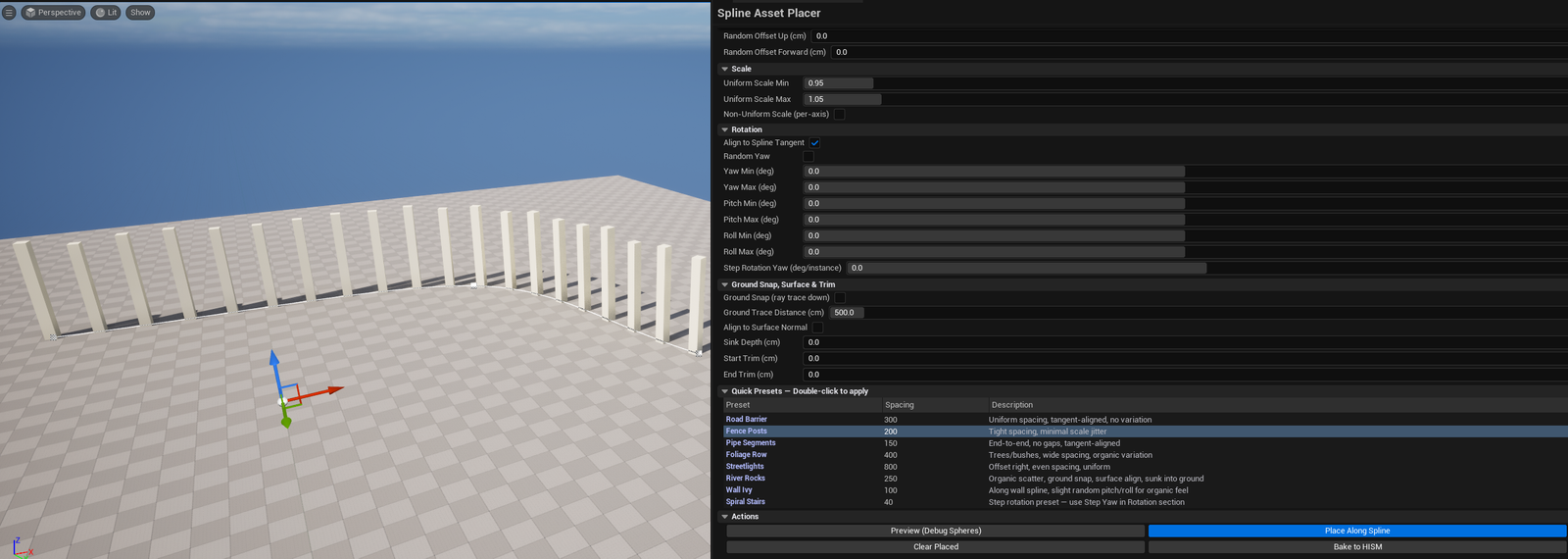
| Fence | Tight spacing, tangent-aligned, slight scale variation |
| Pipe | Tight spacing, tangent-aligned, locked rotation |
| Foliage Row | Variable spacing + jitter, ground-snapped, random Yaw |
| Streetlight | Wide spacing, tangent-aligned, no scale variation |
Click a preset row to fill the placement settings with that preset’s values.
5. Actions
Section titled “5. Actions”| Button | What it does |
|---|---|
| Preview | Spawns instances temporarily for visualization |
| Place | Spawns instances permanently in the level |
| Clear Placed | Removes all placed instances from this tool’s session |
| Bake to HISM | Converts placed instances to a HISM component |
6. Batch
Section titled “6. Batch”| Field | What it does |
|---|---|
| Scan Spline Actors | Walks the level for all actors with USplineComponent |
| Spline actors list | Per-actor row: name, spline length, point count |
| Apply to All Splines | Runs the placement on every spline in the list |
Workflow
Section titled “Workflow”Single spline
Section titled “Single spline”- Select a spline actor in the level, click Pick Selected Spline Actor in the tool
- Drop a mesh into the Mesh picker
- Pick a preset (or set Spacing manually)
- Click Preview to see the result without committing
- Click Place to commit
Batch across all splines
Section titled “Batch across all splines”- Click Scan Spline Actors
- Confirm the list looks right
- Configure the placement (one configuration applies to all)
- Click Apply to All Splines
Settings reference
Section titled “Settings reference”Section-by-section defaults shown in the Interface tour above.
Settings are persisted to
[Project]/Saved/EQLabs/Settings/SplineAssetPlacer.json.
Output
Section titled “Output”- In-place actor placement —
AStaticMeshActorinstances along the spline - HISM baking —
Bake to HISMconverts them to a single HISM component - Undo — placement is wrapped in
ScopedTransaction.Ctrl+Zreverses.
Tips & gotchas
Section titled “Tips & gotchas”- Step Rotation Yaw is the secret to spiral / twisted-cable looks — at
15°per instance, you get a gentle twist; at90°, a hard spiral - Ground snap can fail on thin geometry — increase Ground Trace Distance if instances appear above the surface
- Sink Depth helps with foliage / debris that should appear partially buried — start at
5cm - Random Yaw range can be limited — use
RandomYawMin/RandomYawMax(e.g.,-15°to+15°) for natural variation rather than full0–360° - Batch mode applies the same configuration to every spline — for per-spline customization, run the tool once per spline
Related tools
Section titled “Related tools”- Procedural Scattering & Placement Suite — for non-spline area scatter
- Trim & Decal Authoring Suite — for trim sheet authoring that complements modular spline placement
Opens our feedback form in a new tab with the tool name pre-filled.