
No. 1196 CO CoreEQLabs Pro
Ship Lab
Module: Core · Category: Release · Tool ID:
ShipLab
The end-to-end build / packaging / release pipeline tool. From compile to cartridge. Hub panel is a launcher; the actual workflow lives in the Ship Lab custom asset editor (Pattern B) opened via a UShipLabProfile asset. Six phases: Readiness Check → Pre-Flight Validation → Build Profile → PSO Cache Wizard → Orchestrated Packaging (UAT) → Post-Build Verify.
When to use it
Section titled “When to use it”- Setting up a new project’s build pipeline once and shipping it for years
- Per-platform packaging — Win64 / Linux / Android / iOS — with profiled defaults
- PSO cache generation for shipping titles
- CI/CD orchestration: feed a Ship Lab profile to UAT, get a packaged build
- Pre-launch verification: confirming the cooked build is shippable
What it isn’t for
Section titled “What it isn’t for”- Don’t use this for casual / dev builds. UE’s built-in File → Package is simpler for those.
- Don’t expect this to handle code signing / store submission. That’s still platform-specific (App Store Connect, Google Play Console, Steamworks).
Opening the tool
Section titled “Opening the tool”The Hub panel has two paths:
Create a new Ship Lab Profile
Section titled “Create a new Ship Lab Profile”- Open the EQLabs Hub — Ship Lab is in the Release category.
- Click the tool card.
- Click Create New — UE’s factory dialog opens; pick a folder and name.
- The new
UShipLabProfileasset opens in the Ship Lab editor.
Open an existing profile
Section titled “Open an existing profile”- Select a Ship Lab Profile in the Content Browser.
- From the Hub launcher, click Open Selected.
- Or browse to Open Presets Folder for the bundled platform presets at
/EQLabs/ShipLab/Presets/.
The Ship Lab custom asset editor
Section titled “The Ship Lab custom asset editor”Once a UShipLabProfile is open, the editor provides six tabs:
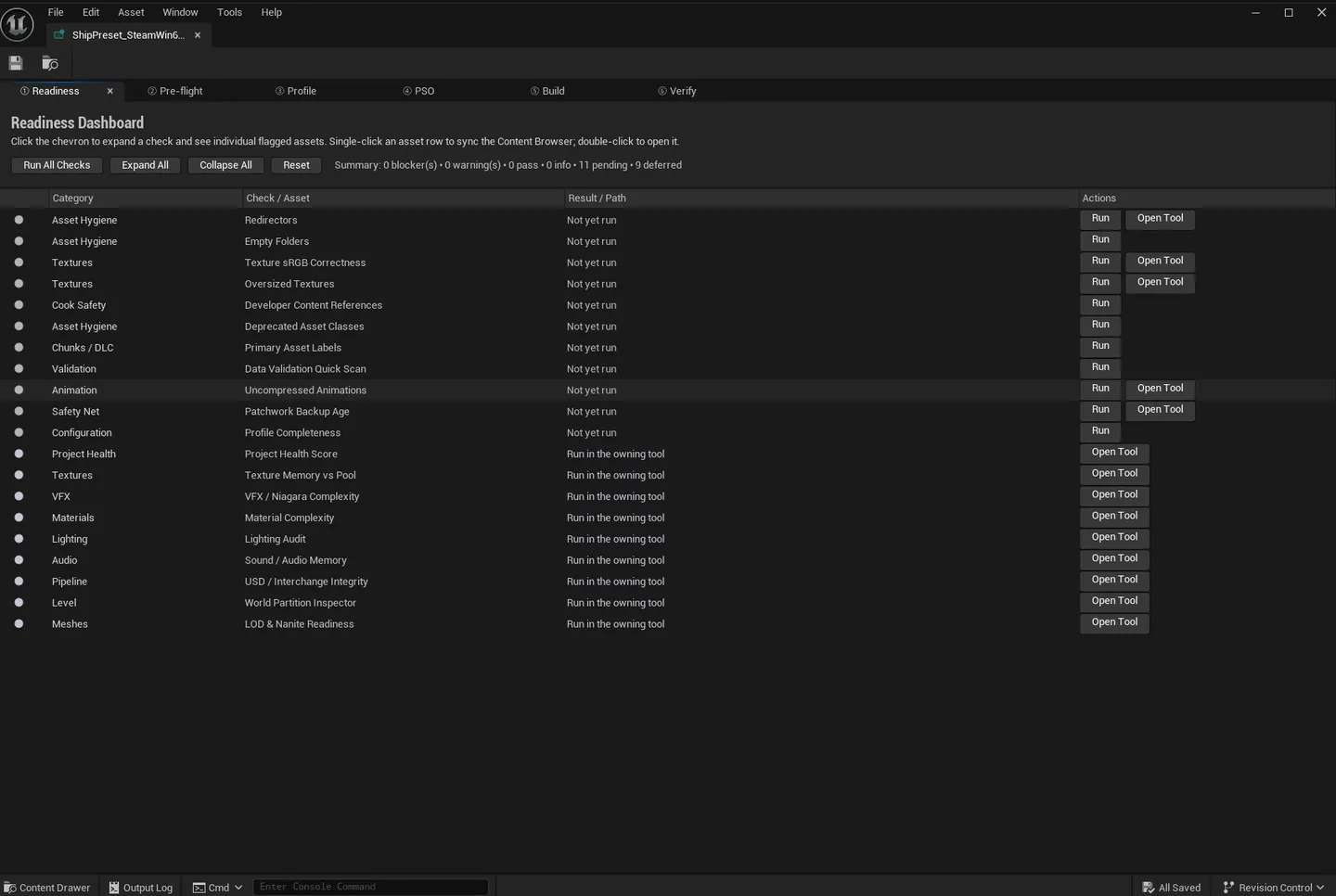
Tab 1: Readiness
Section titled “Tab 1: Readiness”Project-wide health check using the same audit engine as Project Health Dashboard, focused on shippability.
Tab 2: Preflight
Section titled “Tab 2: Preflight”Validates project + profile against shipping requirements:
- Build target sanity
- Engine version compatibility
- Required plugins enabled
- Cook settings consistency
- Platform-specific compliance (Android target SDK, iOS bundle ID, etc.)
Tab 3: Build (Profile)
Section titled “Tab 3: Build (Profile)”Configure the build:
- Platform (Win64, Linux, Android, iOS, etc.)
- Configuration (Development, Test, Shipping)
- Cook flags (iostore, oodle, pak, etc.)
- Stage flags (archive, distribution build, etc.)
- Output directory
Tab 4: PSO Cache Wizard
Section titled “Tab 4: PSO Cache Wizard”Generate a Pipeline State Object cache for shipping titles. Critical for avoiding shader-compilation hitches at runtime.
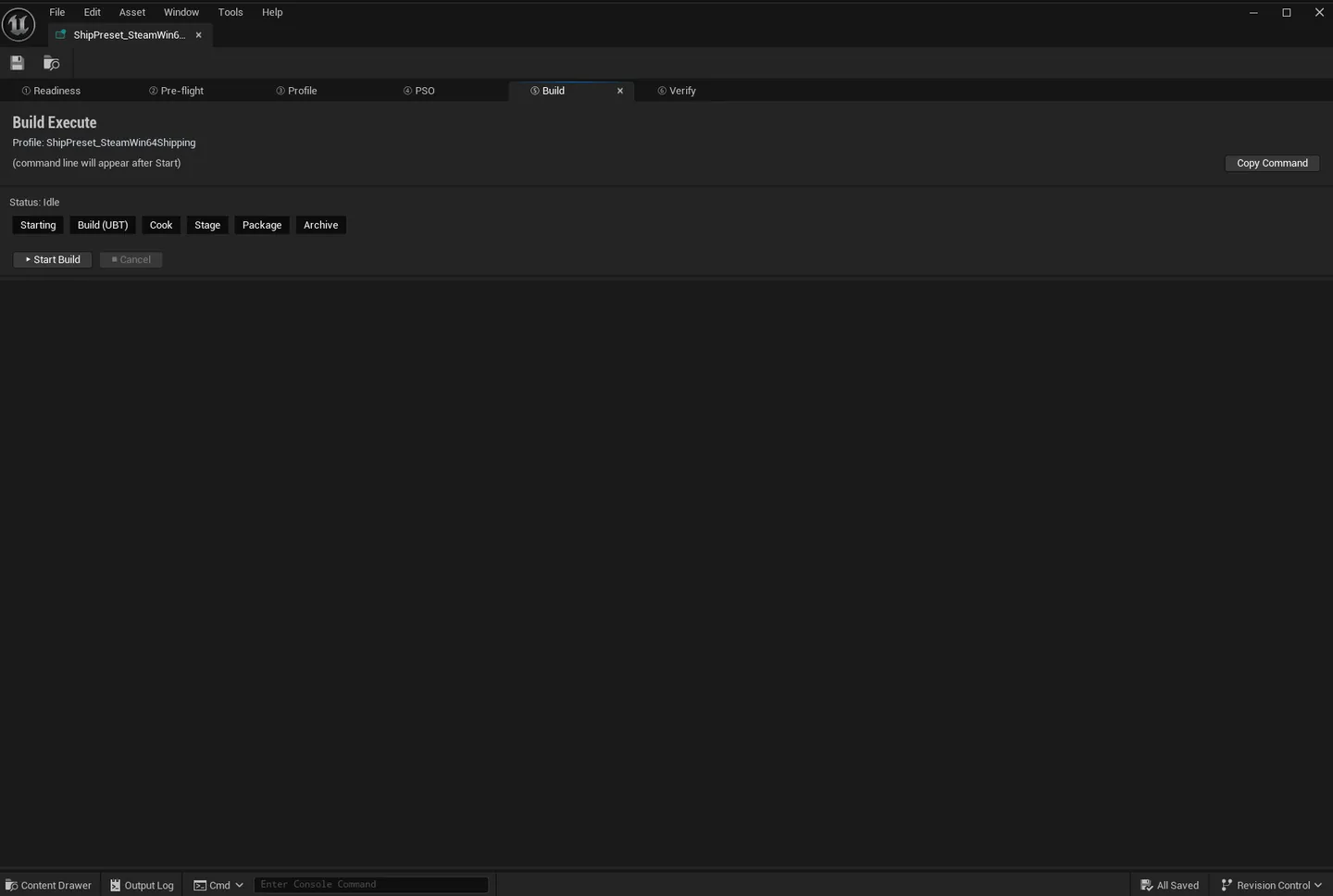
Tab 5: Build (Orchestration)
Section titled “Tab 5: Build (Orchestration)”Run UAT (Unreal Automation Tool) with the profile’s settings. Shows live log output, parses errors via the Failure Knowledge Base, exposes retry / cancel.
Tab 6: Verify
Section titled “Tab 6: Verify”Post-build verification:
- Confirms expected files exist
- Checks file sizes against expected ranges
- Validates platform-specific manifests
- Patchwork integration: diff vs known-good baseline
Workflow
Section titled “Workflow”First-time setup
Section titled “First-time setup”- Hub → Create New → save profile.
- In editor: Readiness → Preflight (fix issues) → Build Profile (configure).
- Save the profile.
Running a build
Section titled “Running a build”- Open the saved profile.
- Skim Readiness + Preflight (fix any new issues).
- Switch to Build tab → click Start Build.
- Watch live log; if errors, the Failure Knowledge Base parses common ones with suggested fixes.
- After build completes, switch to Verify tab to confirm.
CI/CD integration
Section titled “CI/CD integration”The Ship Lab profile asset can be referenced by a custom UAT script — the profile’s settings drive the build deterministically.
Bundled presets
Section titled “Bundled presets”Ship Lab ships preset profiles at /EQLabs/ShipLab/Presets/ covering:
- Win64 Shipping
- Win64 Development
- Linux Shipping
- Android Quest Shipping
- (More per project / engine version)
Click Open Presets Folder in the Hub launcher to browse them. They’re materialized to the Content Browser on first editor launch.
Settings reference
Section titled “Settings reference”Profile state is stored inside the UShipLabProfile asset. Hub launcher has no persisted settings.
Output
Section titled “Output”UShipLabProfileasset. Created via Create New.- Packaged build. Output of UAT, written to the profile’s configured output directory.
- PSO cache. Generated by the PSO Wizard tab.
- Verification report. Verify tab output.
Tips and gotchas
Section titled “Tips and gotchas”- Ship Lab is a custom asset editor (Pattern B). Hub launcher is just an entry point; the real UI lives in
FShipLabEditorToolkit. - Patchwork integration. Verify tab can diff the cooked output against a known-good baseline (Phase B feature).
- The bundled presets are starting points. Every project needs platform-specific tuning; clone a preset before editing.
- UAT is the actual builder. Ship Lab orchestrates UAT calls; build issues are fundamentally UAT issues, often platform-specific.
- PSO cache is shipping-critical. Without it, shipping builds hitch on first-time shader compiles in hot scenes.
Related tools
Section titled “Related tools”- Project Health Dashboard — pre-shipping health overview
- Project Doctor — broader pre-shipping audit (especially Android Compliance Wizard)
- Quest Readiness Scanner — XR-specific shipping audit
- Patchwork — Verify tab uses Patchwork-style diff for baseline comparison
Opens our feedback form in a new tab with the tool name pre-filled.