
Painting Lab (standalone)
Fab product: EQLabs Painting Lab · Version: 2.1.0 · Engine: UE 5.4 – 5.8 Modules: 1 (Editor, Win64) · Runtime footprint: none
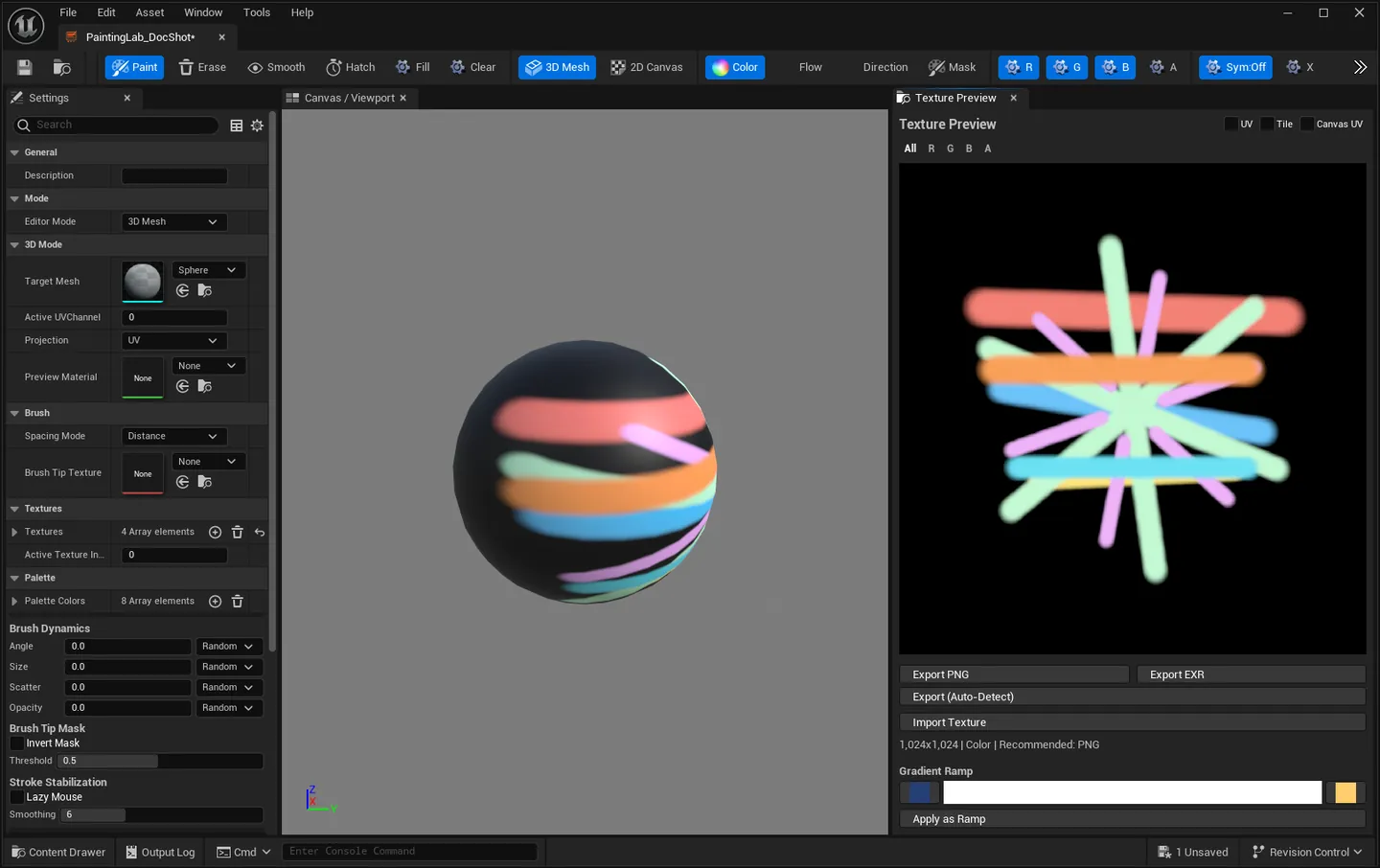
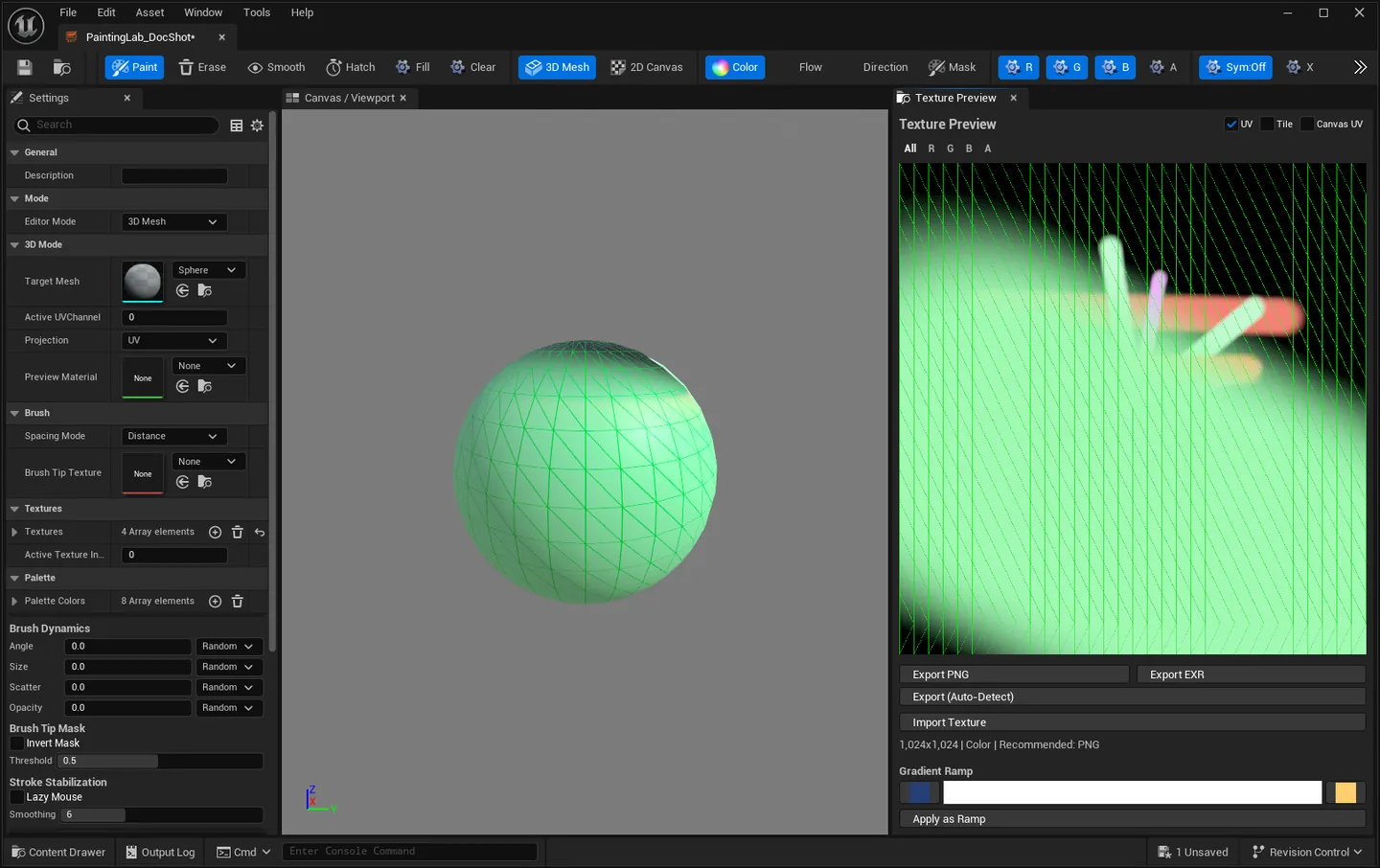
Painting Lab is an in-engine texture painter that ships as its own plugin. Paint directly on a
static mesh through its UV layout or a triplanar projection, or switch to a flat 2D canvas for
sprites and masks. Five paint modes cover the texture types a real material needs — Color, Flow,
Direction, Mask and Normal — and everything you paint lives inside a single .uasset that holds
the whole texture set, so a session survives closing the editor.
Export writes two things at once: a UTexture2D next to the asset for immediate use in a
material, and a PNG or EXR file on disk for whatever comes next in your pipeline.
When to use it
Section titled “When to use it”- Authoring flowmaps for water, lava, cloth or hair: Flow mode encodes the stroke’s own direction into the RG channels, so you draw the flow rather than computing it.
- Painting channel-packed masks (rust, wetness, damage, edge wear) with the channels named, so the person wiring the material six weeks later knows what green means.
- Hand-painted VFX sprites and alpha shapes on the 2D canvas, with a tiling preview to check seam continuity before export.
- Anisotropic direction maps for brushed metal or hair, painted as a comb rather than generated.
- Quick fix-ups on an imported texture: load an existing
UTexture2Dinto the buffer, paint corrections on top, export.
What it isn’t for
Section titled “What it isn’t for”- Not a Substance Painter replacement. There is no non-destructive layer stack: paint is composited into the pixel buffer as you go. It is a painter, not a layered material authoring suite.
- Not for landscape weight maps. Unreal’s own Landscape painting solves a different problem; Painting Lab targets per-asset textures.
- Triplanar is a rescue, not a workflow. On a mesh with no usable UVs the triplanar projection lets you paint anyway, but the result is world-space projected — it will not transfer to another tool that expects a UV layout.
- Windows editor only. The module declares
PlatformAllowList: ["Win64"], so the tool does not appear on a macOS or Linux editor.
Installing and opening it
Section titled “Installing and opening it”The plugin is delivered as source and builds with your project. After enabling it, there are four ways in — all of them reach the same editor:
| Route | Where |
|---|---|
| Tools menu | Tools → Painting Lab opens the launcher |
| Level editor toolbar | The Painting Lab button opens the launcher |
| Content Browser | Right-click → Painting Lab → creates a new asset |
| Double-click | Any existing Painting Lab asset opens straight into the editor |
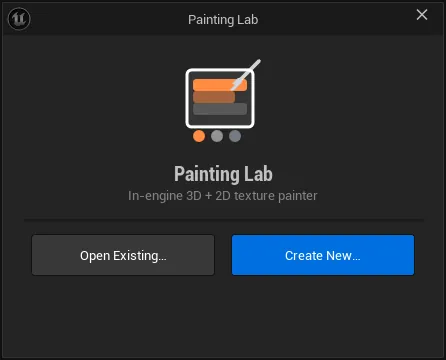
The launcher is a small window with two choices — Create New… puts a fresh asset in a folder you pick, Open Existing… browses the assets you already have.
The workspace
Section titled “The workspace”Three dockable tabs:
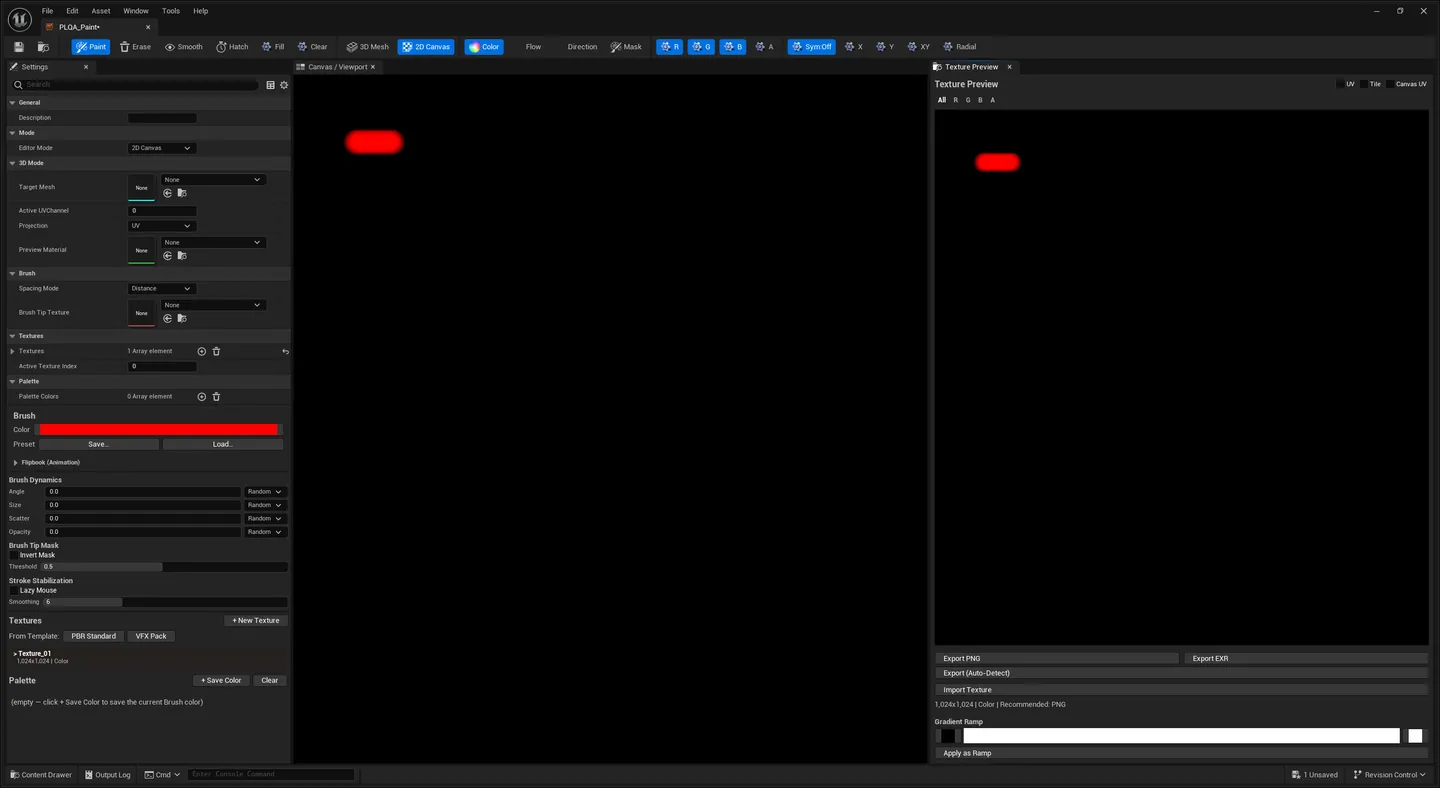
Settings (left)
Section titled “Settings (left)”A details panel bound to the asset itself. This is where the structural choices live — the things that describe the asset rather than the current brush:
| Field | What it does |
|---|---|
| Mode | 3D Mesh or 2D Canvas |
| Target Mesh | The static mesh painted in 3D mode |
| Active UV Channel | Which UV set (0–7) to paint and preview into |
| Projection | UV (paints in the mesh’s UV layout — needs clean, non-overlapping UVs) or Triplanar (projects from world space along X/Y/Z) |
| Preview Material | Optional master material for the live 3D preview |
| Brush Tip Texture | Optional grayscale stamp used as the brush shape |
| Textures | The texture set: name, resolution, paint mode and four channel labels each |
| Palette | Saved colour swatches for this asset |
Canvas / Viewport (centre)
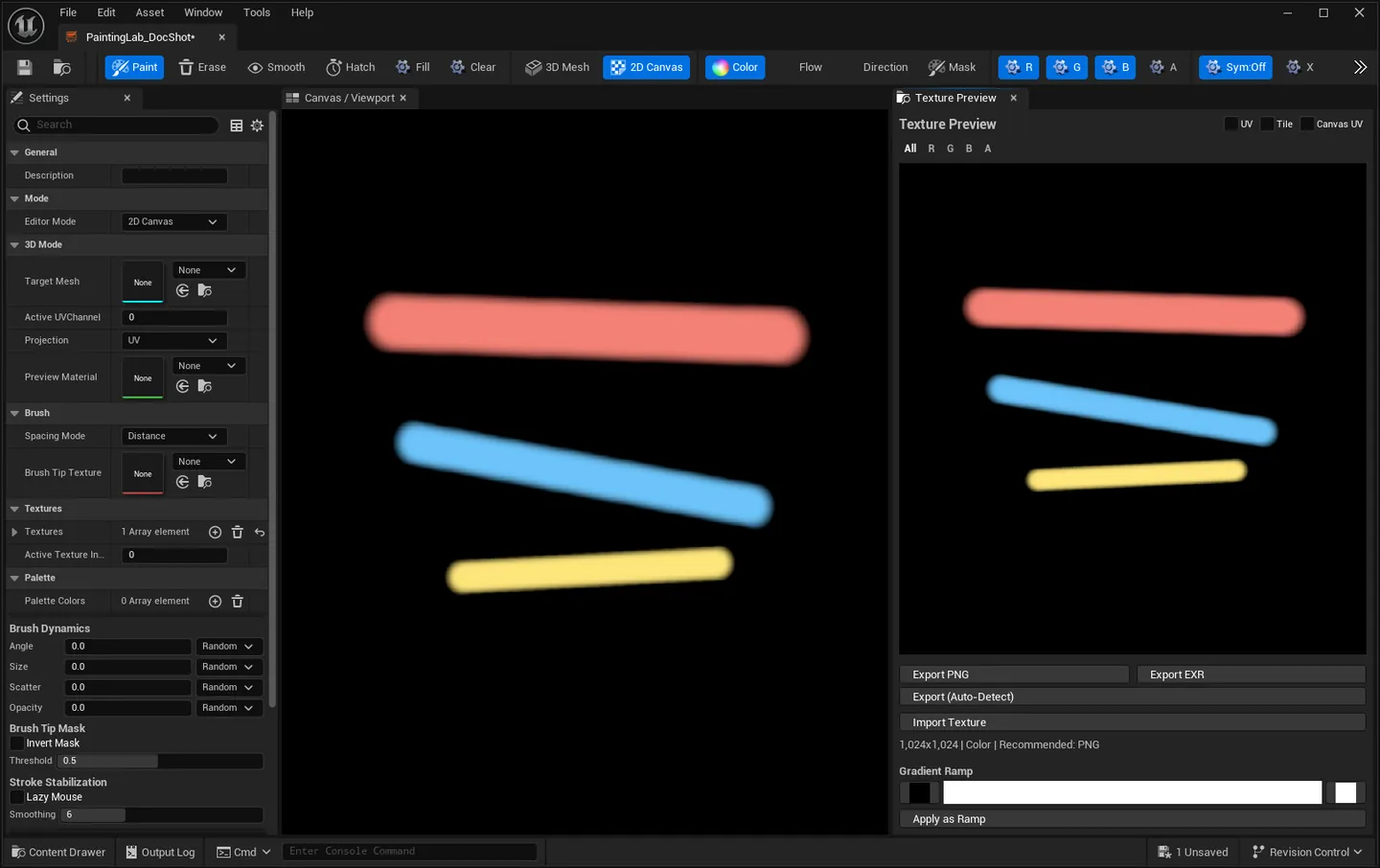
Section titled “Canvas / Viewport (centre)”In 3D Mesh mode this is a preview viewport with the assigned mesh. In 2D Canvas mode it is a flat pannable, zoomable canvas.
Texture Preview (right)
Section titled “Texture Preview (right)”The active texture as a flat image, plus the controls that change how you see it rather than what you paint: a channel filter (All / R / G / B / A), a UV wireframe overlay, a Tile toggle that wraps the canvas 3×3 to check seams, the Gradient Ramp authoring strip, Import Texture, and the three export buttons.
Painting
Section titled “Painting”Input map
Section titled “Input map”| Gesture | 3D viewport | 2D canvas |
|---|---|---|
| LMB drag | Paint | Paint |
| Shift + LMB | Line stroke — press at the start, release at the end, the dabs commit as one straight run | — |
| Ctrl + LMB | Eyedropper — picks the painted colour under the cursor into the brush | Eyedropper |
| Alt + LMB | Orbit the camera | — |
| RMB drag | — | Pan |
| Scroll | — | Zoom |
| Shift + Scroll | — | Brush size |
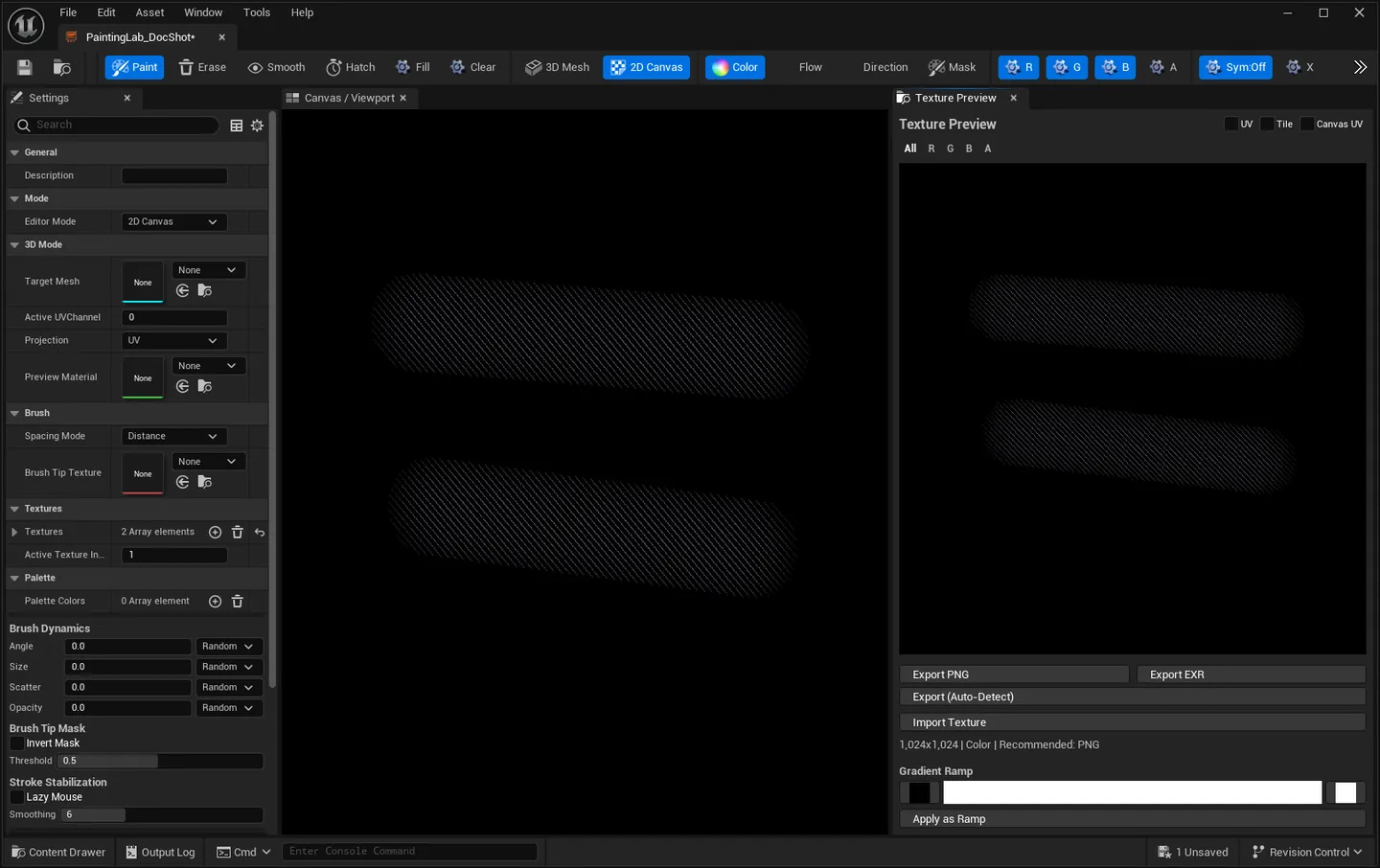
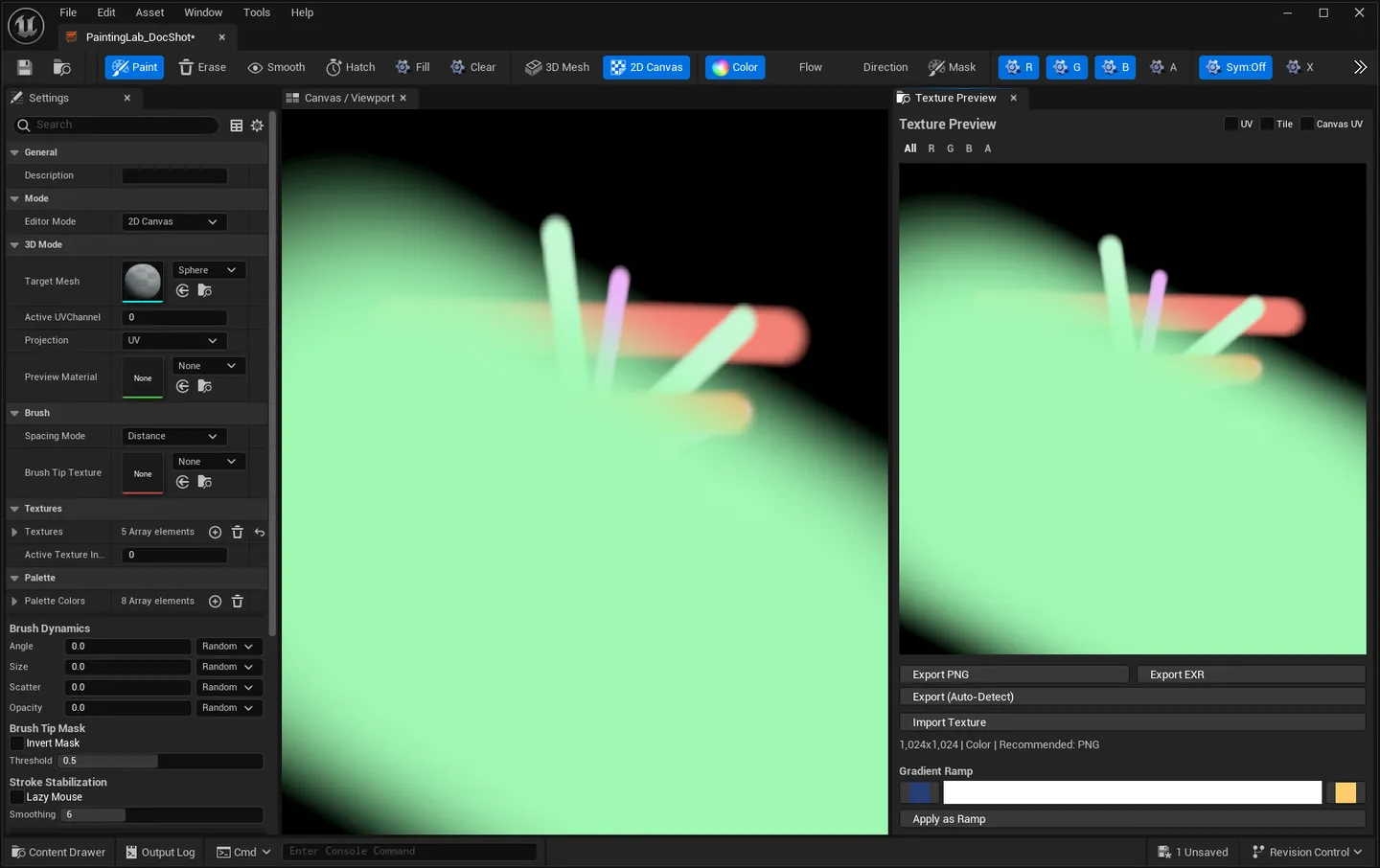
Paint, Erase (to black in every mode), Smooth (averages the pixels under the brush), Hatch (parallel ink lines — overlap strokes at different angles to cross-hatch), Fill (fills the active channels with the current colour, respecting the R/G/B/A toggles) and Clear (resets the texture to its neutral unpainted value for its mode).
Paint modes
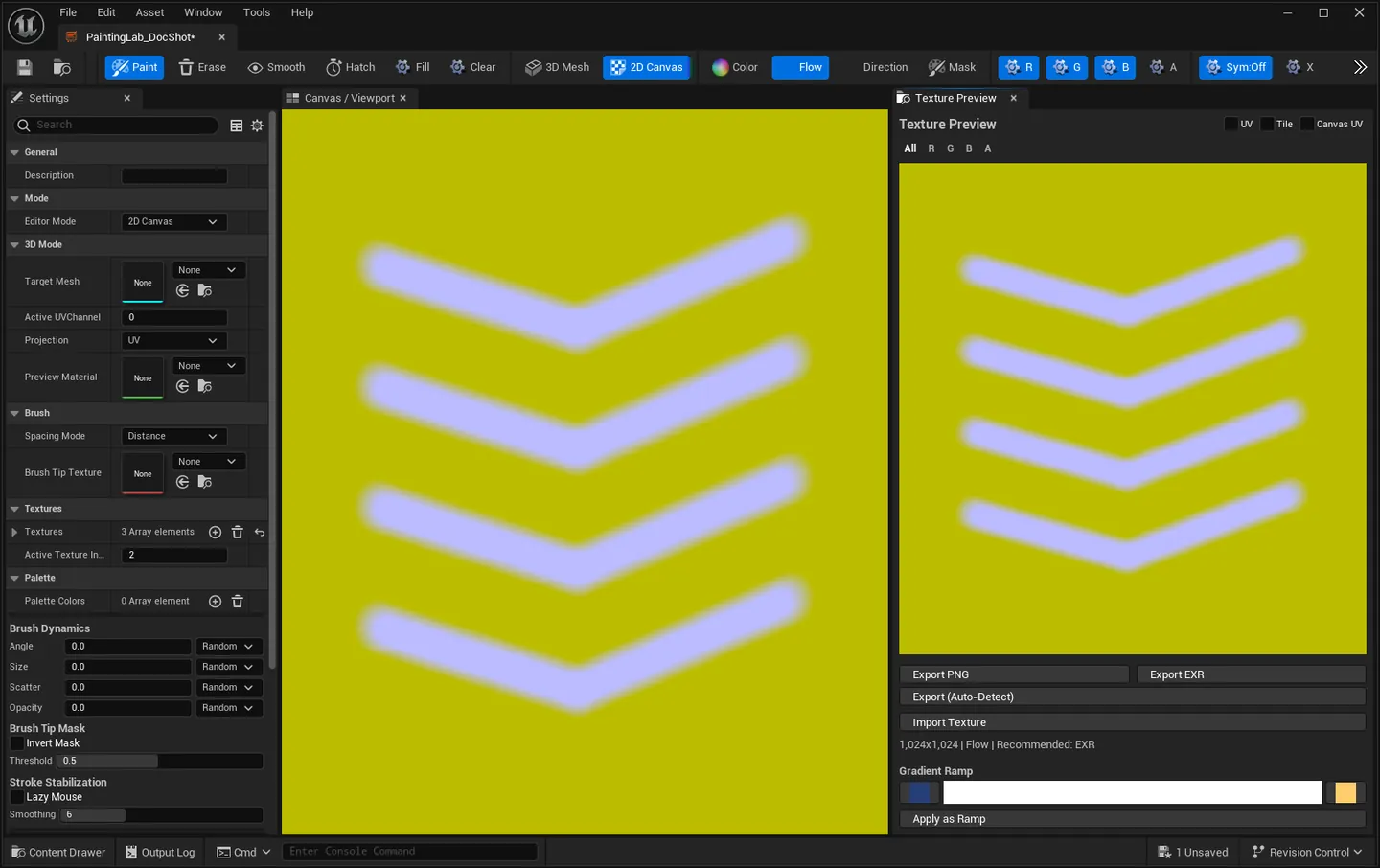
Section titled “Paint modes”The toolbar exposes four modes directly — Color, Flow, Direction and Mask. A fifth,
Normal, is set per-texture in the Settings panel’s Paint Mode field, and is what the PBR
Standard template assigns to its Normal slot.
| Mode | What a stroke writes | Neutral (unpainted) value |
|---|---|---|
| Color | RGBA directly | Black |
| Flow | The stroke’s direction as a 2D vector in RG, intensity in B | (0.5, 0.5, 0, 1) — zero direction |
| Direction | The stroke direction as a normalised tangent in RG, a painted flag in B | (0.5, 0.5, 0, 1) |
| Mask | Per-channel grayscale, with your own channel labels | (0, 0, 0, 0) |
| Normal | A tangent-space normal pointing outward from the brush centre — an embossed bevel that follows the stroke | (0.5, 0.5, 1, 1) — flat |
Those neutral values are not cosmetic: they are the single source of truth shared by texture creation, the Clear action, and the exporter’s seam-dilation gutter detection, so an unpainted region means the same thing everywhere.
Symmetry
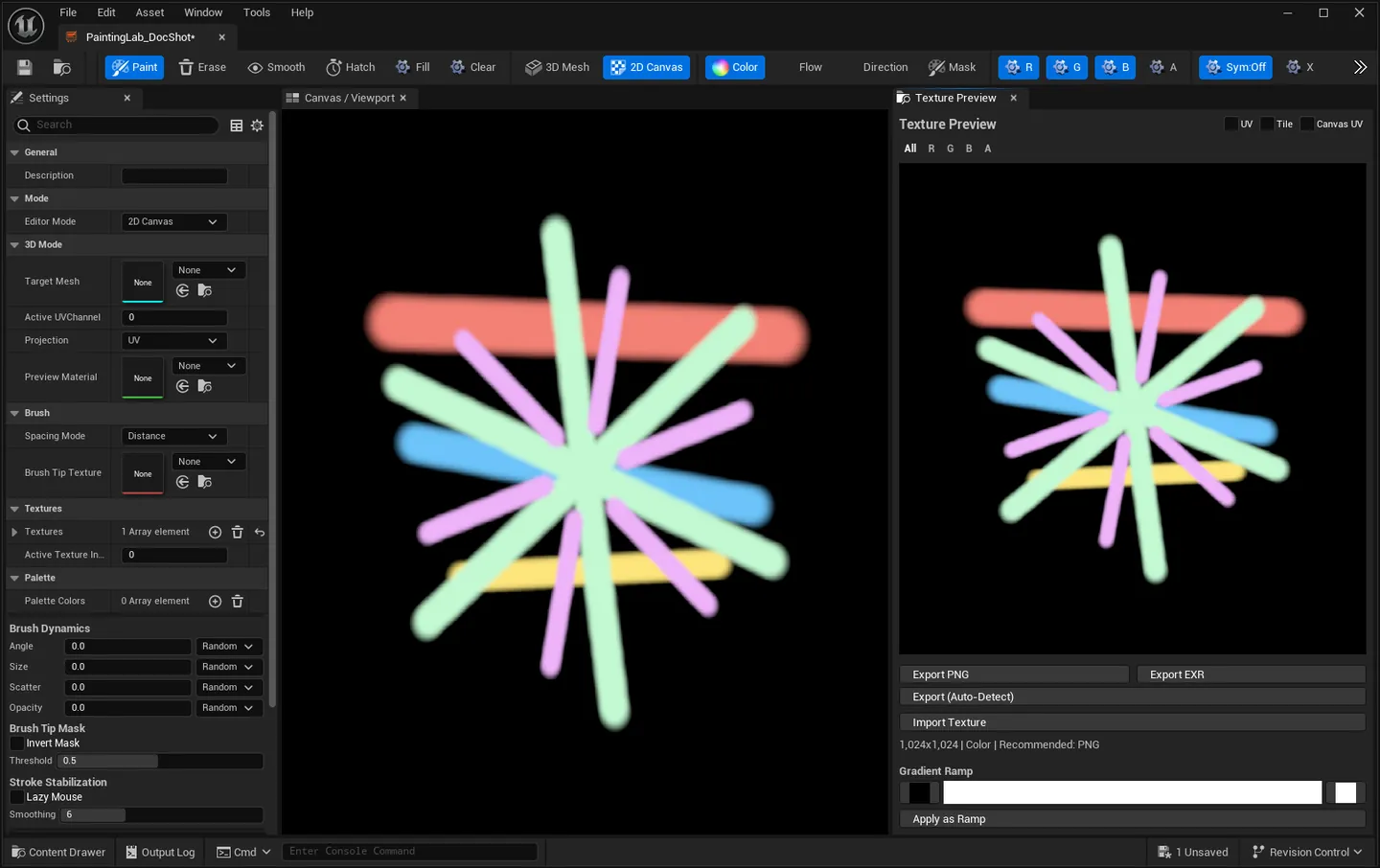
Section titled “Symmetry”Off, X (mirror left-right), Y (mirror top-bottom), XY (both axes, 4-way) and Radial with a configurable segment count.
Brush dynamics
Section titled “Brush dynamics”Four jitter channels — Angle, Size, Scatter and Opacity — each with an amount and a control source that decides what drives it:
| Control | Drives the jitter from |
|---|---|
| Off | Nothing — the parameter stays fixed |
| Random | A fresh random value per stamp |
| Stroke Direction | The direction the stroke is currently travelling |
| Fade | How far into the stroke this stamp is |
Spacing between stamps is either Distance (Photoshop-style, independent of how fast you move) or Time.
Brush tip mask
Section titled “Brush tip mask”Assign a grayscale texture as the stamp shape. Brightness controls how strongly each pixel paints; Invert Mask flips it and Threshold sets the cutoff.
v2.0.2 fixes an editor crash here. Assigning a brush tip could crash the editor while the texture was still being built asynchronously. Brush tips are safe to use in 2.0.2 — if you are on 2.0.1, update.
Stroke stabilisation
Section titled “Stroke stabilisation”Lazy Mouse runs cursor positions through a rolling average before the raycast and the dab, so a shaky hand produces a clean curve. Smoothing is how many recent positions are averaged — default 6, and 4–10 is the useful range. Larger is silkier but the brush lags further behind the cursor.
The texture set
Section titled “The texture set”An asset holds any number of textures, each with its own resolution (256–4096), paint mode and four channel labels. Switching the active texture is one click in the Textures panel.
Two starter templates replace the whole set in one go:
- PBR Standard. BaseColor (Color), Normal (Normal), Roughness (Mask), Metallic (Mask),. AO (Mask), all 1024×1024.
- VFX Pack. Mask4Pack (Mask), FlowMap (Flow), Direction (Direction).
Both wipe the existing textures and their painted pixels, and both ask for confirmation first if there is anything to lose.
Named mask channels
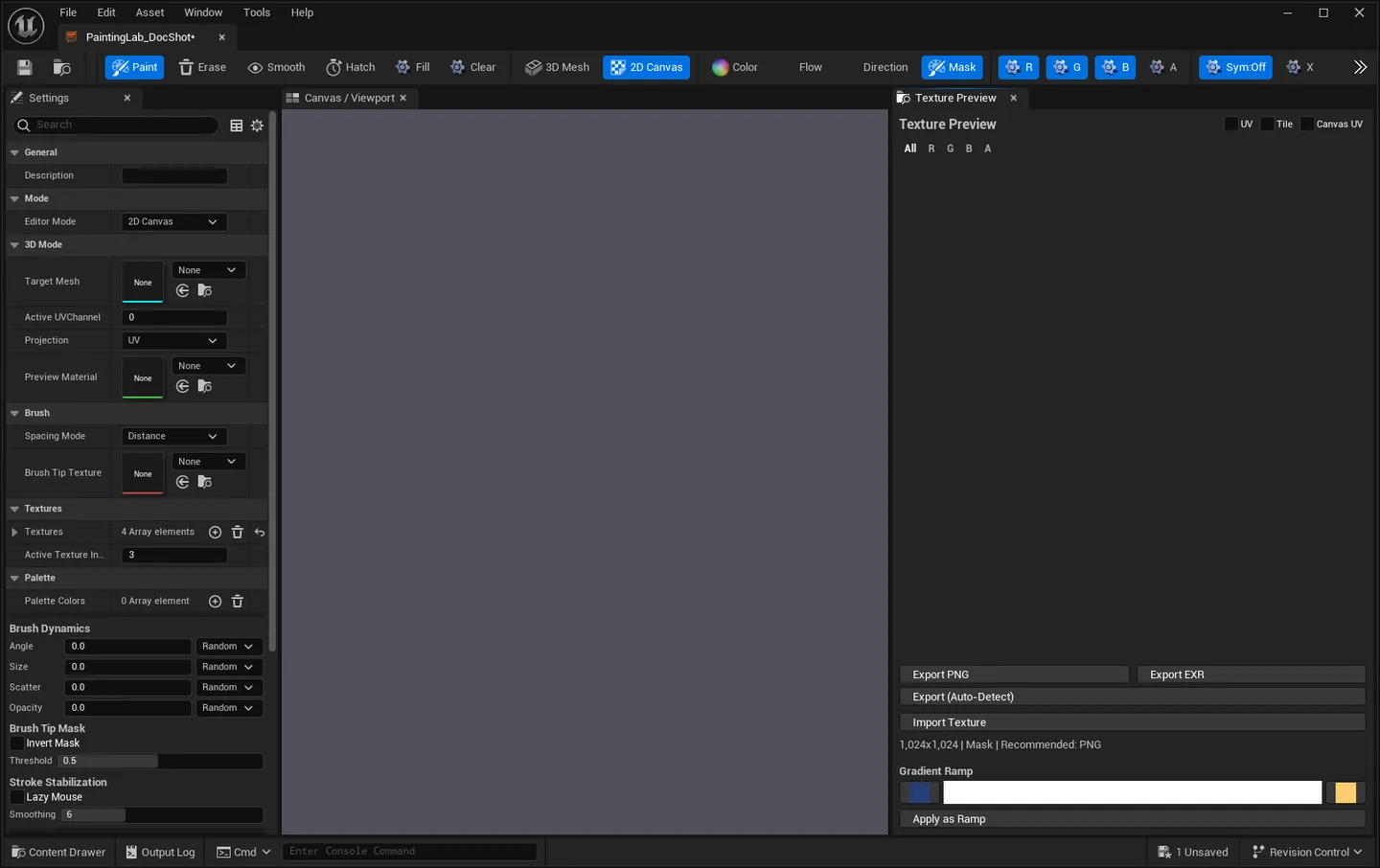
Section titled “Named mask channels”In Mask mode the four channels carry your labels, not R/G/B/A. Naming them Rust, Wetness,
Damage, EdgeWear at authoring time is the difference between a mask someone can wire up and one
they have to reverse-engineer.
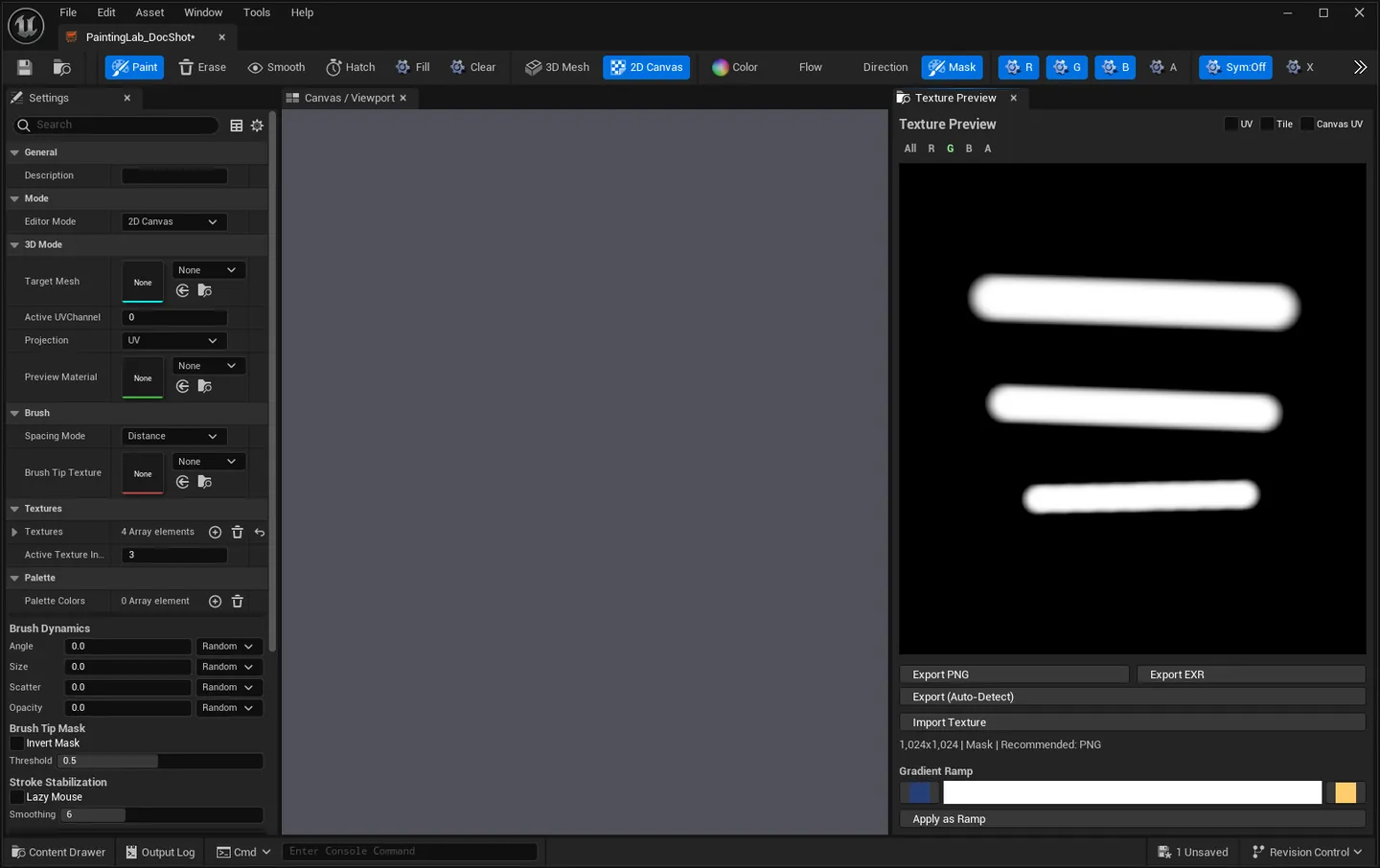
The preview’s channel filter isolates one channel at a time, which is the only practical way to check a channel-packed texture.
Palette
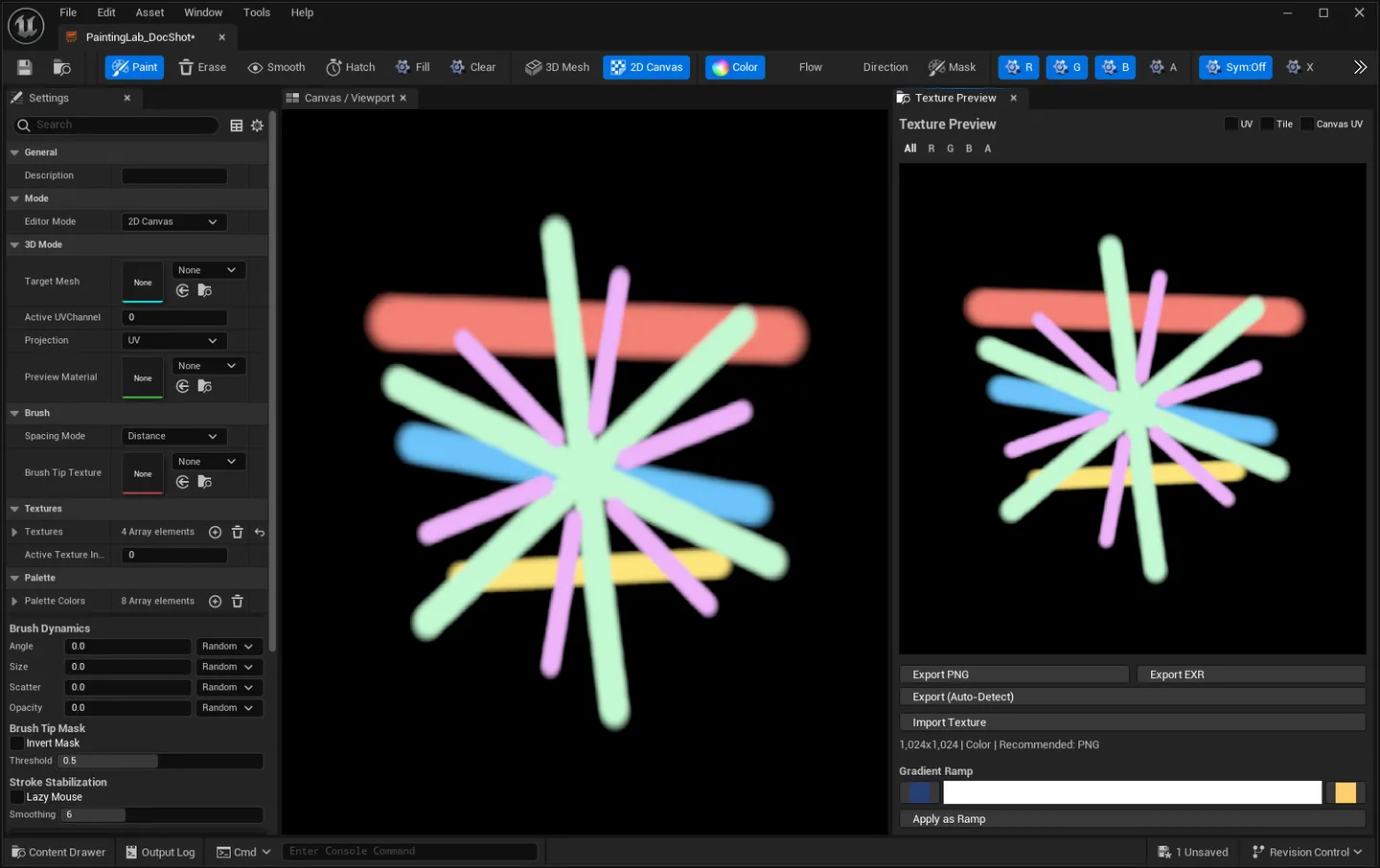
Section titled “Palette”Save the current brush colour to a per-asset palette (up to 24 swatches). Click a swatch to make it the brush colour; Shift+click removes it. The palette is stored in the asset, so a project’s colour scheme travels with the file.
Gradient ramp
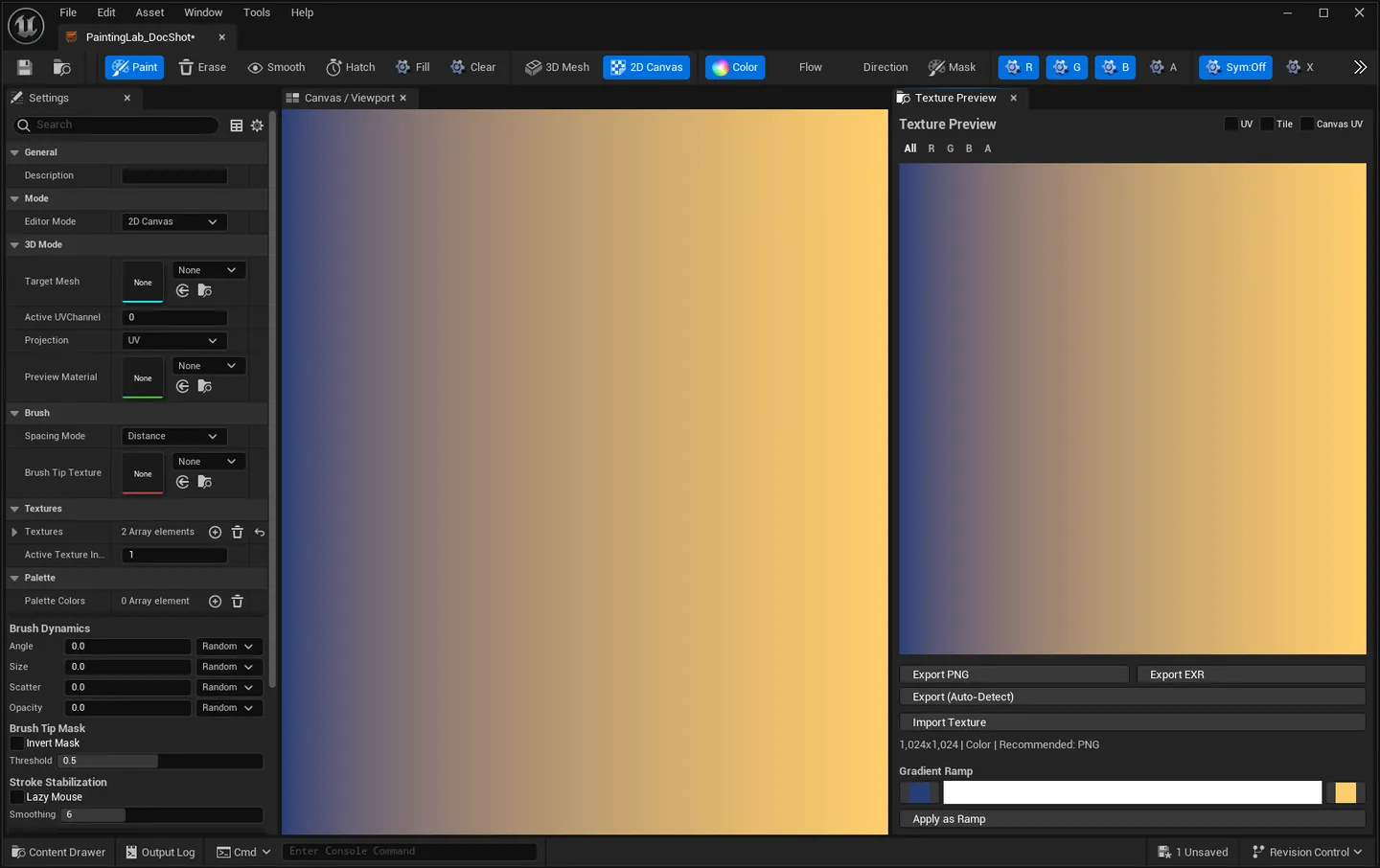
Section titled “Gradient ramp”Pick a left and a right colour and Apply as Ramp fills the active texture with a horizontal gradient — a fast way to start a ramp texture or a lookup strip.
Live 3D preview
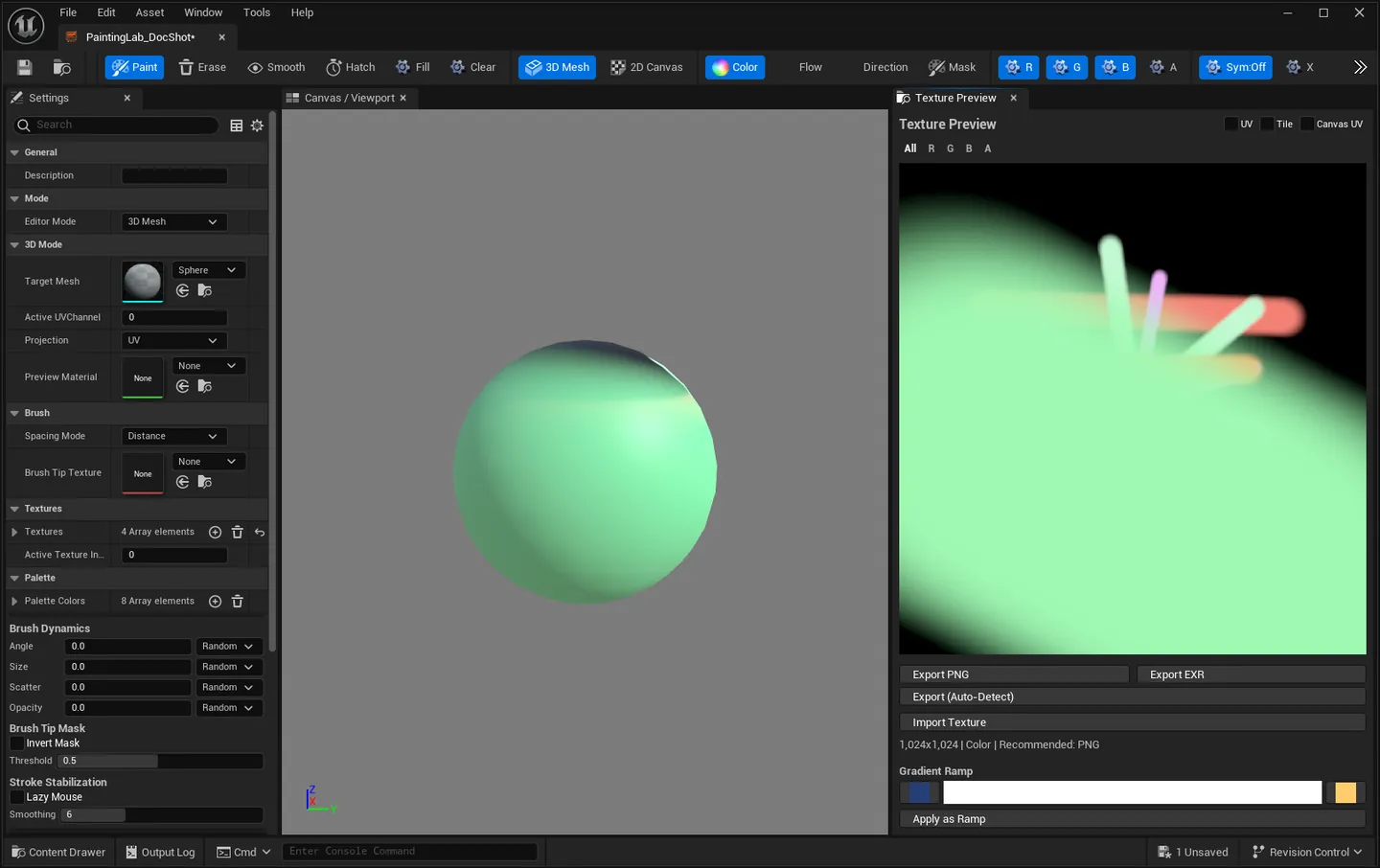
Section titled “Live 3D preview”In 3D mode the painted result appears on the mesh as you paint. Without a Preview Material the tool uses its own built-in preview.
Assign your own master material and the viewport binds every painted texture to a parameter named
after that texture. Name a texture BaseColor and it lands in the BaseColor texture parameter;
name one Roughness and it lands in Roughness. Parameters that do not exist on the master are
skipped silently, so a partial match is fine — you see what the material can show and nothing
errors.
Export
Section titled “Export”Three buttons: Export PNG, Export EXR, and Export (Auto-Detect) which picks PNG for Color and Mask, EXR for Flow and Direction.
Each export produces both:
- A
UTexture2Dasset in the same Content Browser folder as the Painting Lab asset. The Content Browser jumps to it when the export finishes. - An image file on disk under
<Project>/Saved/PaintingLab/— 8-bit PNG or 32-bit float EXR. The success toast carries a Show file link that opens the folder.
Colour data is sRGB-encoded for PNG; Mask, Flow, Direction and Normal stay linear.
Seam dilation is automatic
Section titled “Seam dilation is automatic”Every export runs four passes of alpha-aware seam dilation before writing. Painted colour bleeds outward across UV island borders into the unpainted gutter, so the black halos that normally appear at island edges once MIPs are generated do not happen. The dilation works on a copy — your authoritative pixel buffer is untouched and you can keep painting.
What the asset stores
Section titled “What the asset stores”UPaintingLabAsset serialises through a custom Serialize() with a magic number and a version tag
(V1_Initial → V2_MultiTexture → V3_UDIMReady). The format is append-only: older assets load
into newer versions and missing fields take their defaults.
It holds the full texture list with every pixel buffer, the palette, the mesh and preview-material references, the UV channel, the projection mode and the brush-tip reference. Reopen an asset months later and every texture, every channel label and every swatch is where you left it.
Honest caveats
Section titled “Honest caveats”- No layer stack. Strokes composite straight into the buffer. Undo/redo is a per-stroke snapshot stack inside the editor, not a non-destructive history you can reorder — and it is 20 steps deep, dropping to 5 on a 4096×4096 texture, because each level holds a full copy of the pixel buffer.
- UDIM is scaffolding, not a feature. The texture entry carries
UDIMTileandbIsUDIMTilefields, and the asset format version is namedV3_UDIMReady, but multi-tile painting and tile navigation are not implemented. Leave the defaults alone. - Maximum resolution is 4096×4096 per texture. For larger targets, tile across several textures in the same asset.
- Overlapping UVs paint twice. With symmetry off, a mesh with mirrored UVs still paints both regions, because both map to the same texels. Use a non-overlapping UV channel.
- Smooth is a box blur. Recovering fine detail after a large smooth pass is not possible — use small brushes and several passes.
- Triplanar output is world-space. It is not portable to a UV-based tool.
- One package per engine version. Fab ships a separate build of the plugin for each of UE 5.4, 5.5, 5.6, 5.7 and 5.8, so the descriptor matches your engine and there is no “load it anyway?” prompt. (Earlier releases shipped one 5.4-pinned source zip, which did raise that prompt on 5.5+.)
Known issue in 2.0.2: changing Target Mesh stops the live preview
Section titled “Known issue in 2.0.2: changing Target Mesh stops the live preview”Fixed in 2.1.0. The live preview now survives a second Target Mesh assignment; the editor QA pass checks it on every engine. The note below describes 2.0.2 and earlier.
Reassigning Target Mesh after the first assignment leaves the mesh rendering with its own material instead of the live paint preview. Painting still works and the texture is still updated correctly — the strokes land, the Texture Preview panel shows them, and export is unaffected — but you stop seeing them on the mesh.
Workaround: close and reopen the Painting Lab asset after changing Target Mesh.
Found on 2026-08-29 by the documentation screenshot rig, and fixed on the development branch for the next release. The EQLabs Pro edition carried the identical defect and has also been fixed.
Painting Lab in EQLabs Pro
Section titled “Painting Lab in EQLabs Pro”Painting Lab also ships inside EQLabs Pro, where it lives in the Art module and opens from the Hub instead of its own launcher. Everything documented above is present in both editions — since standalone 2.1.0 they are the same tool feature for feature.
| Feature | Standalone 2.1.0 | In EQLabs Pro |
|---|---|---|
| Five paint modes, brush dynamics, symmetry, hatching, lazy mouse, line stroke, eyedropper, palette, seam-dilated export | ✅ | ✅ |
| Flipbook Studio — frame timeline, onion skin, FPS preview, starter presets, PNG/EXR sequence export, sprite-sheet atlas + ready flipbook material | ✅ (2.1.0) | ✅ |
| Brush Presets — save and reload brush settings as a reusable asset, plus 20 starter brush tips | ✅ (2.1.0) | ✅ |
| Opens from | Its own launcher, Tools menu, toolbar | The EQLabs Hub |
If you already own EQLabs Pro you do not need the standalone. The standalone exists for people who want the painter without the other 120-odd tools.
See Painting Lab in EQLabs Pro for the Pro edition’s documentation.
Full walkthrough
Section titled “Full walkthrough”Opens our feedback form in a new tab with the tool name pre-filled.