
No. 0071 TE TechEQLabs Pro
Crash Triage Center
Module: Tech · Category: Debugging · Tool ID:
CrashTriageCenterTab
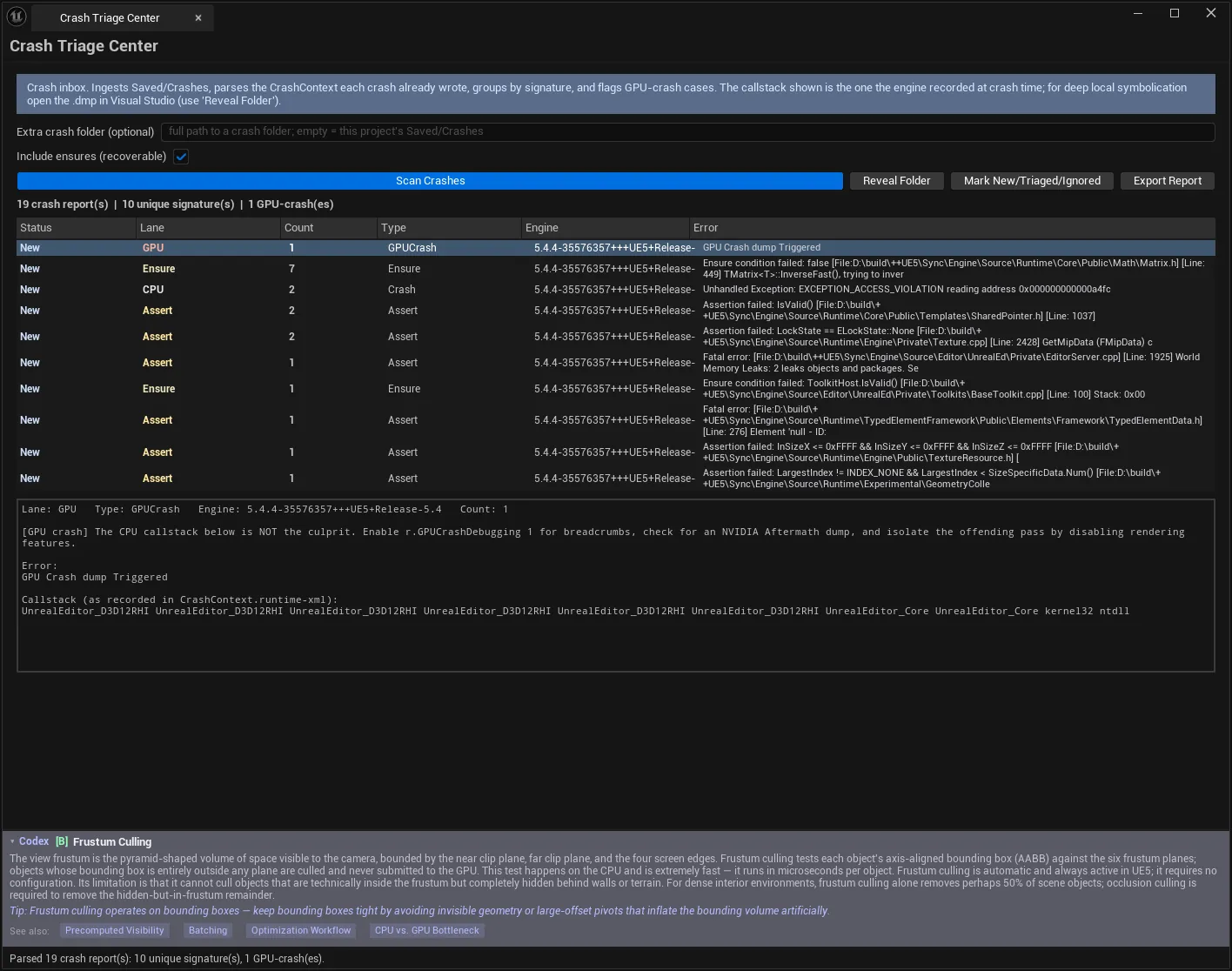
Unreal already writes a crash report every time it dies. This turns that pile of folders into an inbox: it parses each CrashContext.runtime-xml, groups crashes by signature, sorts them into lanes, flags the GPU cases, and remembers which signatures you have already triaged.
The lane classification is the part that saves the most time — because for a GPU crash, the CPU callstack is not the culprit, and hours get lost to people reading it as though it were.
When to use it
Section titled “When to use it”- Working through crashes after a QA session
- Triaging a folder of crash reports collected from players or testers
- Deciding which crash to attack first, by frequency and lane
- Keeping track of which signatures have already been looked at
What it isn’t for
Section titled “What it isn’t for”- Don’t expect minidump re-symbolication. It shows the callstack the engine recorded; deep
.dmpwork is a Visual Studio job — see below. - Don’t use it to catch crashes live. It ingests reports already written to disk.
Opening the tool
Section titled “Opening the tool”- Open the EQLabs Hub and search for crash (or browse to Tech → Debugging).
- Click the tool card.
- Click Scan Crashes.
| Control | Notes |
|---|---|
| Extra crash folder (optional) | Full path to another crash folder. Empty = this project’s Saved/Crashes |
| Include ensures (recoverable) | Ensures are non-fatal and fire once per session. Uncheck to show only hard crashes |
| Scan Crashes | Parse and group all reports |
The extra folder is how you triage someone else’s crashes — point it at a folder collected from QA or a player and it is scanned alongside your own.
Status line after a scan:
Parsed 84 crash report(s): 11 unique signature(s), 3 GPU-crash(es).Eighty-four crashes and eleven real problems is the normal ratio, and it is the reason grouping matters.
Crash lanes
Section titled “Crash lanes”| Lane | Meaning |
|---|---|
| GPU | GPUCrash / DEVICE_HUNG / DEVICE_REMOVED — the CPU callstack is NOT the culprit |
| Out Of Memory | OOM or a failed allocation |
| Assert | check() / assertion failed — an invariant was violated |
| Ensure | ensure() — recoverable, non-fatal |
The GPU lane exists to stop a specific mistake. When the GPU hangs or is removed, the CPU callstack shows wherever the game thread happened to be — usually something innocent like a present or a fence wait. Reading it as the cause sends you to the wrong code entirely. The lane label is the warning.
Results
Section titled “Results”| Column | Meaning |
|---|---|
| Status | New, Triaged, Ignored |
| Lane | The classification above |
| Count | How many reports share this signature |
| Type | Crash type |
| Engine | Engine version |
| Error | The recorded error string |
Selecting a row shows the callstack the engine recorded at crash time — the <CallStack> / <PCallStack> tags from the CrashContext.
Every field is a named CrashContext tag. Nothing is inferred.
Triage status
Section titled “Triage status”| Control | Effect |
|---|---|
| Mark New/Triaged/Ignored | Cycles the selected signature’s status — persisted |
This is the only thing the tool writes. It is read-only with respect to the crashes themselves; the status is stored in the panel’s own versioned settings.
Status persistence is what makes it an inbox rather than a report. Mark the known-and-accepted ones Ignored, and each new scan shows you what is genuinely new.
Deep symbolication
Section titled “Deep symbolication”| Control | Effect |
|---|---|
| Reveal Folder | Opens the selected crash’s folder — the .dmp lives there |
The tool does not re-symbolicate minidumps. Matching PDBs to a .dmp is a Visual Studio job, so it reveals the folder and lets you open the dump there.
This is a deliberate boundary: it keeps every displayed field honest (each is a real CrashContext tag) and keeps the tool buildable without dbghelp linkage. What you get in-editor is triage — grouping, lanes, counts, status. What you get in Visual Studio is the symbolicated stack.
Workflow: after a QA session
Section titled “Workflow: after a QA session”- Point Extra crash folder at the QA crash folder.
- Uncheck Include ensures for a first pass — hard crashes only.
- Scan Crashes.
- Sort by Count — the most frequent signature is usually the highest-value fix.
- Check the Lane before reading any callstack:
- GPU → do not chase the CPU stack; look at recent rendering/material changes
- Assert → the callstack is meaningful; read it
- OOM → go to MemSnap
- Reveal Folder and open the
.dmpin Visual Studio when you need symbols. - Mark Triaged or Ignored as you go.
- Re-enable ensures for a second pass.
- Export Report.
Tips and gotchas
Section titled “Tips and gotchas”- Check the lane before reading the callstack. For GPU crashes the CPU stack is a red herring.
- Ensures fire once per session, so their counts mean something different from crash counts — a count of 1 does not mean it happened once in play.
- Grouping collapses many reports into few problems. Work signatures, not files.
- Triage status is the only thing written, and it persists across sessions — that is what makes re-scanning useful.
.dmpsymbolication needs matching PDBs for that exact build. Keep them.- A high-count signature with a trivial cause is the best find. Biggest reduction for least work.
Related tools
Section titled “Related tools”- LogLens — the log-file counterpart to this crash inbox
- MemSnap — investigate Out Of Memory lane crashes
- GC Pulse — UObject capacity pressure behind some OOMs
- Shader Diagnostics Suite — context for GPU-lane crashes
Opens our feedback form in a new tab with the tool name pre-filled.