
No. 0612 AR ArtEQLabs Pro
Substrate Migration Assistant
Module: Art · Category: Material Authoring · Tool ID:
SubstrateMigrationAssistant
Substrate conversion is one-way. Unreal will convert a material to Substrate but will not convert it back, and a large project’s material library is not something you want to discover that on. This tool puts three things in front of that irreversible step: an audit that classifies migration risk per material from its real graph, a backup that duplicates and saves originals with a ledger, and only then the conversion itself.
It is deliberately conservative. Where the engine or project cannot convert, it still audits and backs up.
When to use it
Section titled “When to use it”- Planning a Substrate migration and needing to know the true size of the job
- Identifying which materials will convert cleanly and which need hand authoring
- Converting a batch of materials with backups guaranteed before the one-way step
- Producing a migration report for a team or a technical director
What it isn’t for
Section titled “What it isn’t for”- Don’t use it as a bulk “convert everything” button. High-risk materials need a human; the audit exists to tell you which.
- Don’t rely on it to undo a conversion. Nothing undoes Substrate conversion — the backups are the recovery path, which is why they are saved to disk before conversion runs.
Requirements and modes
Section titled “Requirements and modes”The tool adapts to what your engine and project actually support, and says which mode it is in:
| Situation | Message | What you get |
|---|---|---|
| UE 5.6+, Substrate enabled | ”Substrate ENABLED for this project — full conversion available” | Audit, backup and conversion |
| Substrate disabled | ”Substrate is disabled for this project. Enable r.Substrate in Project Settings” | Audit + backup only |
| Engine older than 5.6 | ”This engine (< UE 5.6) has no public Substrate convert entrypoint” | Audit + backup only; convert by hand in the Material Editor |
The audit is useful in every mode — you can plan the migration on 5.4 and execute it later.
Opening the tool
Section titled “Opening the tool”- Open the EQLabs Hub and search for substrate (or browse to Art → Material Authoring).
- Click the tool card.
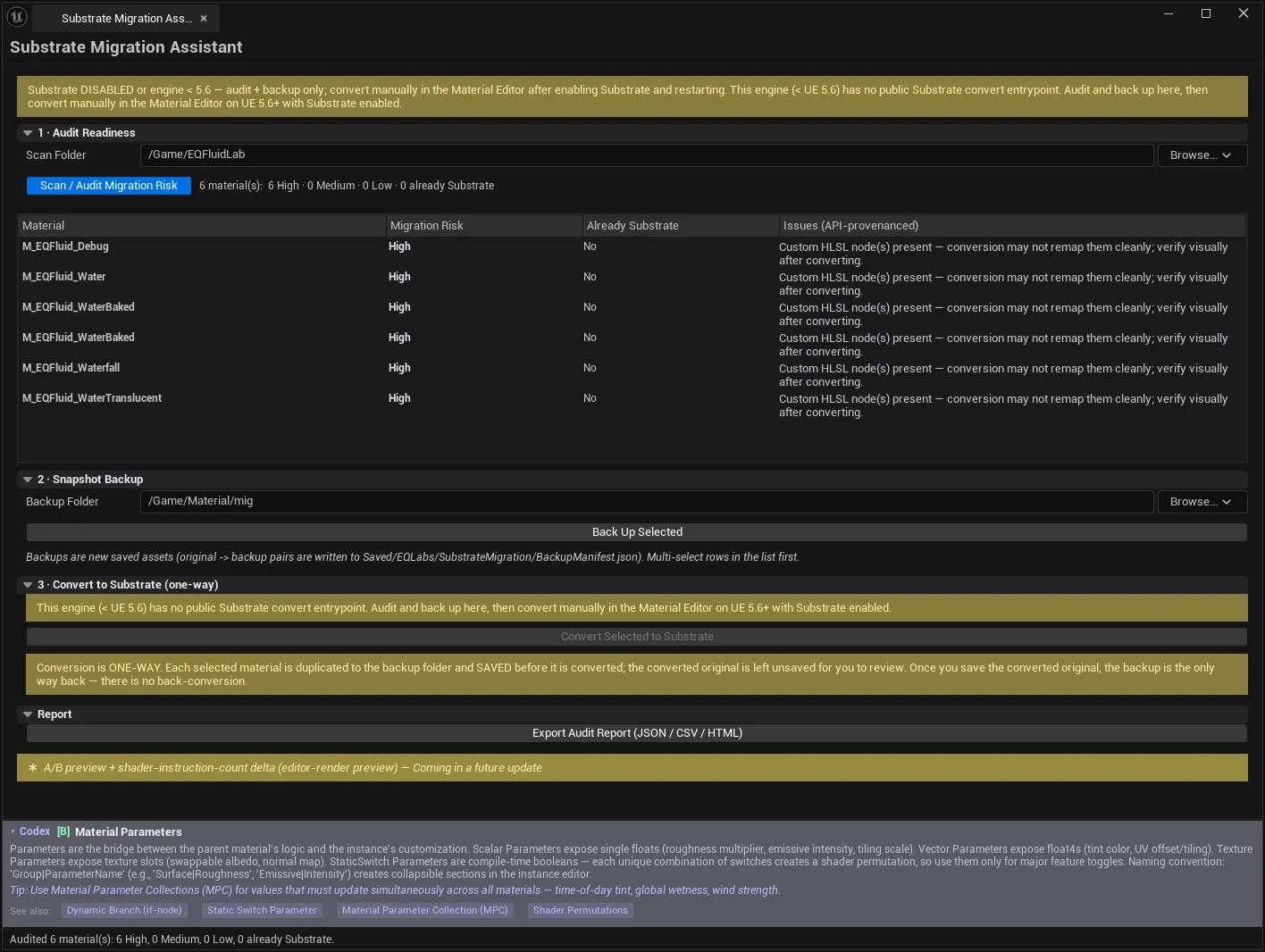
- Work the three numbered sections in order: Audit → Backup → Convert.
The numbering is not decorative. Conversion is gated on selection from the audit list, and backup runs automatically as part of conversion.
1 · Audit Readiness
Section titled “1 · Audit Readiness”| Control | Notes |
|---|---|
| Scan Folder | The /Game content folder to audit |
| Scan / Audit Migration Risk | Audits every material in the folder |
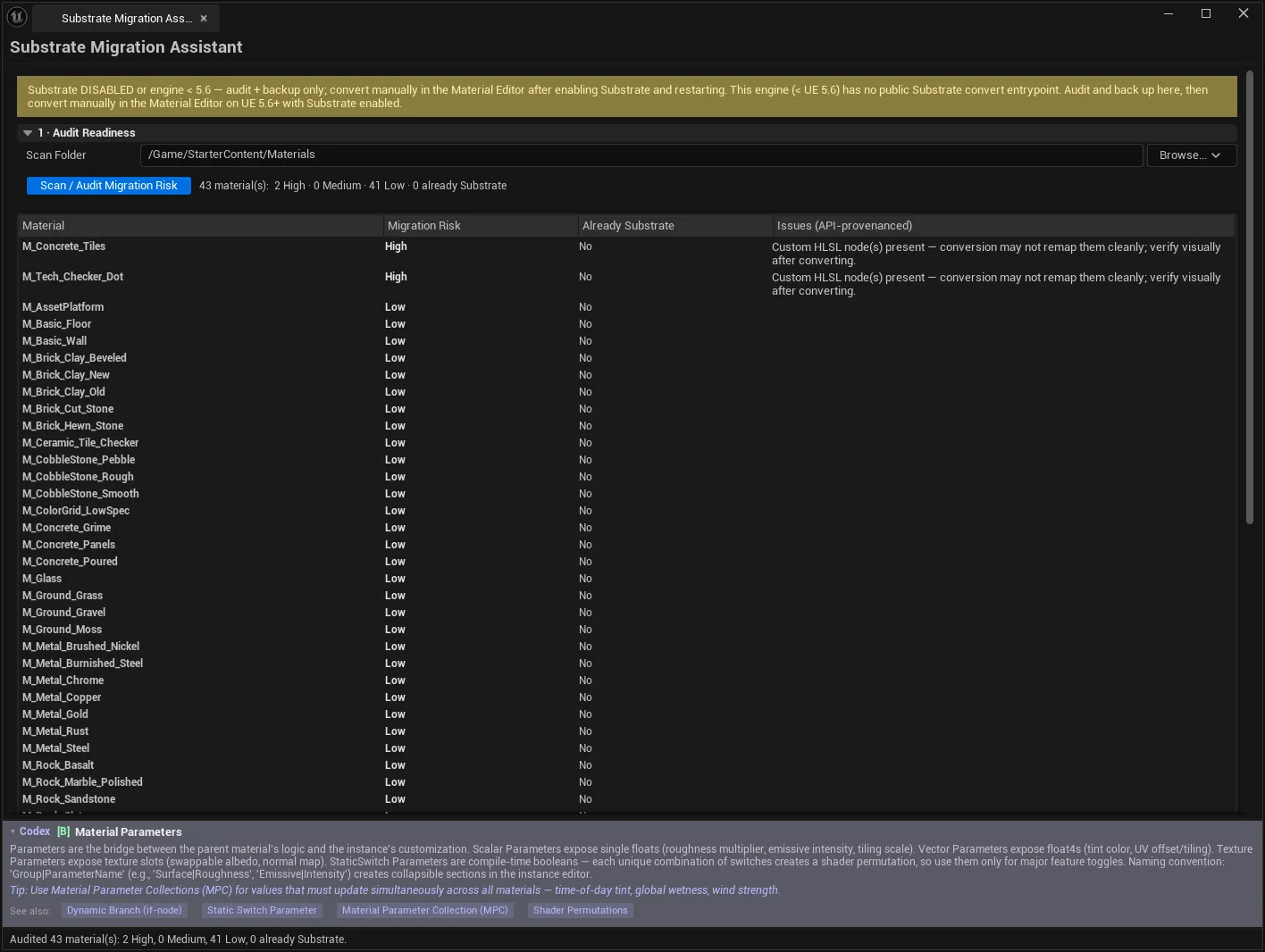
Scanning loads each material to inspect its real graph. That is why it is not instant on a large folder — and why the results are facts rather than guesses from naming or metadata.
Results
Section titled “Results”| Column | Meaning |
|---|---|
| Material | The material asset |
| Migration Risk | High, Medium, or Low |
| Already Substrate | Whether it is already converted |
| Issues (API-provenanced) | Why it was classified that way |
The summary line gives the shape of the job:
248 material(s): 17 High · 44 Medium · 181 Low · 6 already Substrate“API-provenanced” is the important qualifier on the Issues column: each reason traces to a real engine API result on the loaded graph, not a heuristic. When it says a material is high-risk, it can say which feature makes it so.
That distinction is what makes the audit usable for scheduling: 17 High is a week of somebody’s attention, and you know exactly which 17.
2 · Snapshot Backup
Section titled “2 · Snapshot Backup”| Control | Notes |
|---|---|
| Backup Folder | /Game folder backups are duplicated into. Default /Game/EQLabs/SubstrateBackups |
| Back Up Selected | Duplicates each selected material into the backup folder, saves the copy to disk, and records it in the ledger |
Backups are new saved assets, not in-memory copies — the distinction matters when the recovery scenario involves a crashed or closed editor.
Original → backup pairs are written to:
Saved/EQLabs/SubstrateMigration/BackupManifest.jsonMulti-select rows in the audit list first. If source control is active and a backup could not be added to it, the tool reports that specifically rather than reporting a clean success.
3 · Convert to Substrate (one-way)
Section titled “3 · Convert to Substrate (one-way)”| Control | Notes |
|---|---|
| Convert Selected to Substrate | Backs up each selected material (saved to disk), then invokes Unreal’s one-way Substrate conversion |
Requires UE 5.6+ with Substrate enabled.
Backup is not optional here — it is part of the conversion action. Each selected material is duplicated to the backup folder and saved before the engine’s converter runs, so an unexpected result always has a recoverable original.
Conversion is one-way. The engine provides no reverse path. Restoring means going back to the backup asset.
Report
Section titled “Report”Export Audit Report (JSON / CSV / HTML) writes the current audit to Saved/EQLabs/Reports/ in the EQLabs report format. Run a scan first — there is nothing to export otherwise, and the tool says so.
The HTML form is the one to hand to a lead; the CSV is the one to sort and assign.
Not yet shipped
Section titled “Not yet shipped”The panel shows a Coming soon banner for:
A/B preview + shader-instruction-count delta (editor-render preview)
Until that lands, the tool does not show you a before/after render or the shader cost change from conversion. Compare instruction counts in the Material Editor’s stats panel if you need that figure.
Workflow: migrating a material library
Section titled “Workflow: migrating a material library”- Point Scan Folder at the library root and Scan.
- Read the summary — the High count is your real workload.
- Sort by risk; review the Issues on the High rows to see what makes them hard.
- Select the Low rows → Convert Selected to Substrate (backups happen automatically).
- Spot-check the converted materials.
- Work through Medium in batches.
- Handle High by hand in the Material Editor, using the audit’s issue list as the brief.
- Export Audit Report and re-scan to confirm progress.
Tips and gotchas
Section titled “Tips and gotchas”- Conversion cannot be undone. The backup folder and
BackupManifest.jsonare the only way back. - Scanning loads every material, so a large folder takes real time. That cost is what buys accurate results.
- Audit works even where conversion doesn’t. Plan on 5.4, convert on 5.6+.
- Select rows before backing up or converting. Both act on the audit list selection.
- Source-control failures are reported separately from backup failures; read the message, since a backup that isn’t in source control is a thinner safety net.
- Don’t batch-convert High risk. The classification exists precisely to stop that.
- No cost comparison yet. The A/B and instruction-count delta are not shipped.
Related tools
Section titled “Related tools”- Material Layer Studio — layered material authoring after migration
- OpenPBR Pipeline Bridge — the other material-standard bridge in the suite
- Texture Authoring Suite — the textures those materials consume
- Shader Diagnostics Suite — shader cost and compilation after conversion
Opens our feedback form in a new tab with the tool name pre-filled.