
Camera
Tab: Camera — Lens & framing · Plugin: Cinematic Lab
The largest tab in the cockpit. Everything about what the camera is and where it points.
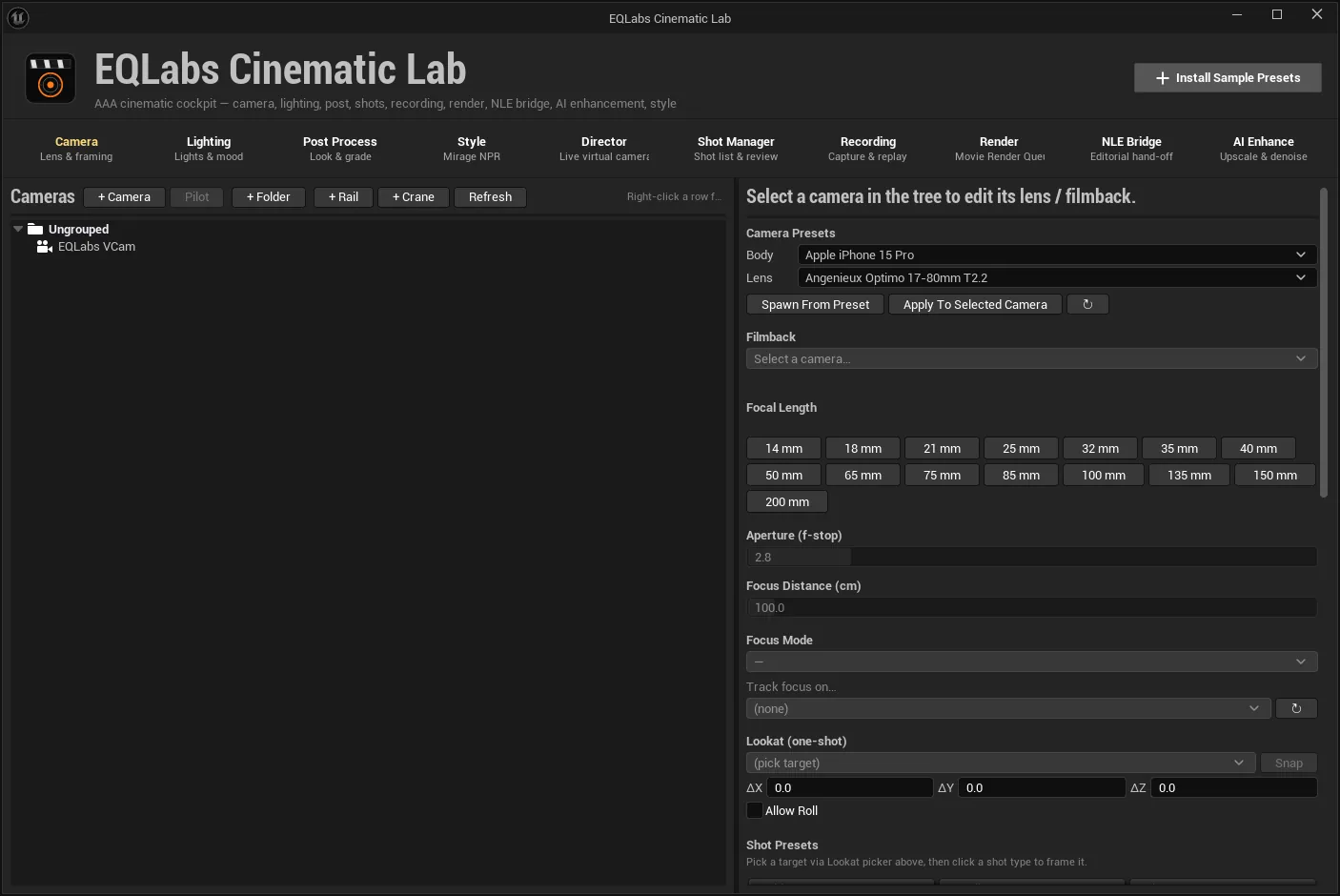
The camera tree
Section titled “The camera tree”The left column lists every camera in the level, organised into folders you create.
| Button | What it does |
|---|---|
| + Camera | Spawn a new CineCamera at the current viewport position |
| + Folder | Create a top-level folder |
| + Rail | Spawn a Camera Rig Rail at the viewport |
| + Crane | Spawn a Camera Rig Crane at the viewport |
| Pilot | Lock the active viewport to the selected camera — toggles to Eject |
| Refresh | Re-scan the level for cameras |
Double-click a row to focus it in the viewport. Right-click for the rest: New Subfolder, Rename, Delete Folder (children move up one level rather than being destroyed), Move to Folder, (Ungroup) and Focus in Viewport.
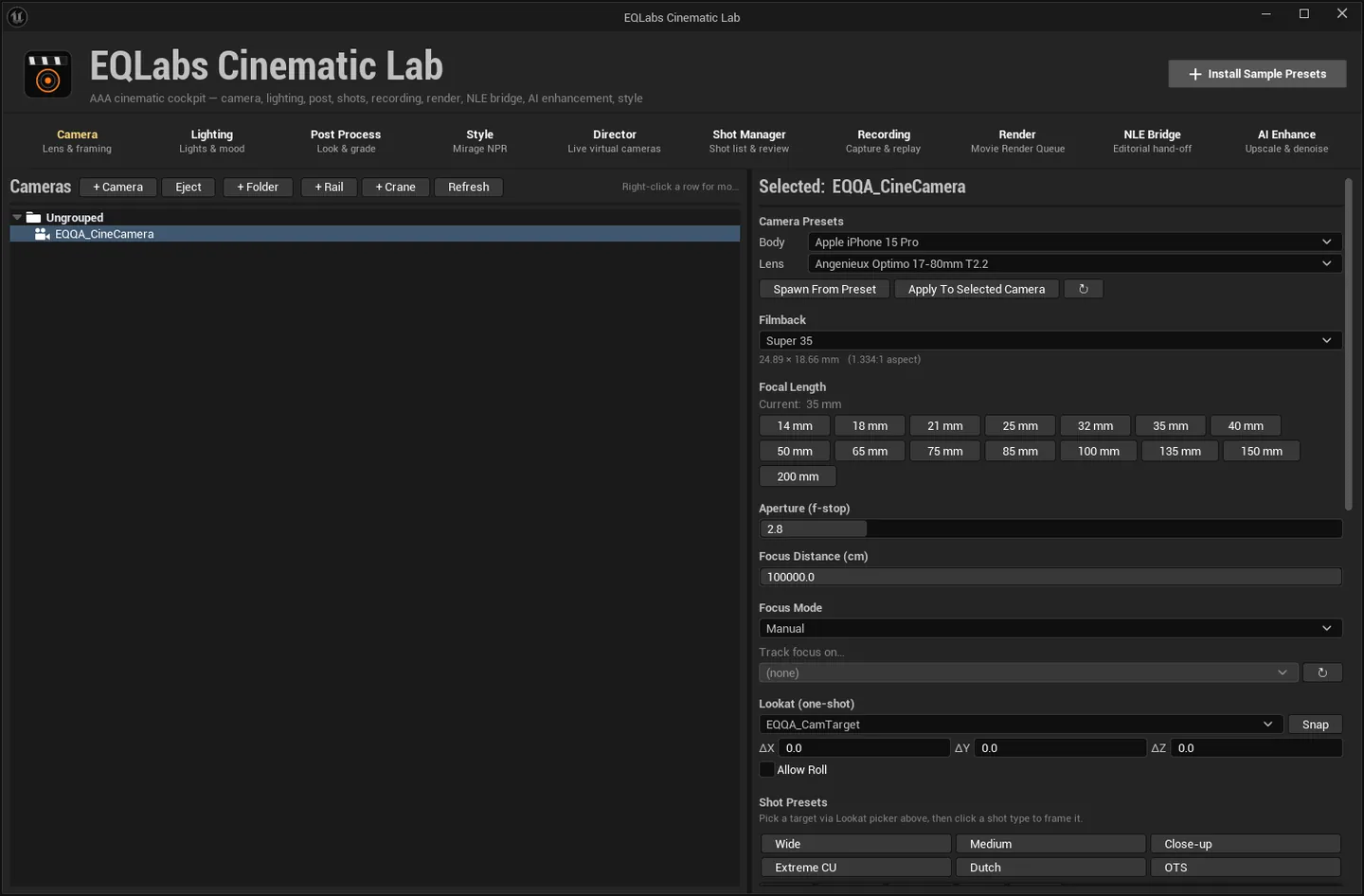
Body and lens presets
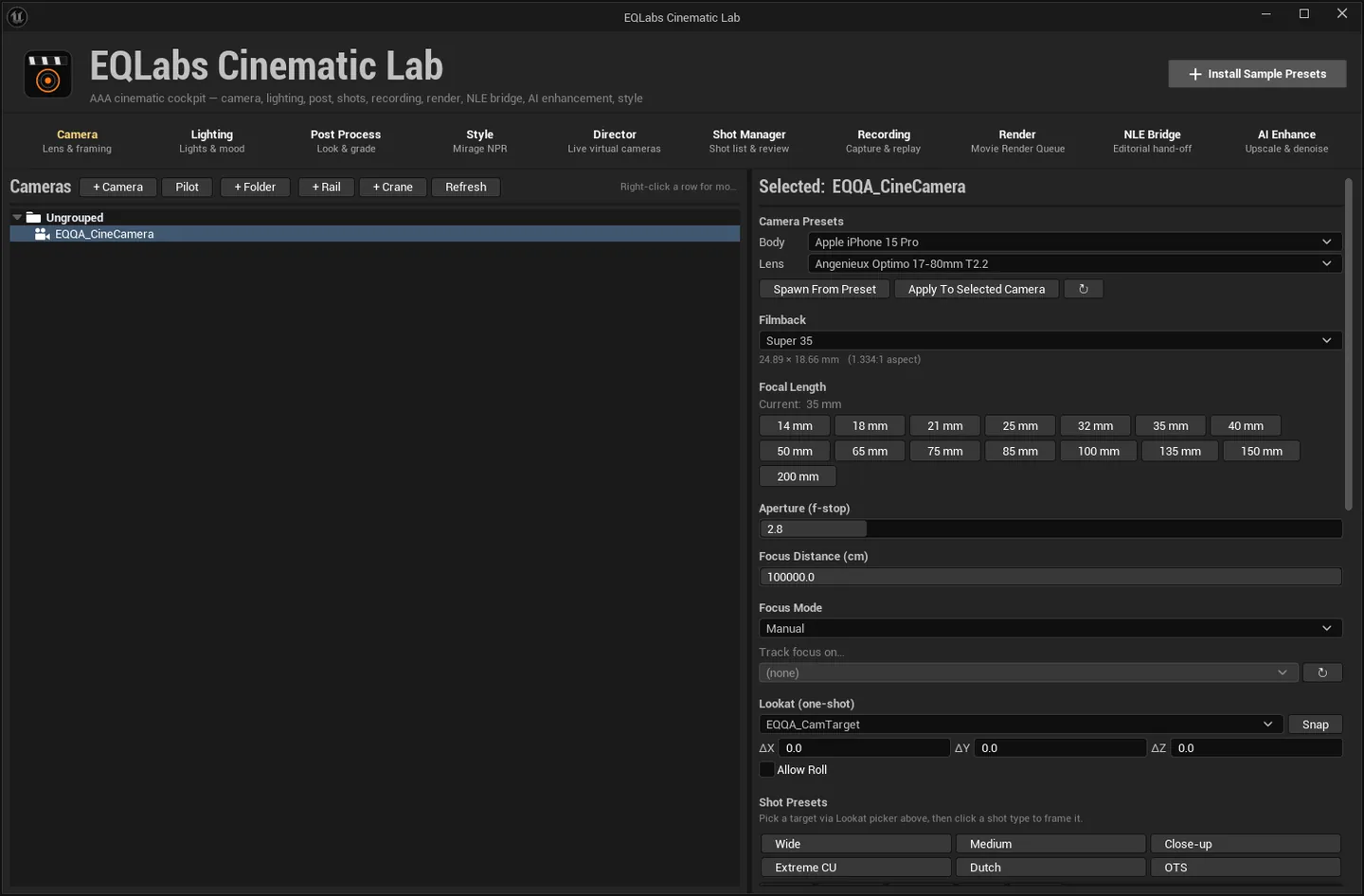
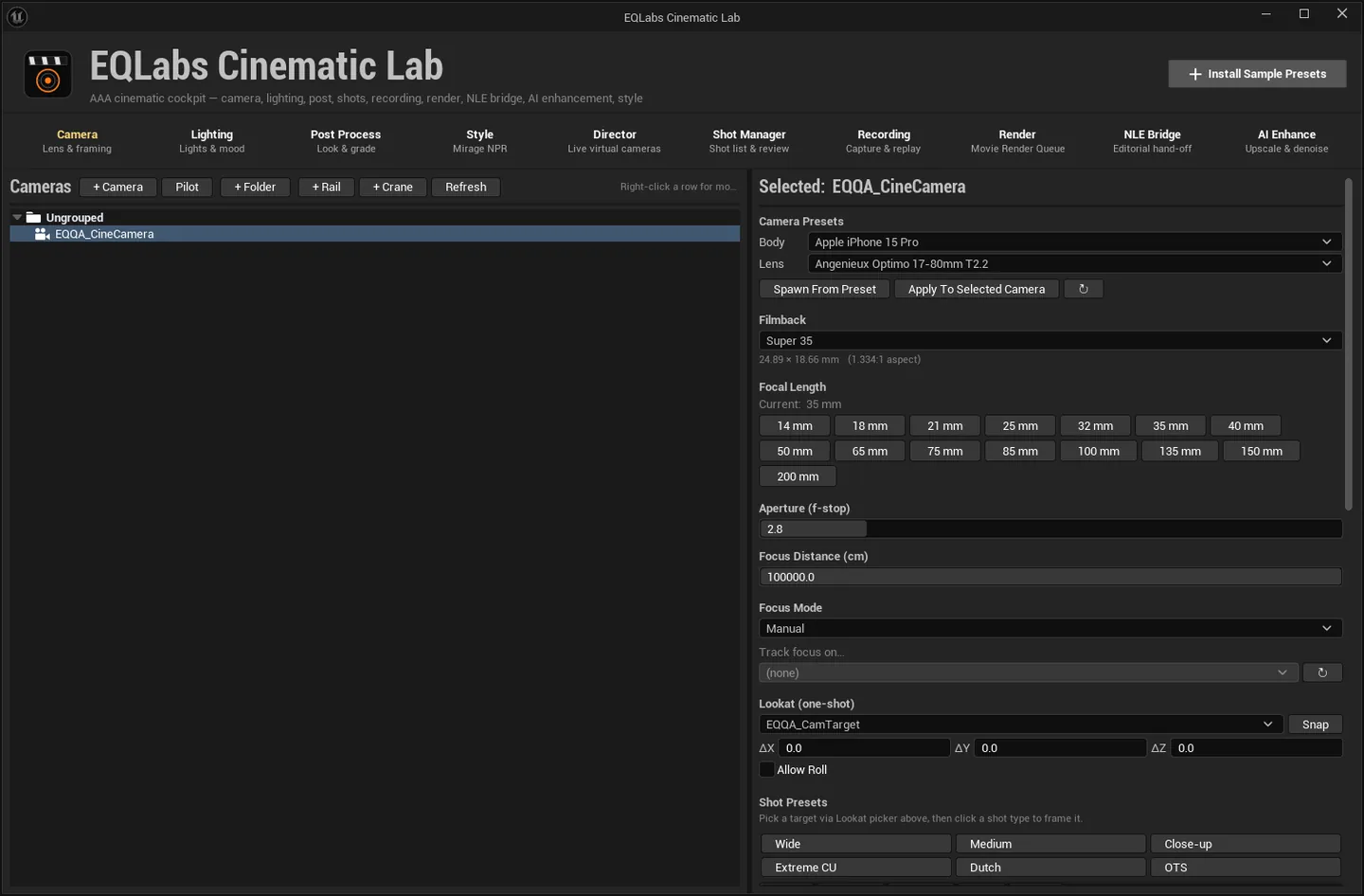
Section titled “Body and lens presets”Two dropdowns — Body and Lens — backed by preset assets in the project.
- Spawn From Preset creates a new CineCamera with that body and lens applied.
- Apply To Selected Camera applies them to the camera selected in the tree.
- ↻ re-scans the project for preset assets.
If both dropdowns are empty, the panel tells you to Run Install Sample Presets on the launcher header — that is the fix, not a bug.
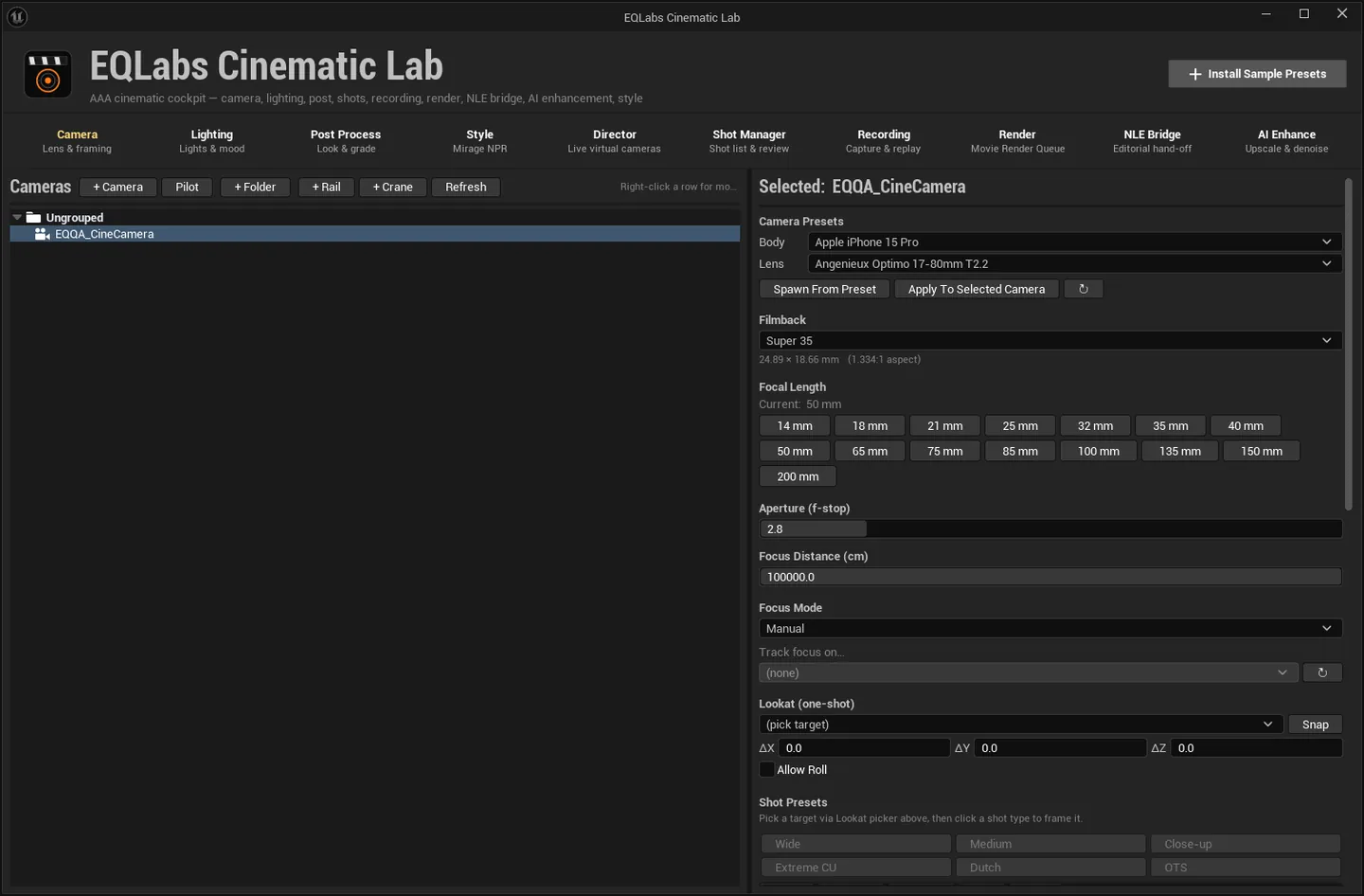
Filmback and lens
Section titled “Filmback and lens”| Control | Notes |
|---|---|
| Filmback | Sensor preset; the readout shows width × height mm (aspect:1) |
| Focal Length | Fifteen one-click buttons — 14, 18, 21, 25, 32, 35, 40, 50, 65, 75, 85, 100, 135, 150, 200 mm |
| Aperture (f-stop) | Depth-of-field aperture |
| Focus Distance (cm) | Manual focus distance |
| Focus Mode | Manual or Tracking |
| Track focus on… | Pick an actor to track; ↻ re-scans the level for trackable actors |
| Anamorphic Squeeze | 1.0 = spherical; 1.33 / 1.5 / 2.0 = anamorphic |
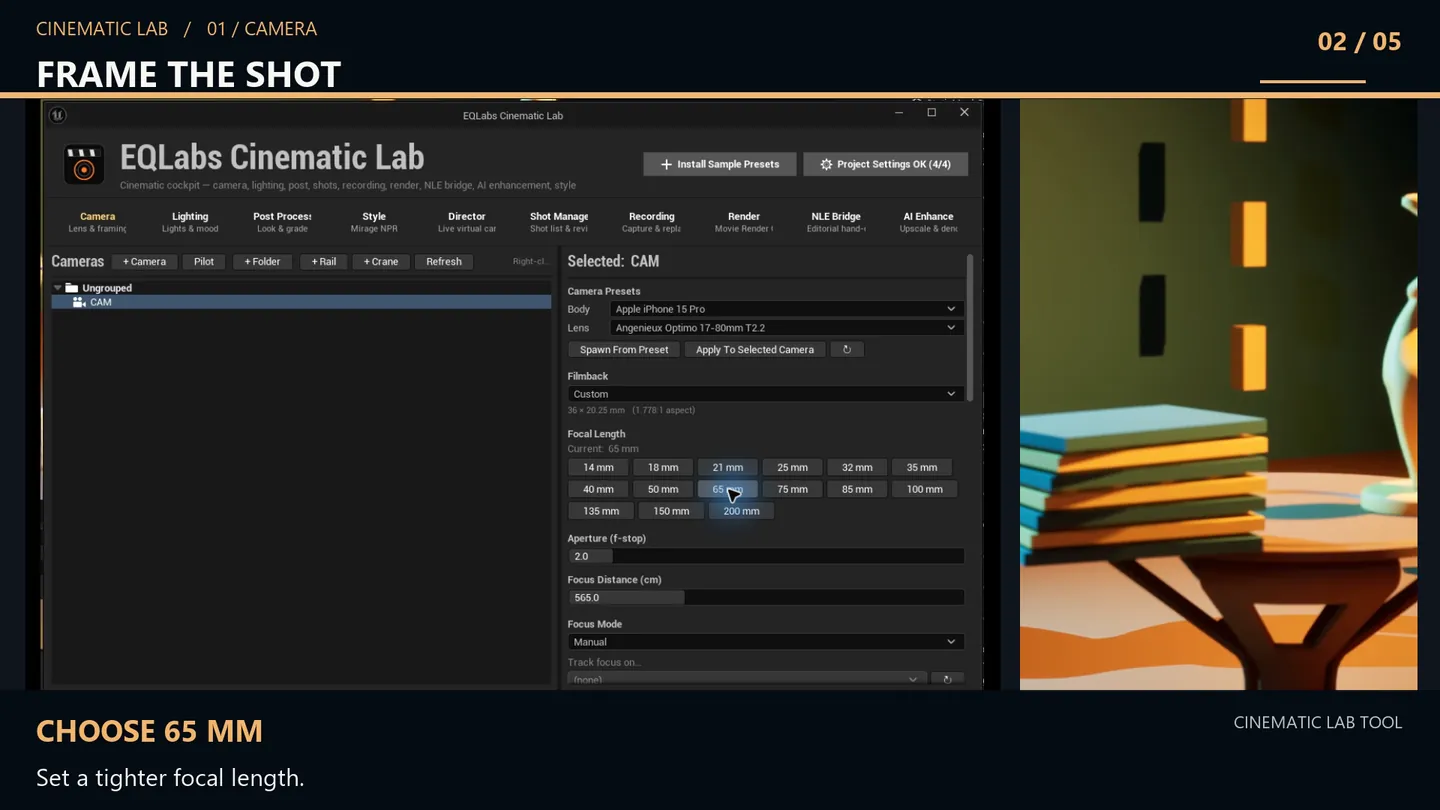
Lookat and shot presets
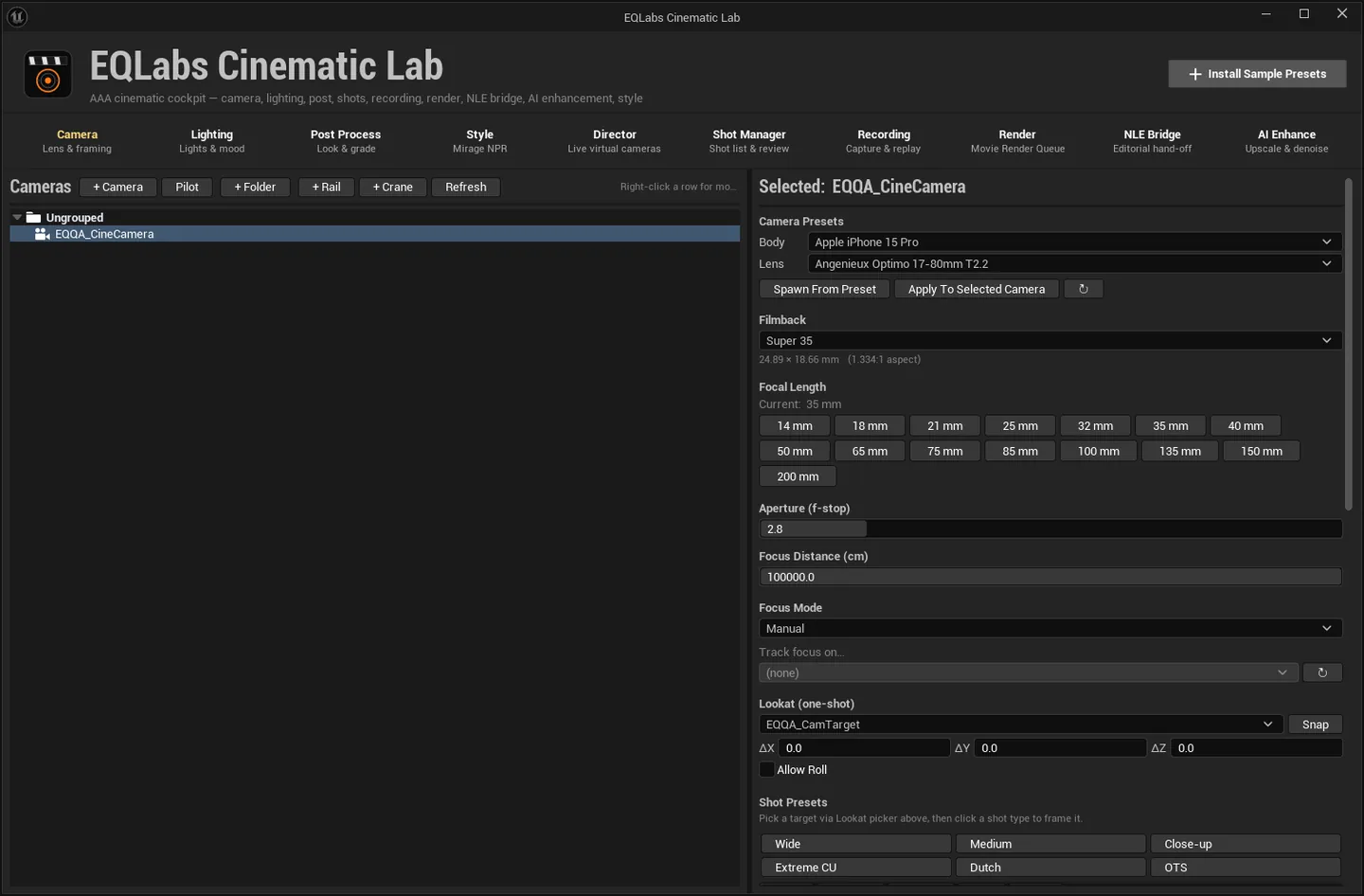
Section titled “Lookat and shot presets”Lookat (one-shot) picks a target actor and Snap rotates the camera to face it. ΔX / ΔY / ΔZ
offset the aim point, and Allow Roll decides whether the snap is permitted to roll the camera.
With a target picked, Shot Presets frames it in one click:
Wide · Medium · Close-up · Extreme CU · Dutch · OTS, plus the angle set Front · Front-L · Front-R · Left · Right.
Composition overlays
Section titled “Composition overlays”Drawn through UDebugDrawService, so they appear in the active level viewport during editing and
during Sequencer playback — not only in a preview window.
- Rule of Thirds
- Golden Ratio
- Center Crosshair
- Aspect Matte (Letterbox) with an aspect picker: 16:9 (HD), 2.39:1 (Cinemascope), 1.85:1 (Theatrical), 21:9 (UltraWide), 1:1 (Square), 9:16 (Vertical), or a custom ratio
- Action-Safe (90%) and Title-Safe (80%)
- Filmback Frame
- Luma Histogram
DP Assist
Section titled “DP Assist”Two exposure and focus aids, the same ones a monitor on set would give you:
- Focus Peaking. Highlights in-focus edges.
- Zebras (exposure). Striping over blown highlights.
Operator (Handheld)
Section titled “Operator (Handheld)”Adds believable hand-held motion to a piloted camera.
| Control | What it does |
|---|---|
| Profile | Which handheld profile to use |
| Intensity | How strong the motion is |
| Add to Piloted Camera | Attach the operator to the camera you are piloting |
| Impulse | Fire a one-off shove — a bump, a footfall |
| Install 4 Profiles | Create the four sample operator profiles if the project has none |
Move: dolly and crane
Section titled “Move: dolly and crane”Dolly track
Section titled “Dolly track”+ Dolly Track spawns an EQLabs Dolly Track at the viewport with three seed points to drag into shape.
- Attach Camera to Dolly parents the piloted (or selected) CineCamera to the carriage. Until you do this, the Preview slider and the world-mode bake have nothing to drive — the panel says so rather than silently doing nothing.
- Aim sets how the camera is oriented while the carriage travels: Keep Rig Rotation, Look At Target, or Follow Tangent. Aim = Selected sets the Look At Target to the actor selected in the level.
- Preview scrubs the carriage live and writes no keys.
- Bake Move → Sequencer samples the motion profile at the display rate and writes keys — either the camera’s world transform, or Alpha keys only (non-destructive) on the dolly itself. Duration (s) sets the length.
Baking requires an open Level Sequence; without one the panel reports “nothing baked — open a Level Sequence first” instead of appearing to succeed.
Author Crane Move spawns a Camera Rig Crane and keys ArmLength, Pitch and Yaw across the duration. It also needs an open Level Sequence.
Two-key moves
Section titled “Two-key moves”Push In (0.5x) and Pull Out (2x) write two eased keys moving the piloted camera to half — or twice — its current distance from the selected subject. Both need a piloted or selected CineCamera, a selected subject, and an open Level Sequence; each missing piece gets its own message.
Bookmarks
Section titled “Bookmarks”Save snapshots the selected camera’s transform and lens under a name. Apply restores it, Delete removes it. Useful for parking a framing you want back later without committing it to a shot.
- Actions state their prerequisites. Attach, Aim, Bake, Push/Pull and Author Crane each refuse with a specific message naming what is missing. A refusal here is the tool telling you the fix.
- Preview never writes keys. The dolly Preview slider is scrub-only; keys appear when you explicitly bake.
- Overlays are viewport-drawn, not render-baked. They help you frame; they do not appear in a Movie Render Queue output. For burned-in metadata on rendered frames use the Render tab’s burn-ins.
Opens our feedback form in a new tab with the tool name pre-filled.