
Lighting
Tab: Lighting — Lights & mood · Plugin: Cinematic Lab
Light the shot without leaving the cockpit. Every light in the level in one tree, every property of the selected light in one column, and rigs that place a whole setup around a subject in a click.
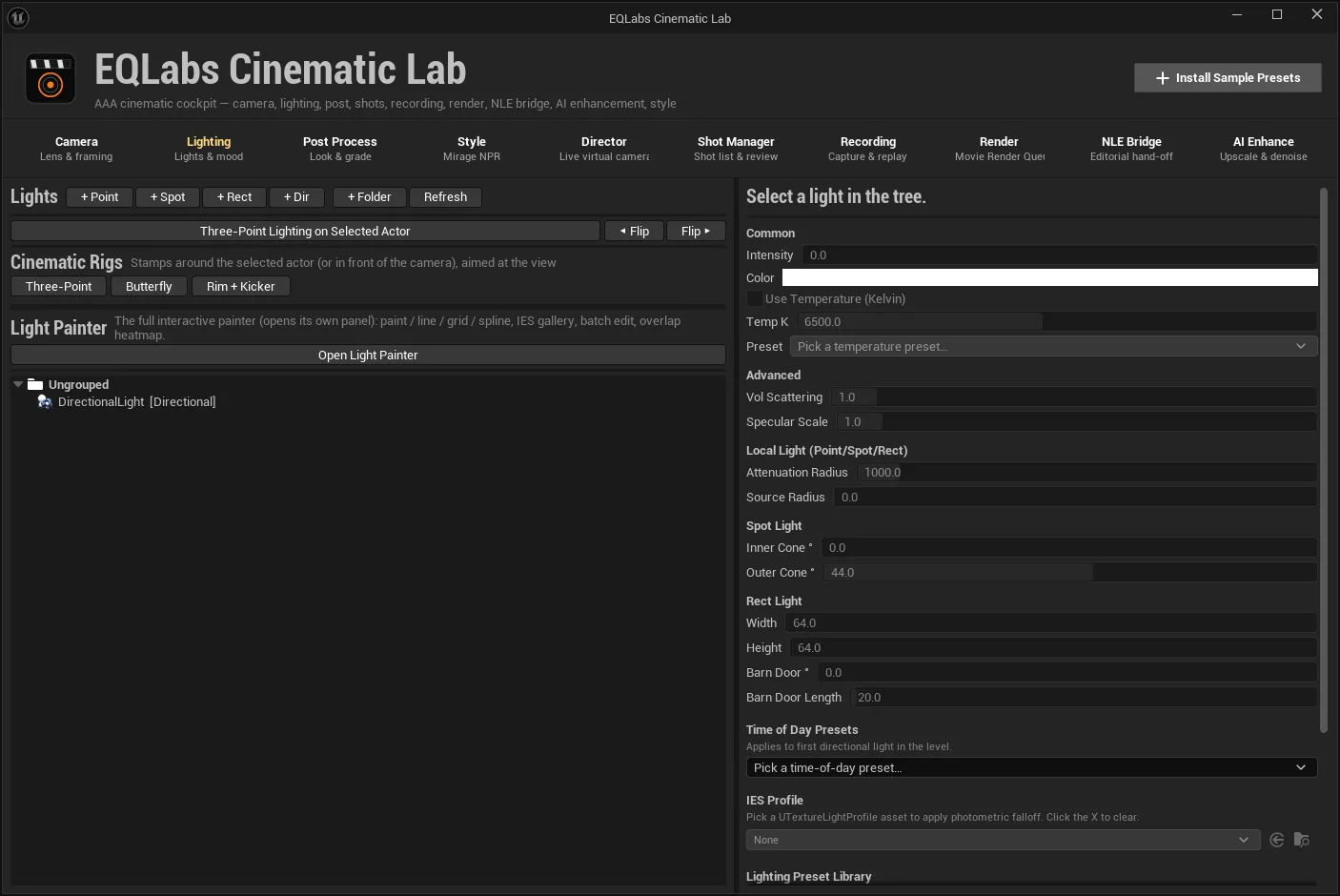
The light tree
Section titled “The light tree”+ Point, + Spot, + Rect, + Dir spawn lights; + Folder organises them; Refresh re-scans the level.
Right-click a light for Move to Folder, (Ungroup), Focus in Viewport, and Convert to… — Point, Spot, Rect or Directional. Folders support New Subfolder, Rename and Delete Folder.
Three-point lighting
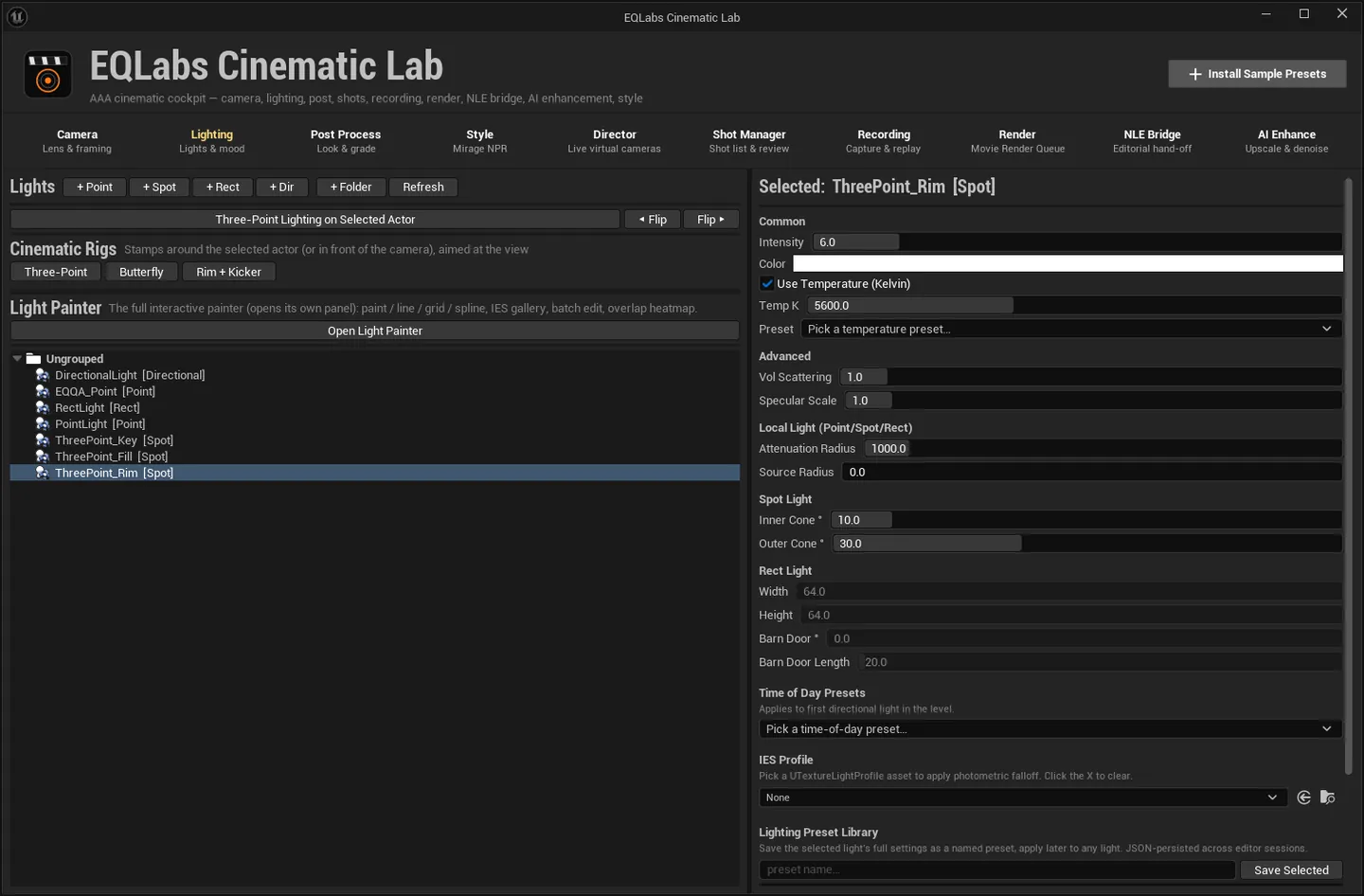
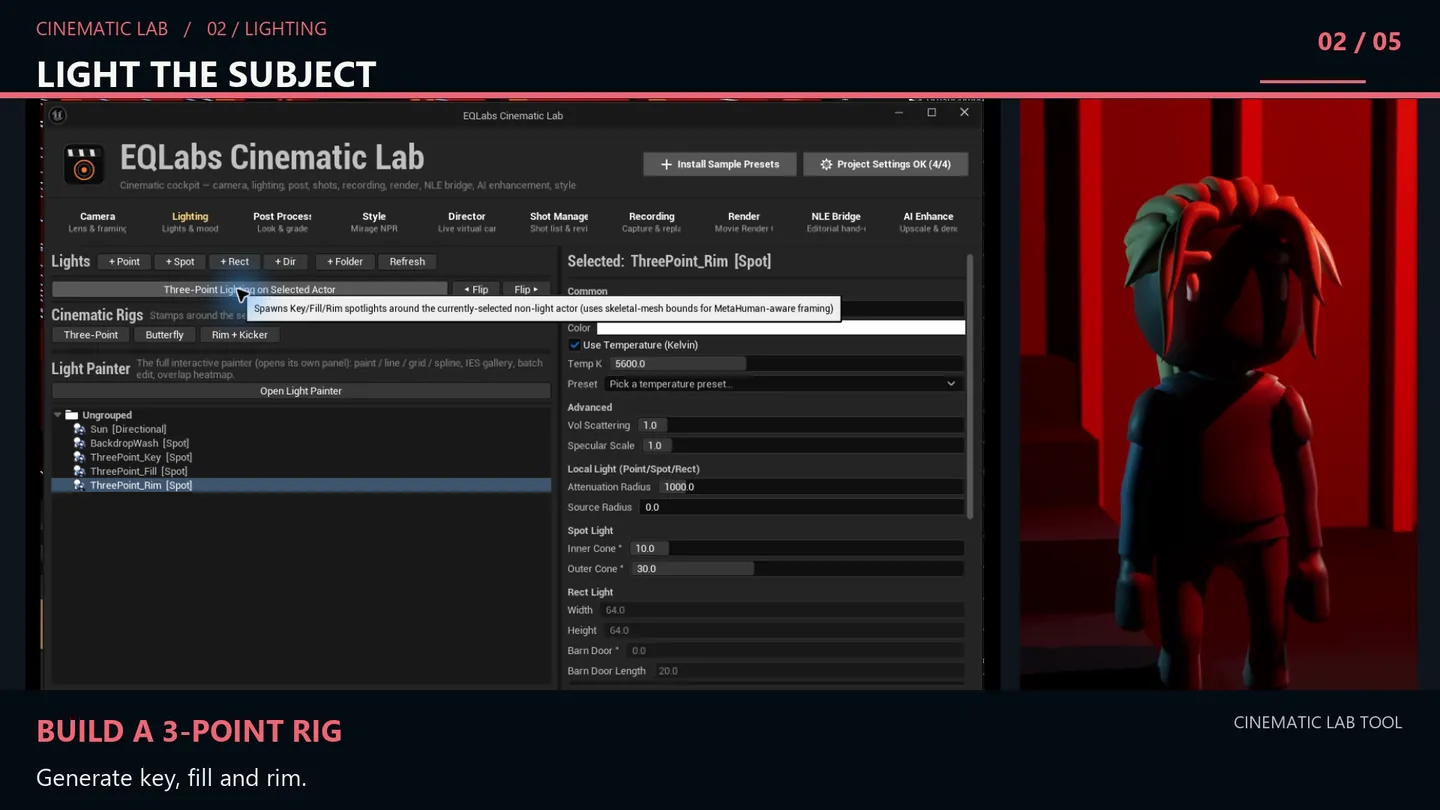
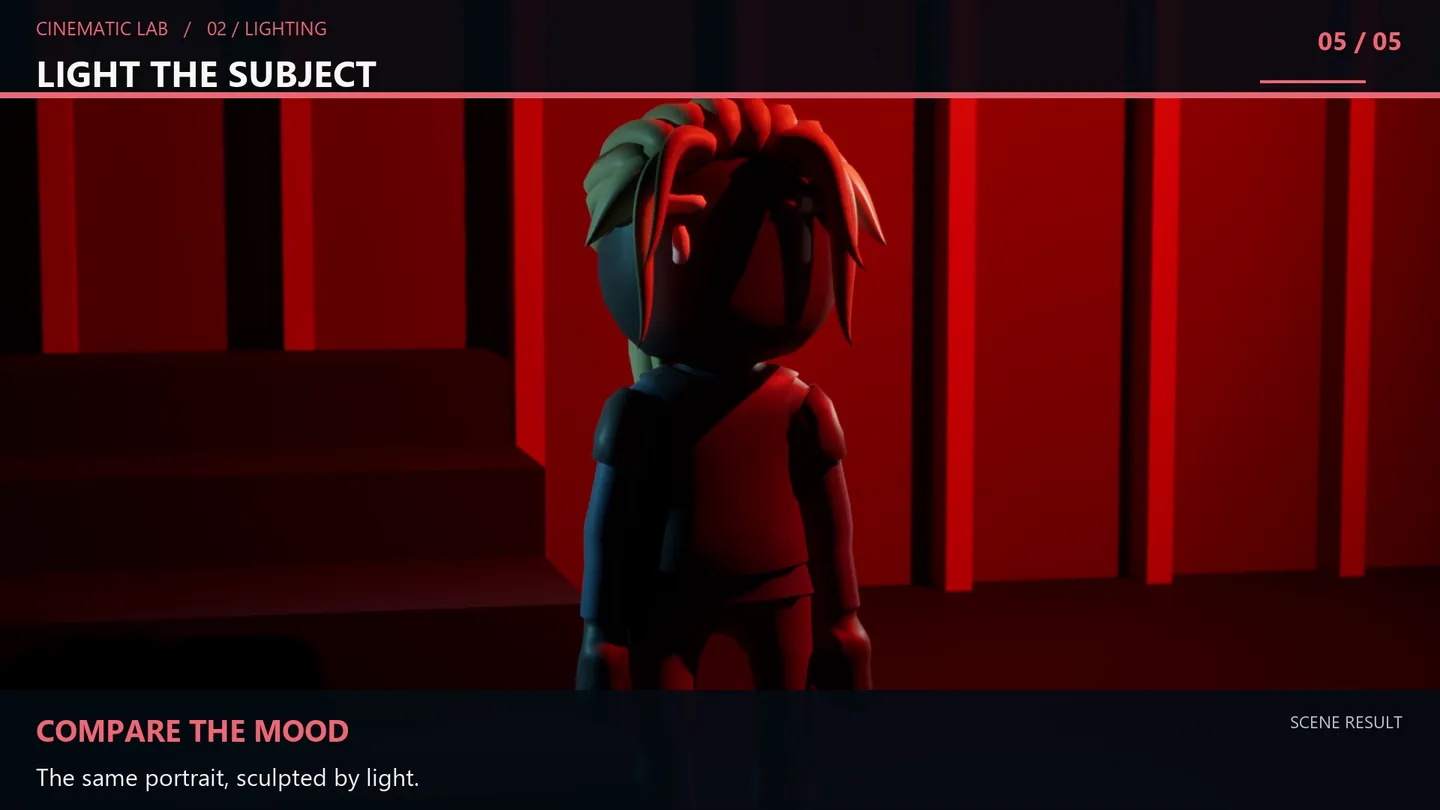
Section titled “Three-point lighting”Three-Point Lighting on Selected Actor spawns Key, Fill and Rim spotlights around the currently-selected non-light actor.
It uses skeletal-mesh bounds when the subject has them, so a character is framed on the mesh rather than on an actor bounding box that includes whatever is attached to it — the panel calls this “MetaHuman-aware framing”.
◀ Flip and Flip ▶ move the selected three-point light to the subject’s left or right side, so you can swap key and fill without re-placing anything.
Cinematic rigs
Section titled “Cinematic rigs”Stamps a rig around the selected actor, or in front of the camera when nothing is selected, aimed at the current view.
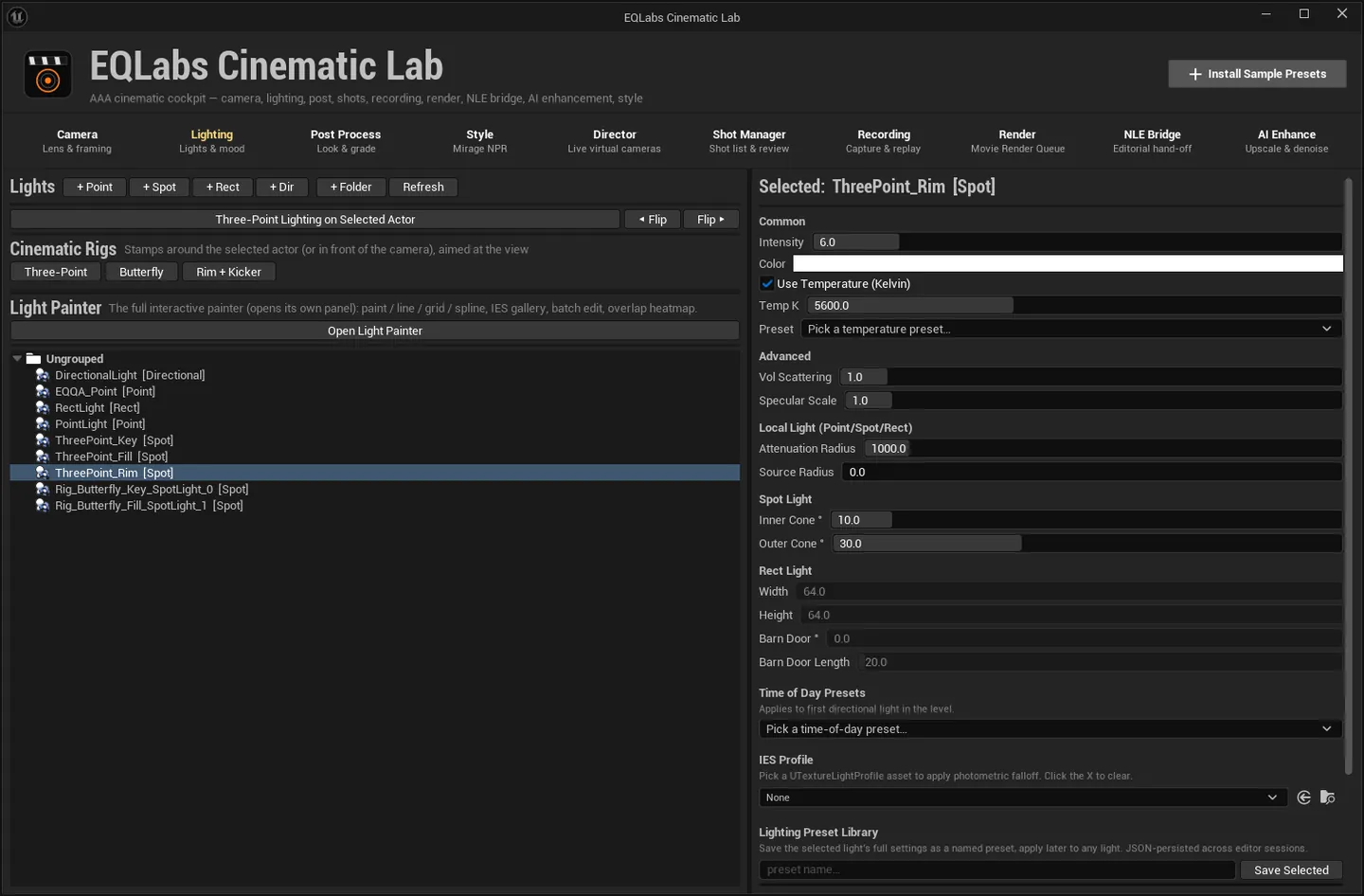
Editing a light
Section titled “Editing a light”Select a light in the tree and its full property set appears, grouped. The header reads
Selected: <name> [<type>]; with nothing selected it says so rather than showing a dead panel.
Common
Section titled “Common”| Property | Notes |
|---|---|
| Intensity | — |
| Color | — |
| Use Temperature (Kelvin) + Temp K | Colour temperature instead of an RGB colour |
| Preset | A temperature preset picker |
Advanced
Section titled “Advanced”Vol Scattering (volumetric scattering intensity) and Specular Scale.
Local Light (Point / Spot / Rect)
Section titled “Local Light (Point / Spot / Rect)”Attenuation Radius and Source Radius.
Spot Light
Section titled “Spot Light”Inner Cone ° and Outer Cone °.
Rect Light
Section titled “Rect Light”Width, Height, Barn Door ° and Barn Door Length.
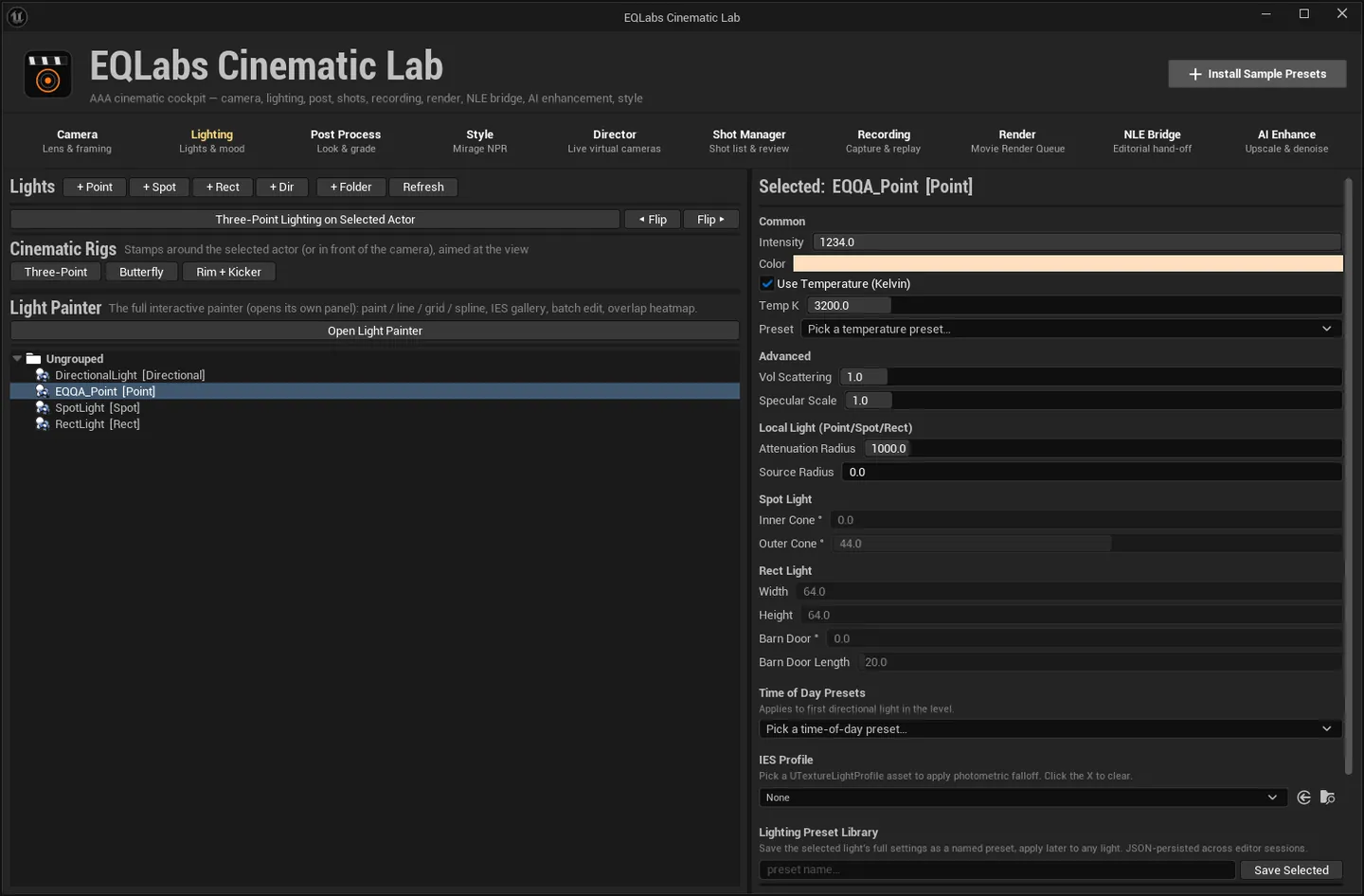
Time of Day presets
Section titled “Time of Day presets”A preset picker that applies to the first directional light in the level. The panel states that scope on the control itself, so there is no ambiguity about which light moves when you pick “golden hour”.
IES profiles
Section titled “IES profiles”Assign a UTextureLightProfile asset to give the light a real photometric falloff. The X clears
it.
The lighting preset library
Section titled “The lighting preset library”Save the selected light’s full settings under a name and apply them later to any light.
| Control | What it does |
|---|---|
| Save Selected | Snapshot the selected light’s properties to a named preset |
| Apply | Apply a preset to the selected light |
| Delete | Remove a preset |
Presets are JSON-persisted across editor sessions — they are not per-level and not lost on restart.
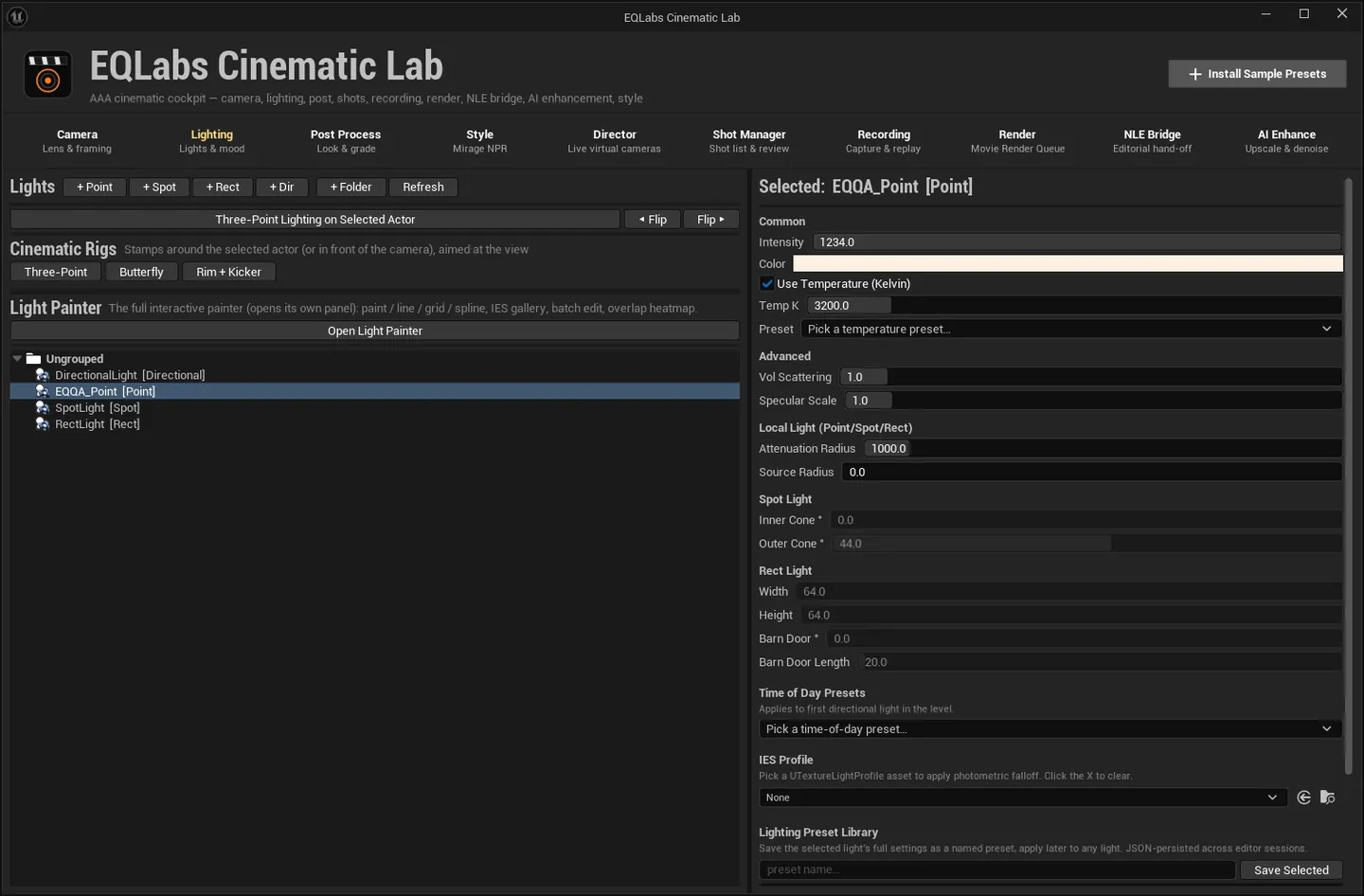
Light Painter
Section titled “Light Painter”Open Light Painter launches the full interactive painter in its own panel: paint / line / grid / spline placement, an IES gallery, batch edit, and an overlap heatmap.
Press Esc or close the panel to exit.
How lighting connects to shots
Section titled “How lighting connects to shots”The Shot Manager tab’s Capture Look to Shot stores the scene’s local lights — Point, Spot and Rect — into a shot, with their full authored state: transform, intensity and intensity units, colour, temperature flag and value, attenuation radius, cone angles, source width and height, mobility, and shadow casting.
Directional and Sky lights are deliberately skipped. That asymmetry is the design: restoring a shot’s look never destroys the level’s base lighting rig. Restore runs inside a single transaction, so an entire look swap is one Ctrl+Z.
Opens our feedback form in a new tab with the tool name pre-filled.