
No. 1206 CO CoreEQLabs Pro
Unreal I/O — Export
Module: Core · Category: I/O · Tool ID:
UnrealIOExport
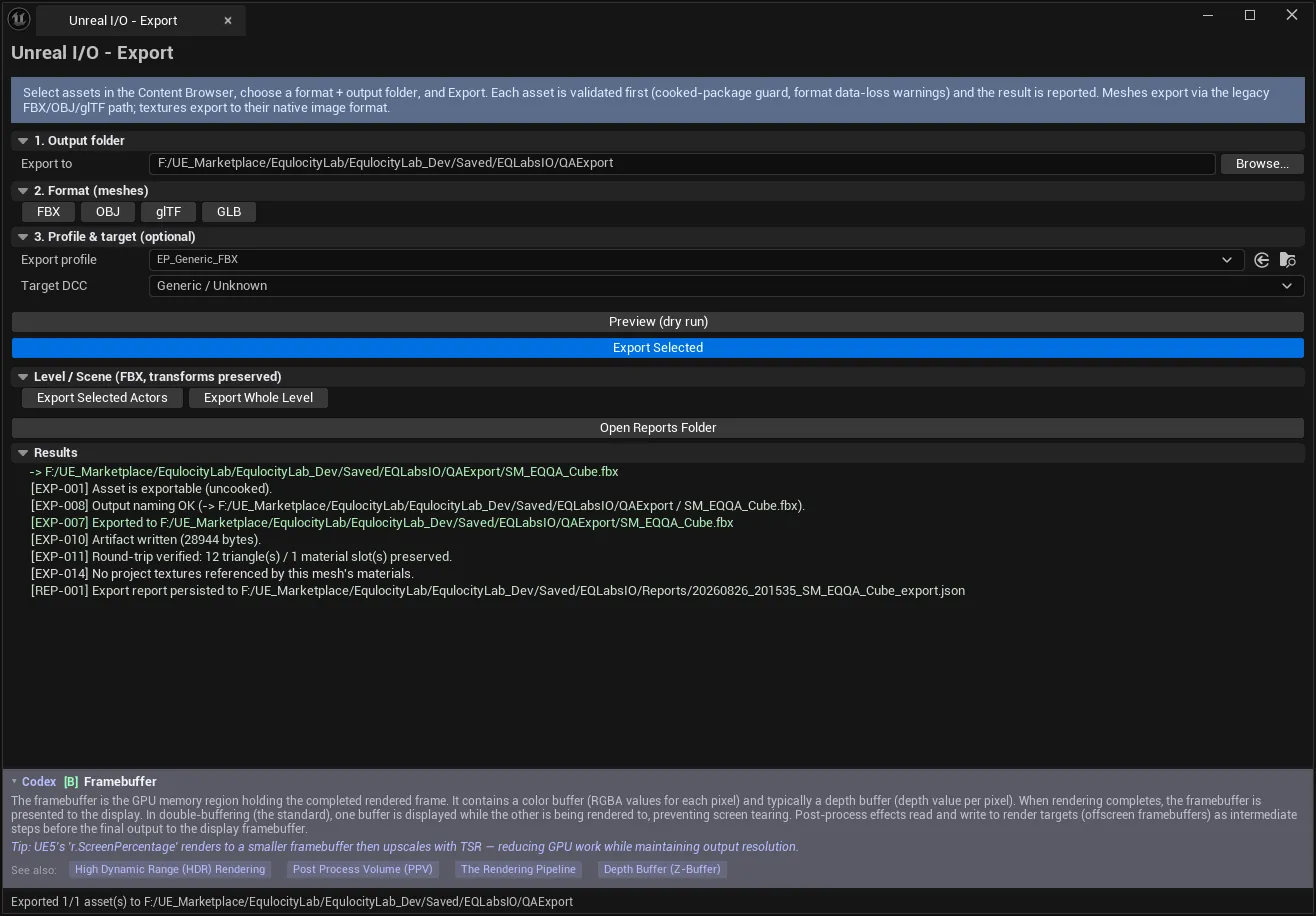
The output half of Unreal I/O. Select assets in the Content Browser, choose a format and destination, and export them through a validated pipeline — pre-export checks, a cooked-data guard, explicit data-loss warnings, and a JSON report of what happened.
The reason it exists rather than using the engine’s right-click Export: engine export is silent about what it drops. Exporting a Nanite mesh to OBJ loses a great deal, and nothing tells you. This tool tells you before it writes the file.
The import half is Unreal I/O.
When to use it
Section titled “When to use it”- Round-tripping assets back to a DCC for edits
- Handing geometry to an external vendor or another department
- Exporting a whole level or a set of actors with transforms preserved
- Any export where you need a record of what was written and what was lost
- Producing glTF/GLB for viewers, web, or engines outside Unreal
What it isn’t for
Section titled “What it isn’t for”- Don’t use it to migrate between Unreal projects. That is a job for asset migration, which preserves everything. Mesh formats do not.
- Don’t expect a lossless round trip. FBX, OBJ and glTF each drop different things; the tool’s job is to be honest about which.
Opening the tool
Section titled “Opening the tool”- Open the EQLabs Hub and search for export (or browse to Core → I/O).
- Click the tool card.
- Select assets in the Content Browser, then work down the numbered sections.
The selection lives in the Content Browser, not in the panel — the tool acts on whatever is selected when you press the button.
1. Output folder
Section titled “1. Output folder”| Control | Notes |
|---|---|
| Export to | Filesystem folder to export into |
| Browse… | Folder picker |
This is a filesystem path, not a content path — the output leaves the project.
2. Format (meshes)
Section titled “2. Format (meshes)”| Format | Notes |
|---|---|
| FBX | The general-purpose interchange format; best fidelity for skeletal data |
| OBJ | Geometry and basic materials only. No skinning, no animation |
| glTF | .gltf loose files — geometry plus external resources |
| GLB | glTF binary — a single self-contained file |
Supporting settings exposed by the pipeline include FBX version (2011 through current), texture format (TGA, PNG, BMP, EXR for float/HDR, HDR), and glTF-specific options:
| glTF option | Values |
|---|---|
| Material baking | Disabled (expression match only) · Simple (bake to a quad) · Use mesh data |
| Texture encoding | None · PNG (lossless) · JPEG (if no alpha) |
glTF material baking is the setting that surprises people. glTF cannot express an Unreal material graph, so by default only directly-matching expressions survive. Baking approximates the rest — Simple bakes to a quad, Use mesh data bakes against the actual mesh. Leaving it Disabled and expecting your material to arrive intact is the common mistake.
3. Profile & target (optional)
Section titled “3. Profile & target (optional)”| Control | Notes |
|---|---|
| Export profile | A saved profile governing the export |
| Target DCC | Generic / Unknown, Houdini, Maya, Blender, 3ds Max, ZBrush, Substance |
Setting the Target DCC applies that application’s expected unit, up-axis and handedness conventions:
| Property | Values |
|---|---|
| Unit | Centimeter, Meter, Inch, Foot |
| Up axis | Z-up (Unreal, 3ds Max) · Y-up (Maya, Houdini) |
| Handedness | Left-handed (Unreal) · Right-handed (Houdini, Maya) |
This is the export-side mirror of the import tool’s Source app setting, and it prevents the same class of bug — geometry that arrives in Maya rotated and mis-scaled.
Actions
Section titled “Actions”| Button | Effect |
|---|---|
| Preview (dry run) | Runs the pre-export checks on the selection without writing any files |
| Export Selected | Exports the assets currently selected in the Content Browser |
| Export Selected Actors | Exports the actors selected in the level |
| Export Whole Level | Exports the entire level — FBX, transforms preserved |
| Open Reports Folder | Opens Saved/EQLabsIO/Reports |
Preview first. It surfaces data-loss warnings and blockers against the real selection at no cost — which for a large export is the difference between finding out now and finding out after twenty minutes of writing.
Level and actor export use FBX with transforms preserved, which is what makes the result usable as a scene layout rather than a pile of meshes at the origin.
Results
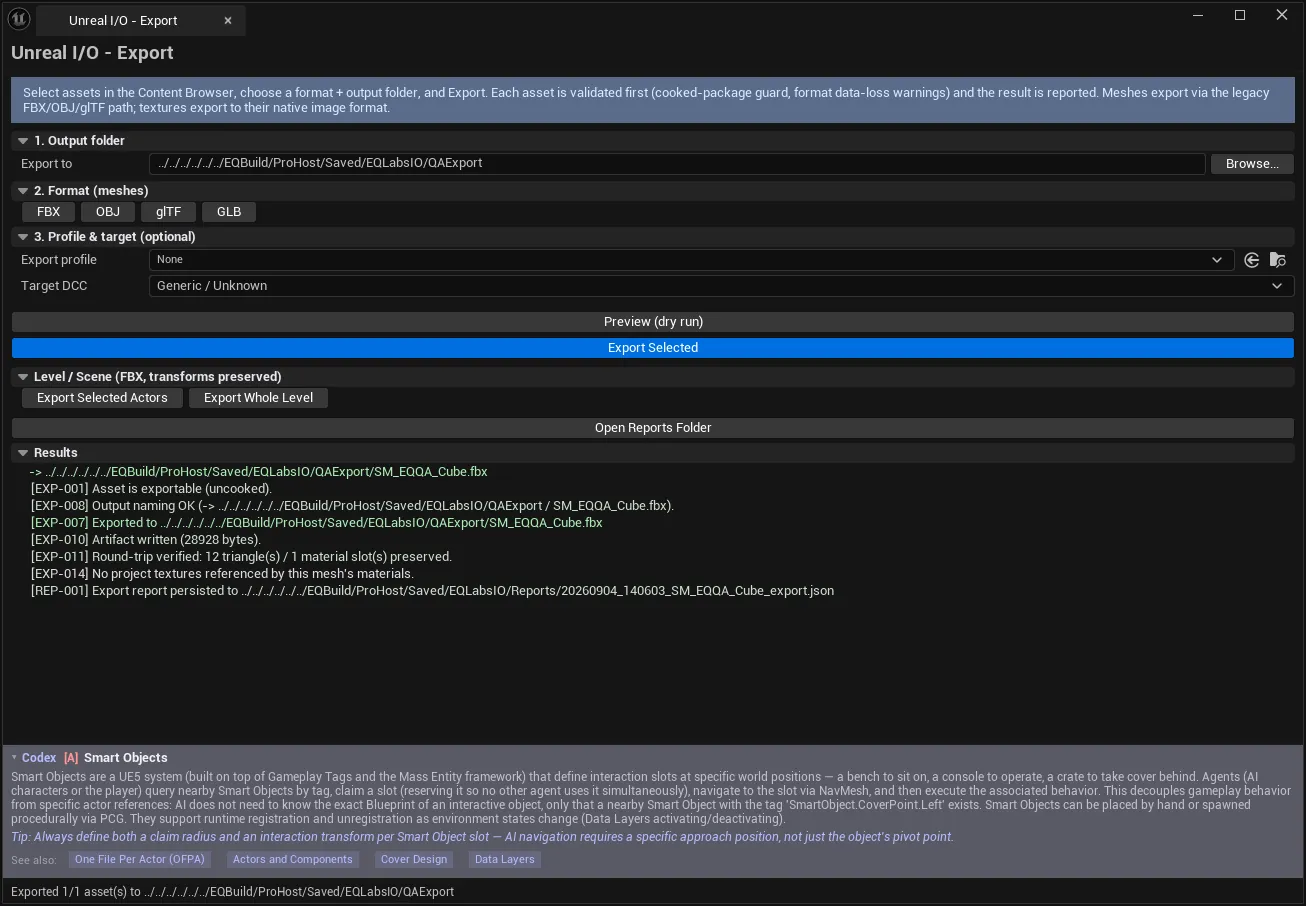
Section titled “Results”Per-rule results using the same vocabulary as the import pipeline:
| Status | Meaning |
|---|---|
| Passed | Check satisfied |
| Failed | Check violated |
| Skipped | Not applicable |
| Auto-Fixed | Adjusted automatically |
| Severity | Meaning |
|---|---|
| Info | Recorded, no action needed |
| Warning | Usually a data-loss notice — the export proceeds |
| Blocker | Stops the export |
| Exception Required | Blocked unless an exception is granted |
The cooked-data guard
Section titled “The cooked-data guard”The pipeline refuses to export from cooked data. Cooked assets have had editor-only data stripped, so an export from them silently produces a degraded result — the guard turns that silent degradation into an explicit stop.
Reports
Section titled “Reports”Every export writes a JSON report to Saved/EQLabsIO/Reports, recording the selection, format, settings, and every check result. Together with the import side’s provenance, that gives a round trip you can actually audit: what left, in what form, and what came back.
Tips and gotchas
Section titled “Tips and gotchas”- Nothing selected in the Content Browser means nothing to export. The tool tells you rather than exporting silently.
- OBJ loses skinning and animation entirely. For anything rigged, use FBX.
- glTF materials need baking configured or only directly-matching expressions survive.
- Set Target DCC before debugging orientation. A Maya-bound export left as Generic arrives rotated.
- Export Whole Level is FBX-only because it is the only listed format that carries scene transforms properly.
- A Warning is usually data loss, not a failure. Read them — that is the whole point of routing exports through this tool.
- Export is not migration. To move assets between Unreal projects, migrate; don’t round-trip through a mesh format.
Related tools
Section titled “Related tools”- Unreal I/O — the import half of the same pipeline
- Ship Lab — packaging and release readiness
- Mesh Intelligence Dashboard — inspect a mesh before sending it out
- LOD & Nanite Studio — Nanite meshes need particular care on export
Opens our feedback form in a new tab with the tool name pre-filled.