
No. 0121 TE TechEQLabs Pro
HitchScope
Module: Tech · Category: Performance · Tool ID:
HitchScopeTab
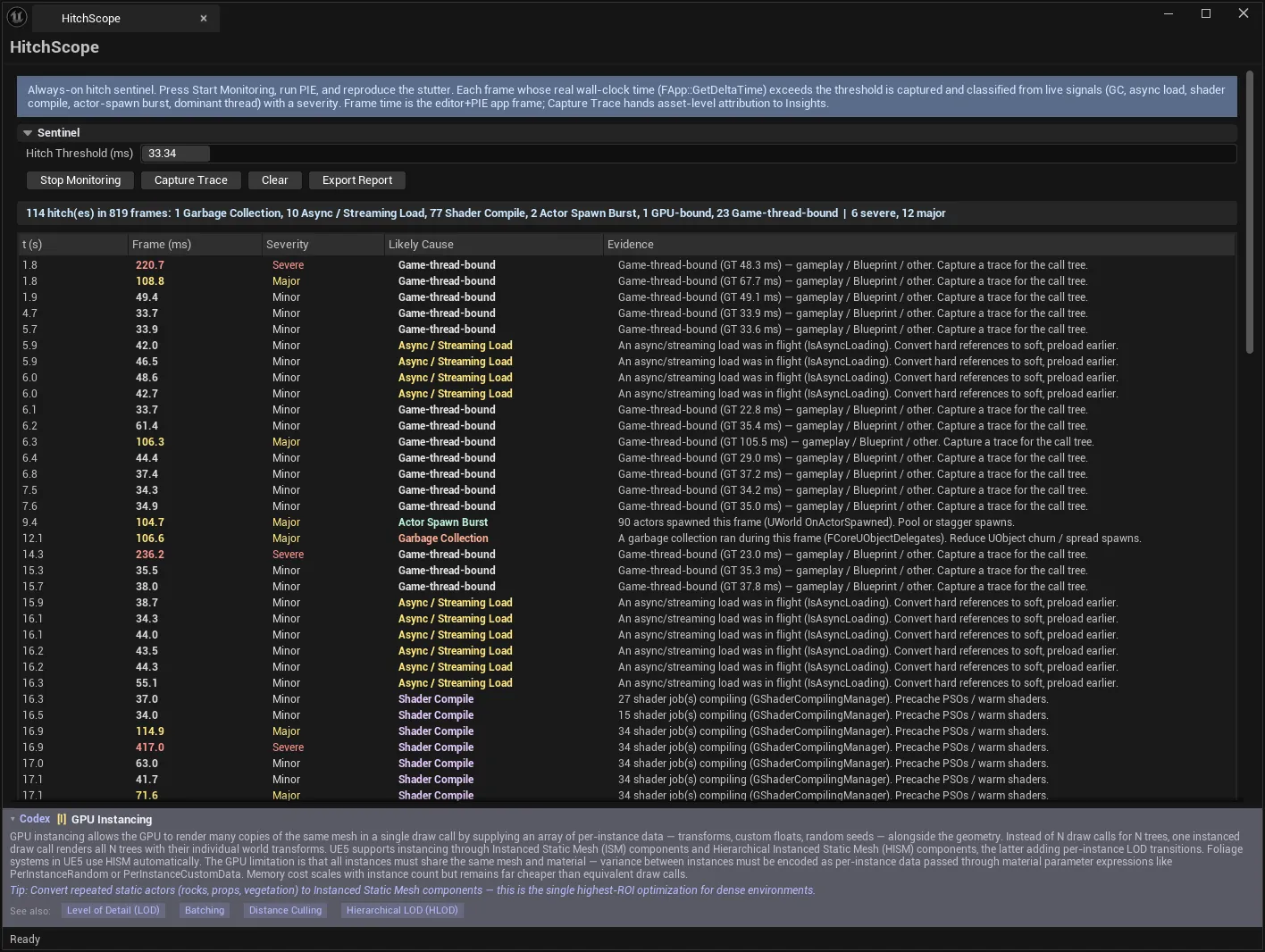
A hitch detective for PIE. While monitoring, it samples real per-frame wall-clock time (FApp::GetDeltaTime) every frame; when a frame exceeds your threshold it snapshots engine signals and classifies the likely cause into a plain-English verdict with a severity and supporting evidence.
The point is to answer “what just caused that stutter?” without first setting up a full Insights capture — and then, when you need asset-level detail, to hand off to Insights properly.
When to use it
Section titled “When to use it”- Reproducible stutters you can trigger in PIE but cannot explain
- Deciding which kind of problem you have before committing to a deep profiling session
- Catching hitches during ordinary playtesting, since the sentinel is always-on once started
- Producing a shareable record of a stutter session
What it isn’t for
Section titled “What it isn’t for”- Don’t expect asset-level attribution from the sentinel alone. Knowing which package sync-loaded needs a trace — HitchScope captures one and hands it to Insights.
- Don’t use it to measure average frame rate. It records spikes over a threshold, not a performance profile.
Opening the tool
Section titled “Opening the tool”- Open the EQLabs Hub and search for hitch or
stutter(or browse to Tech → Performance). - Click the tool card.
- Start Monitoring, run PIE, and reproduce the stutter.
Sentinel
Section titled “Sentinel”| Control | Notes |
|---|---|
| Hitch Threshold (ms) | A frame longer than this (wall-clock) is recorded. ~33 ms is below 30 fps |
| Start / Stop Monitoring | The always-on frame-time sentinel |
| Clear | Clears the captured hitch list |
Threshold choice frames the whole session. 33 ms catches anything dropping below 30 fps; for a 60 fps target, 16.7 ms is the equivalent line and will capture considerably more.
The hitch list
Section titled “The hitch list”| Column | Meaning |
|---|---|
| t (s) | When in the session it happened |
| Frame (ms) | Measured wall-clock frame time |
| Severity | Minor, Major, Severe |
| Likely Cause | The classification |
| Evidence | The signals that produced it |
Causes, and the signal behind each
Section titled “Causes, and the signal behind each”Every classification comes from a real engine API, not a heuristic:
| Cause | Signal |
|---|---|
| Garbage Collection | A GC ran during the hitching frame — FCoreUObjectDelegates |
| Async Load | Async/streaming load in flight — IsAsyncLoading |
| Shader Compile | Shader compilation pressure — GShaderCompilingManager |
| Actor Spawn | A burst of actors spawned this frame — UWorld::OnActorSpawned |
| Thread-bound | Dominant thread — GGameThreadTime / GRenderThreadTime / RHIGetGPUFrameCycles |
| Unknown | None of the above fired |
Unknown is an honest answer, not a failure. It means none of the tracked signals were active on that frame, which itself narrows the search — the cause is something outside this set, and a trace is the next step.
The Evidence column is what makes a verdict actionable: it shows which signals fired, so you can judge the classification rather than taking it on faith.
Capturing a trace
Section titled “Capturing a trace”| Control | Notes |
|---|---|
| Capture Trace | Starts a .utrace capture |
| Stop Trace | Ends it and reports the path |
The workflow the messages describe:
“Tracing to
<path>— reproduce the hitch, then Stop Trace and open it in Unreal Insights for asset-level attribution.”
This is the deliberate division of labour. HitchScope tells you the class of problem cheaply and always-on; Insights tells you which asset — and HitchScope captures the trace so you don’t have to configure one.
If UE Trace is unavailable the tool says so directly: “UE Trace is not enabled in this build configuration.”
Export Report
Section titled “Export Report”Export Report writes the session as an EQLabs report in JSON, CSV and HTML. There must be captured hitches — “No hitches captured yet.”
Workflow: chasing a stutter
Section titled “Workflow: chasing a stutter”- Set Hitch Threshold to your frame budget (
16.7for 60 fps,33for 30). - Start Monitoring.
- Run PIE and reproduce the stutter.
- Read the list — look for a repeated Likely Cause, not a single outlier.
- If the cause is clear (GC, shader compile), act on it directly.
- If it is
Unknownor you need the specific asset: Capture Trace, reproduce again, Stop Trace. - Open the
.utracein Unreal Insights. - Export Report for the record.
Reading the results
Section titled “Reading the results”- Shader Compile hitches in PIE are often editor-only. The shaders are already compiled in a cooked build. Confirm before optimising something that will not ship.
- A GC verdict points at allocation churn, not at GC itself. The fix is upstream.
- Async Load hitches usually mean a synchronous load on something that should have been streamed or preloaded.
- Actor Spawn bursts are the classic wave-spawner or projectile-volley hitch — pooling is the usual answer.
- Thread-bound verdicts tell you which thread to profile next, which is exactly the question Insights needs answered.
Tips and gotchas
Section titled “Tips and gotchas”- The threshold defines the dataset. Too high and you see only catastrophes; too low and ordinary variance floods the list.
- One hitch is noise; a pattern is a bug. Reproduce several times before acting.
Unknownnarrows the search. Treat it as information.- Trace capture needs UE Trace enabled in the build configuration.
- Editor-only causes are real but may not ship. Shader compilation is the usual case.
- Clear between attempts so one session’s hitches are not mixed with the next.
Related tools
Section titled “Related tools”- GC Pulse — investigate a Garbage Collection verdict
- StreamDoctor — investigate an Async Load verdict
- Blueprint Tick Auditor — game-thread cost from ticking Blueprints
- MemSnap — allocation growth behind GC pressure
Opens our feedback form in a new tab with the tool name pre-filled.