
Shot Manager
Tab: Shot Manager — Shot list & review · Plugin: Cinematic Lab
The production side of the cockpit: what shots exist, what state each is in, who is on it, what it looked like, and which take is the pick.
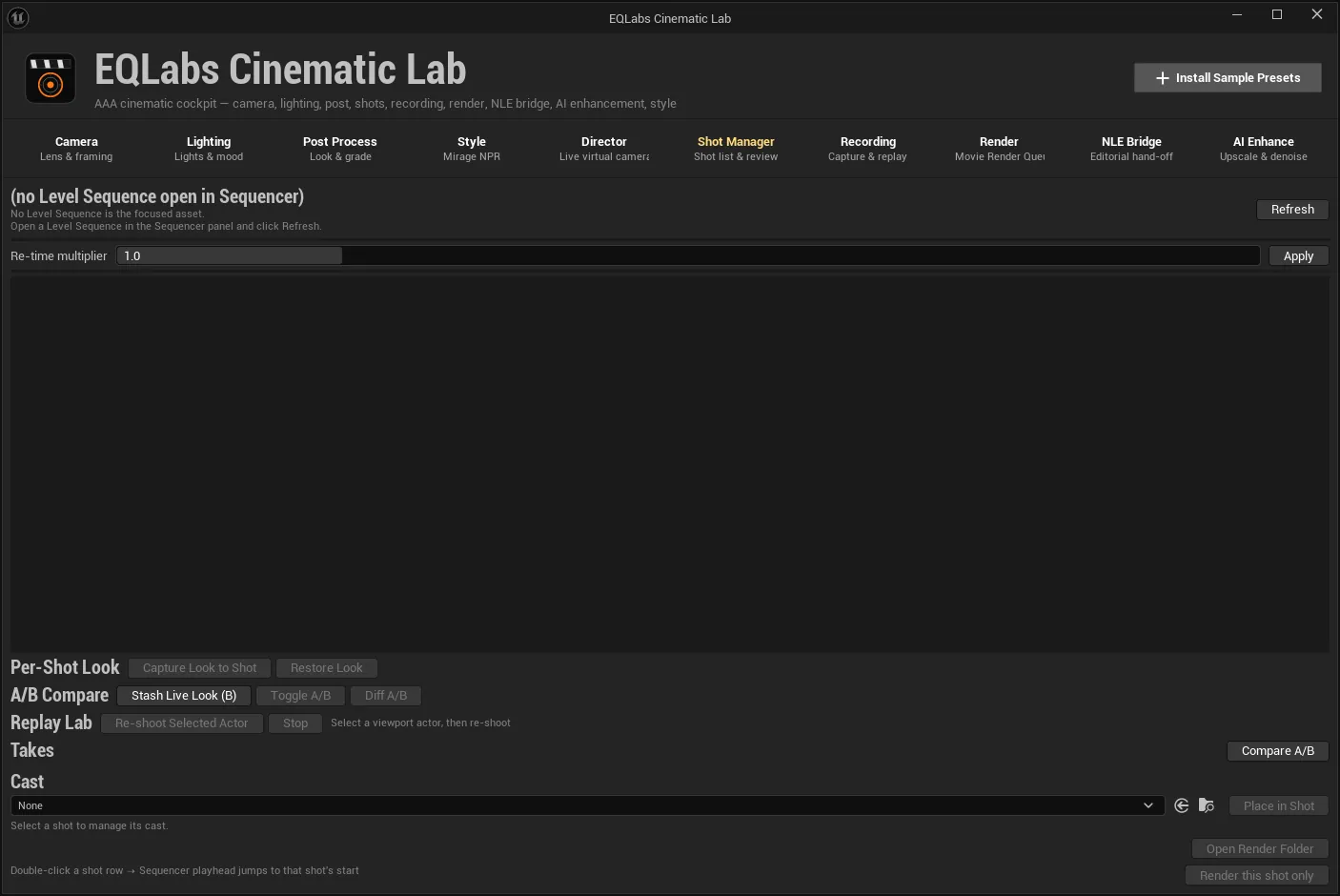
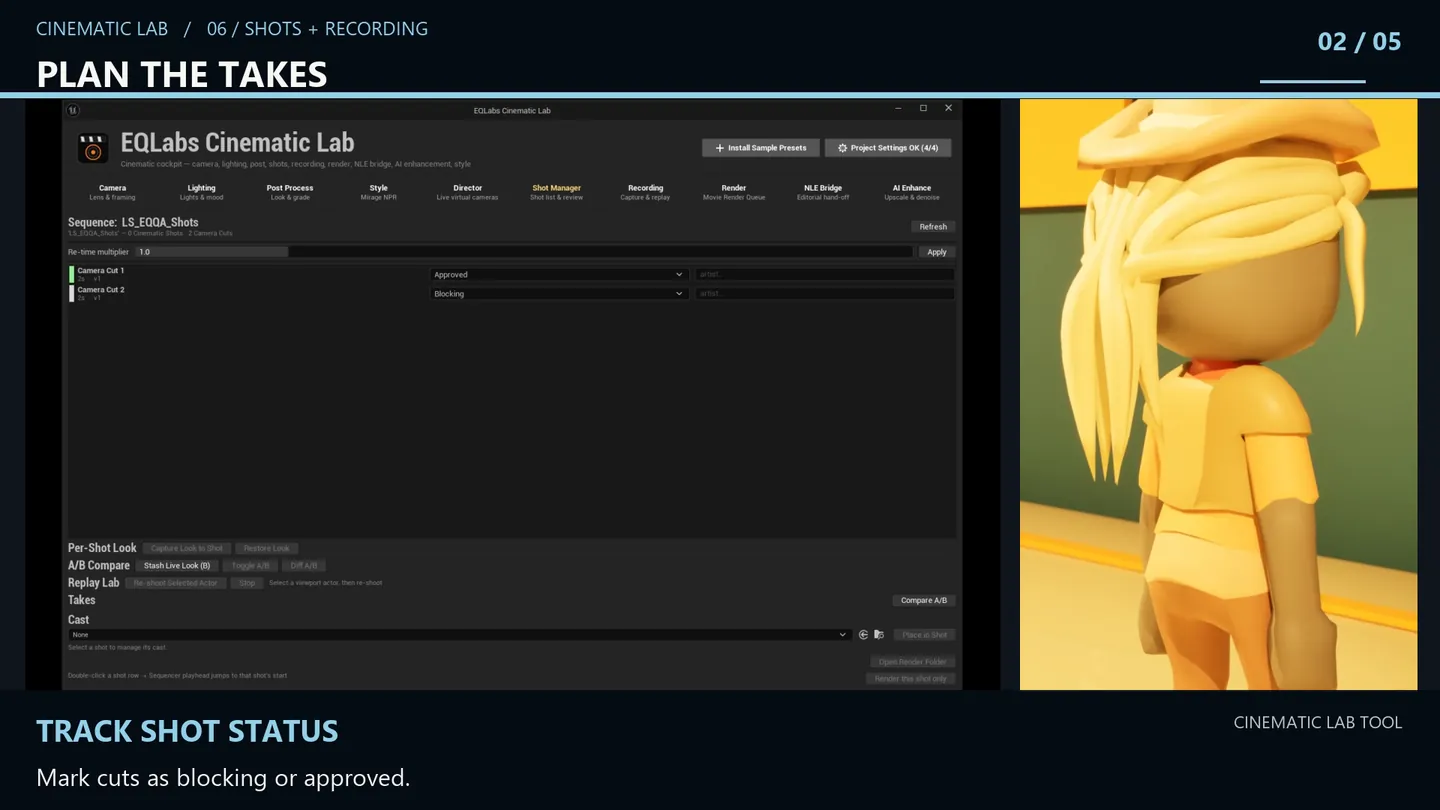
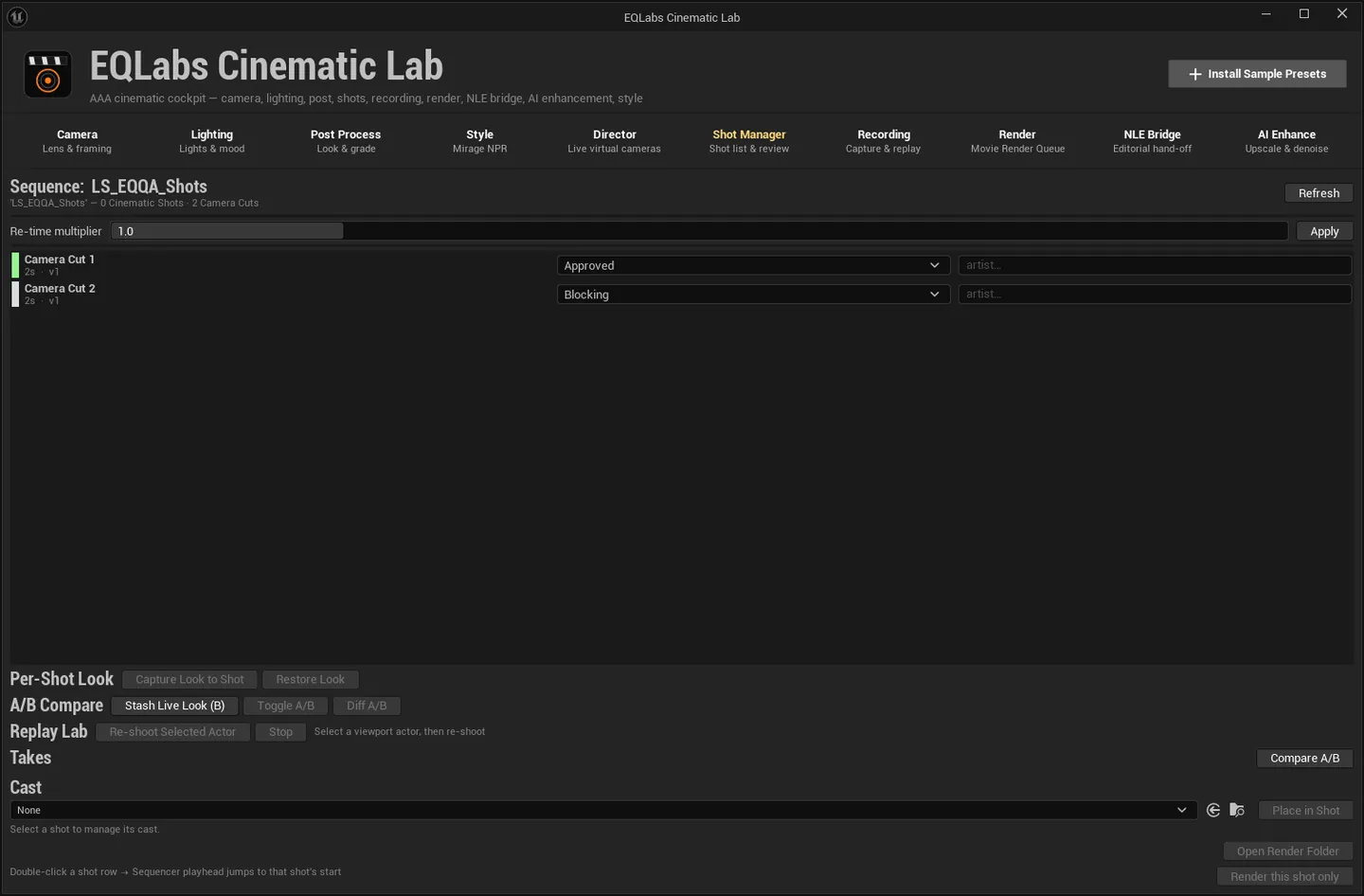
The shot list
Section titled “The shot list”Built from the active Level Sequence in Sequencer. The header reads Sequence: <name>; with
nothing open it says “(no Level Sequence open in Sequencer)” rather than showing an empty list with
no explanation.
Refresh re-scans. Each row carries duration and version (<n>s · v<version>), an editable
artist field, and a status. Double-click a shot row and the Sequencer playhead jumps to
that shot’s start.
Re-time multiplier + Apply scales all shot durations by the multiplier, anchored at the first shot’s start.
The shot scanner reads both the Cinematic Shot track and the Camera Cut track, so sequences authored either way are handled identically. That dual-track scan is also what the NLE Bridge export reuses.
Per-shot Look State
Section titled “Per-shot Look State”The tab’s central idea: a shot remembers how it looked, and can be put back.
| Action | What it does |
|---|---|
| Capture Look to Shot | Store the scene’s current local lights into the selected shot |
| Restore Look | Replace the scene’s current local lights with the shot’s captured lighting |
Directional and Sky lights are left untouched, deliberately. Restoring a shot’s look never destroys the level’s base lighting rig — that asymmetry is the design, not an oversight.
A captured Look holds more than lights:
- Lighting. Every local light (Point / Spot / Rect) with its full authored state: transform,. intensity and intensity units, colour, temperature flag and value, attenuation radius, cone angles, source width and height, mobility, shadow casting.
- Style. The scene-wide Mirage NPR look, so a stylised treatment and the lighting that flatters. it travel together.
- Camera. The live camera, so a restore can put the shot back on its framing.
- Cast. Actors placed through Place in Shot (below).
Restore runs inside a single transaction: an entire look swap is one Ctrl+Z.
A shot only counts as having a Look if it carries lights, a style or a live camera — a stricter test than “the struct exists”, so an empty capture cannot masquerade as a saved look.
A/B compare
Section titled “A/B compare”| Action | What it does |
|---|---|
| Stash Live Look (B) | Capture the current scene as the B snapshot |
| Toggle A/B | Flip the live scene between the shot’s stored look (A) and the stash (B) |
| Diff A/B | List what actually changed between them |
Diff is the one that saves arguments — it prints the differences rather than leaving you to spot them by eye.
Replay Lab: takes
Section titled “Replay Lab: takes”Re-shoot Selected Actor records the selected viewport actor’s performance into a new take for this shot, through Take Recorder. Stop ends the recording.
The panel is explicit about what it needs: select an actor in the viewport first, and the Take Recorder plugin must be available — it says “Take Recorder plugin unavailable” rather than failing silently.
Circled takes
Section titled “Circled takes”Each take can be circled as the pick. The tooltip states the consequence: “Circle this take as the pick (exports as an OTIO marker).”
That is not decoration. A circled take becomes a green OTIO Marker.2 on the clip’s marked range
in the NLE Bridge export, named "<take> (<rating>/5)" — so
the director’s judgement arrives in the editor as native markers rather than as a separate document.
Compare A/B (takes)
Section titled “Compare A/B (takes)”Opens a wipe compare of the shot’s two most recent rendered or clip takes, preferring circled ones. Stills only — the panel says so. It needs two takes and tells you when there are not enough.
Place in Shot spawns a chosen asset — skeletal mesh, prop or actor blueprint — then:
- Ground-snaps it and faces it toward the viewport,.
- Bakes it as a spawnable in this shot’s sequence,.
- Records it in the shot’s Look.
Remove takes a cast entry out of the shot’s Look. It does not delete the spawned preview actor — the panel says so plainly: “The spawned preview actor stays in the level — delete it there if unwanted.”
Hand-off to Render
Section titled “Hand-off to Render”| Action | What it does |
|---|---|
| Render this shot only | Stash the selected shot for the Render tab to pick up |
| Open Render Folder | Open the output folder of this shot’s most recent render |
The render side then offers Render Pending Shot with its Look, which restores the captured Look State — lighting, Mirage style and virtual camera — before rendering that shot alone.
Each row shows its render history: Last render: v<version> - <status> - <date>, or “Not yet
rendered”.
- Look capture is local-lights-only by design. If a shot’s mood depends on the directional or sky light, that is level state, not shot state, and Cinematic Lab will not stomp it.
- Restore is one undo. The whole swap — lights removed, lights rebuilt, style and camera restored — is a single transaction.
- “Render this shot only” clears the queue. The Render tab’s per-shot render says so on the button; it is not a silent side effect.
Opens our feedback form in a new tab with the tool name pre-filled.