
No. 0131 TE TechEQLabs Pro
LogLens
Module: Tech · Category: Debugging · Tool ID:
LogLensTab
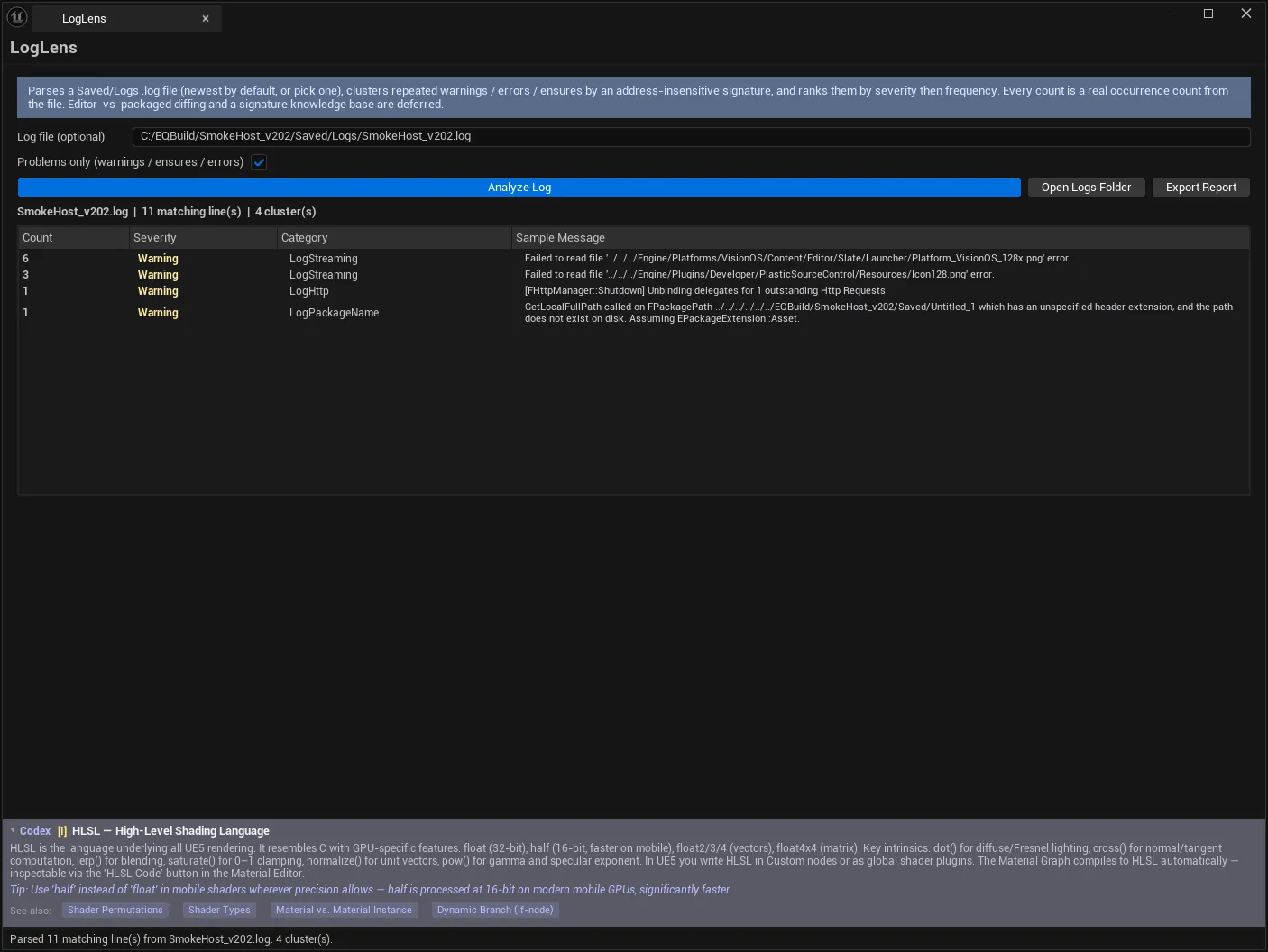
A log file with forty thousand lines contains perhaps twelve distinct problems. LogLens parses the file, groups repeated messages by an address- and number-insensitive signature, and ranks the clusters by severity then frequency — so the twelve problems surface and the forty thousand lines stop mattering.
Pure text analysis. Every count is a real occurrence count from the file.
When to use it
Section titled “When to use it”- Triaging a packaged build’s log after a QA session
- Finding what is actually spamming an editor session
- Turning a bug report’s attached log into a ranked problem list
- Comparing “how noisy is this build” across milestones
What it isn’t for
Section titled “What it isn’t for”- Don’t use it as a live console. It analyses a file on disk, not a running session — use the Output Log for live work.
- Don’t expect editor-vs-packaged diffing or a signature knowledge base. Both are deferred — see below.
Opening the tool
Section titled “Opening the tool”- Open the EQLabs Hub and search for log (or browse to Tech → Debugging).
- Click the tool card.
- Click Analyze Log — by default it takes the newest file in the project’s
Saved/Logs.
| Control | Notes |
|---|---|
| Log file (optional) | Full filesystem path to a specific .log. Empty = newest in Saved/Logs |
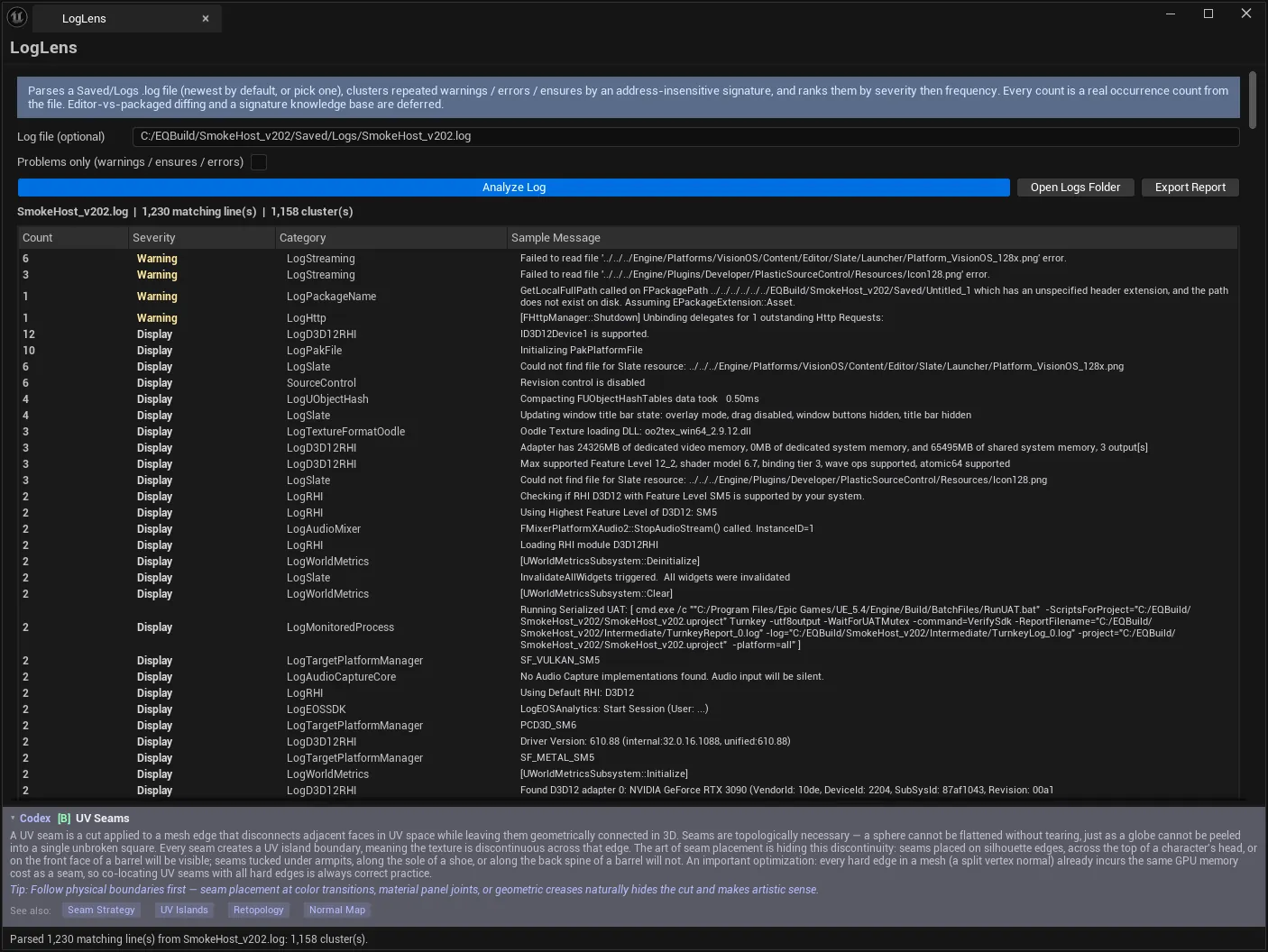
| Problems only (warnings / ensures / errors) | Excludes Display/Verbose so only warning-and-above is clustered |
| Analyze Log | Parse and cluster |
| Open Logs Folder | Opens this project’s Saved/Logs |
| Export Report | Writes the clustered analysis (JSON/CSV/HTML) |
The optional path field is what makes it useful beyond your own machine: paste the path to a log a tester attached to a bug report and analyse that instead.
Problems only is on the critical path for signal. A full editor log is mostly Display lines; excluding them typically cuts the cluster count by an order of magnitude and leaves what you actually need to act on.
How clustering works
Section titled “How clustering works”Each line is parsed into (category, verbosity, message), then clustered by a signature that ignores addresses and numbers.
That is the mechanism that makes the tool work. These three lines:
LogActor: Warning: Actor BP_Enemy_C_2481 failed to find socket 'hand_r'LogActor: Warning: Actor BP_Enemy_C_9137 failed to find socket 'hand_r'LogActor: Warning: Actor BP_Enemy_C_4410 failed to find socket 'hand_r'are one problem, not three — and in a real log they might be one problem repeated eight hundred times. Naive grouping by exact text would report eight hundred distinct issues; signature clustering reports one with a count of eight hundred.
Results
Section titled “Results”| Column | Meaning |
|---|---|
| Count | Real occurrence count from the file |
| Severity | Verbose, Display, Warning, Ensure, Error, Fatal |
| Category | The log category, e.g. LogActor |
| Sample Message | A representative line from the cluster |
Ranking is severity first, then frequency. A single Fatal outranks a thousand Warnings — which is the correct priority and the opposite of what sorting by count alone would give you.
Status line:
MyProject.log | 4,182 matching line(s) | 37 cluster(s)Ensure deserves its own severity band because an ensure is a caught programmer error — code that continued running after asserting something that turned out false. High ensure counts are often the most actionable thing in a log.
What is deferred
Section titled “What is deferred”Two things are not provided, stated as honest scope:
- Editor-vs-packaged log diffing. Comparing what a packaged build logs against what the editor logs.
- A per-signature knowledge base. Persistent notes explaining what each signature means.
Until those exist, comparing two builds means analysing and exporting each, then diffing the reports.
Workflow: triaging a QA build
Section titled “Workflow: triaging a QA build”- Get the log from the packaged build (or paste its path).
- Tick Problems only.
- Analyze Log.
- Work the list from the top — severity first.
- For each cluster, read the Sample Message and note the Count.
- High-count Warnings are usually one systemic cause, not many small ones.
- Export Report and attach the HTML to the bug.
Reading the results
Section titled “Reading the results”- A cluster with an enormous count is one bug, and usually a cheap fix with a large payoff in log noise.
- Ensures are caught assertions. They indicate code that noticed something wrong and carried on — worth reading before Warnings with higher counts.
- Category tells you the owner.
LogNiagara,LogAnimation,LogStreamingroute the problem to whoever owns that area. - A quiet log is a finding too. If the session that reproduced a bug logged nothing unusual, the failure is silent, which narrows things.
Tips and gotchas
Section titled “Tips and gotchas”- Newest-in-
Saved/Logsis the default, so analysing right after a crash usually picks the right file — but confirm the filename in the status line. - Problems only is what makes the output readable. Leave it off only when hunting something logged at Display.
- Counts are real occurrences, never estimates.
- Signature clustering ignores numbers and addresses, so two genuinely different problems that differ only by a number will merge. Read the sample message.
- Analysis is cancellable, and a cancelled run is labelled
[cancelled - partial]rather than presented as complete. - It reads a file, not a live session. Reproduce, then analyse.
Related tools
Section titled “Related tools”- Crash Triage Center — the crash-report counterpart to log triage
- HitchScope — performance events rather than log events
- Validation Gate Hub — gate a build on the problems this surfaces
- Ship Lab — release readiness, where a noisy log is a signal
Opens our feedback form in a new tab with the tool name pre-filled.