
No. 0211 TE TechEQLabs Pro
MemSnap
Module: Tech · Category: Performance · Tool ID:
MemSnapTab
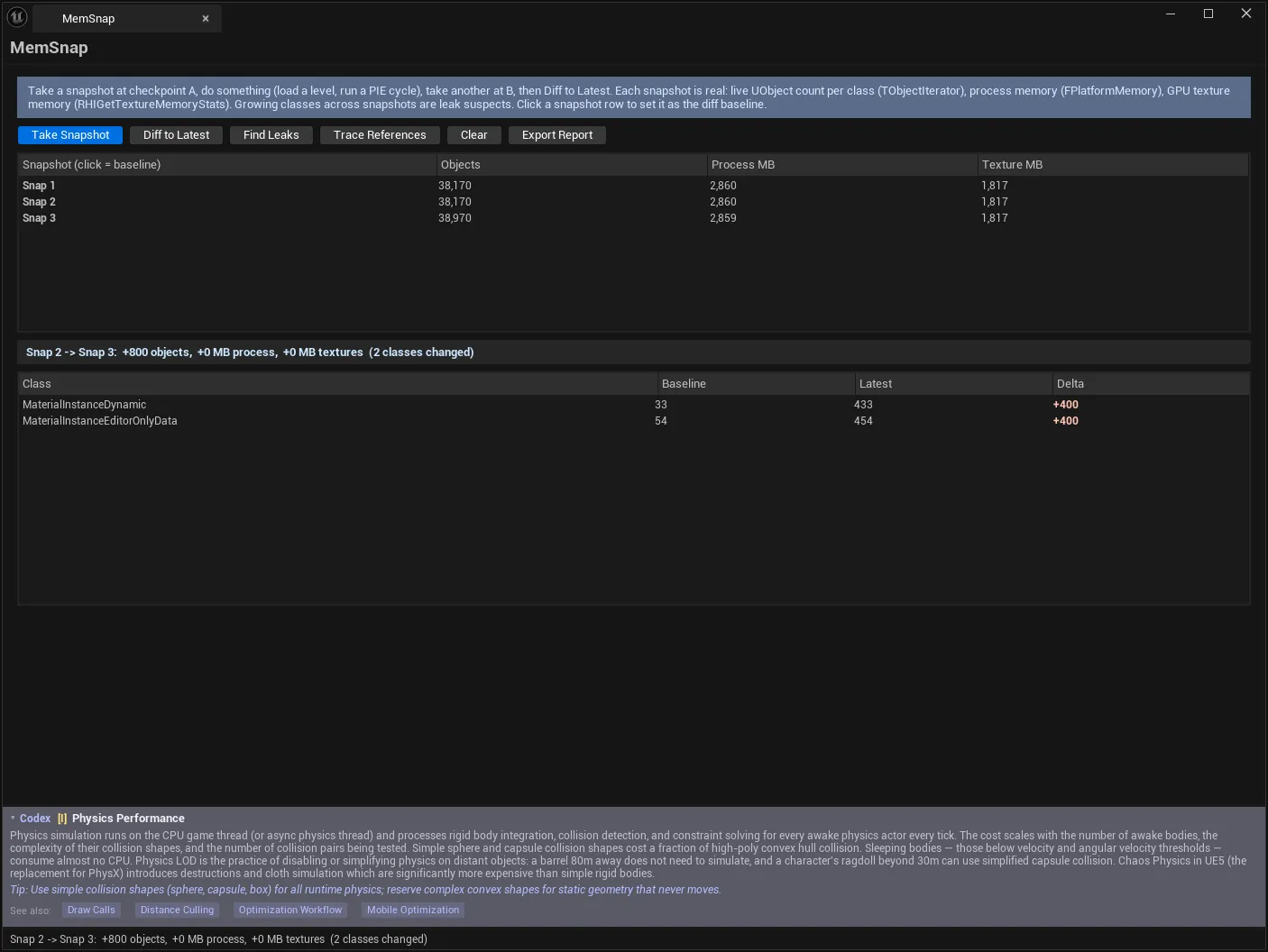
The leak hunter’s workflow, made one-click: snapshot at checkpoint A, do the thing, snapshot at checkpoint B, diff. Each snapshot captures live UObject counts per class, process physical memory, and GPU texture memory. The diff tells you exactly what grew — +4,312 UNiagaraComponent since checkpoint A — and Trace References tells you who is holding it alive.
That last step is what turns “something is leaking” into a fix.
When to use it
Section titled “When to use it”- Memory that grows across level loads or PIE cycles and never comes back
- Following up rising UObject counts seen in GC Pulse
- Confirming that a system actually releases what it allocates
- Finding which class is responsible before guessing at the cause
- Checking GPU texture memory growth separately from process memory
What it isn’t for
Section titled “What it isn’t for”- Don’t use it for a single point-in-time measurement. Its value is in the difference between two snapshots.
- Don’t use it to measure GC pause cost. That is GC Pulse.
Opening the tool
Section titled “Opening the tool”- Open the EQLabs Hub and search for memory or
leak(or browse to Tech → Performance). - Click the tool card.
- Follow the prompt: “Take a snapshot at checkpoint A, do something (load a level, run a PIE cycle), take another at B, then diff.”.
What a snapshot captures
Section titled “What a snapshot captures”| Measurement | Source |
|---|---|
| Live UObject count per class | TObjectIterator |
| Process physical memory | FPlatformMemory::GetStats |
| GPU texture memory | RHIGetTextureMemoryStats |
Every number is a real measurement.
Each snapshot reports as it is taken:
Snapshot 3: 1,842,110 objects, 4,218 MB process, 2,940 MB textures.Snapshots list
Section titled “Snapshots list”| Column | Meaning |
|---|---|
| Snapshot (click = baseline) | The snapshot — clicking selects it as the diff baseline |
| Objects | Live UObject count |
| Process MB | Process physical memory |
| Texture MB | GPU texture memory |
Actions
Section titled “Actions”| Control | Effect |
|---|---|
| Take Snapshot | Captures counts + process/texture memory now |
| Diff to Latest | Diffs the selected baseline (or second-to-last) against the latest |
| Find Leaks | Scans all snapshots (≥ 3) for classes that only ever grow |
| Trace References | For the selected class, prints who holds a live instance alive |
| Clear | Discards all snapshots |
| Export Report | Writes the current diff as an EQLabs report (JSON/CSV/HTML) |
The tool guards each one with a specific message rather than a generic failure:
- “Take at least two snapshots to diff.”
- “The baseline is the latest snapshot — select an earlier one as baseline.”
- “Take at least three snapshots across the suspected leak to scan for monotonic growth.”
- “Select a class in the list first, then Trace References.”
- “Run a diff first (Diff to Latest).”
The diff
Section titled “The diff”| Column | Meaning |
|---|---|
| Class | UObject class |
| Baseline | Count at the baseline snapshot |
| Latest | Count at the latest snapshot |
| Delta | The growth |
Sort by Delta. A leak is usually one class dominating the list by an order of magnitude.
Find Leaks: monotonic growth
Section titled “Find Leaks: monotonic growth”Find Leaks needs at least three snapshots and looks for classes that grow at every step and never shrink.
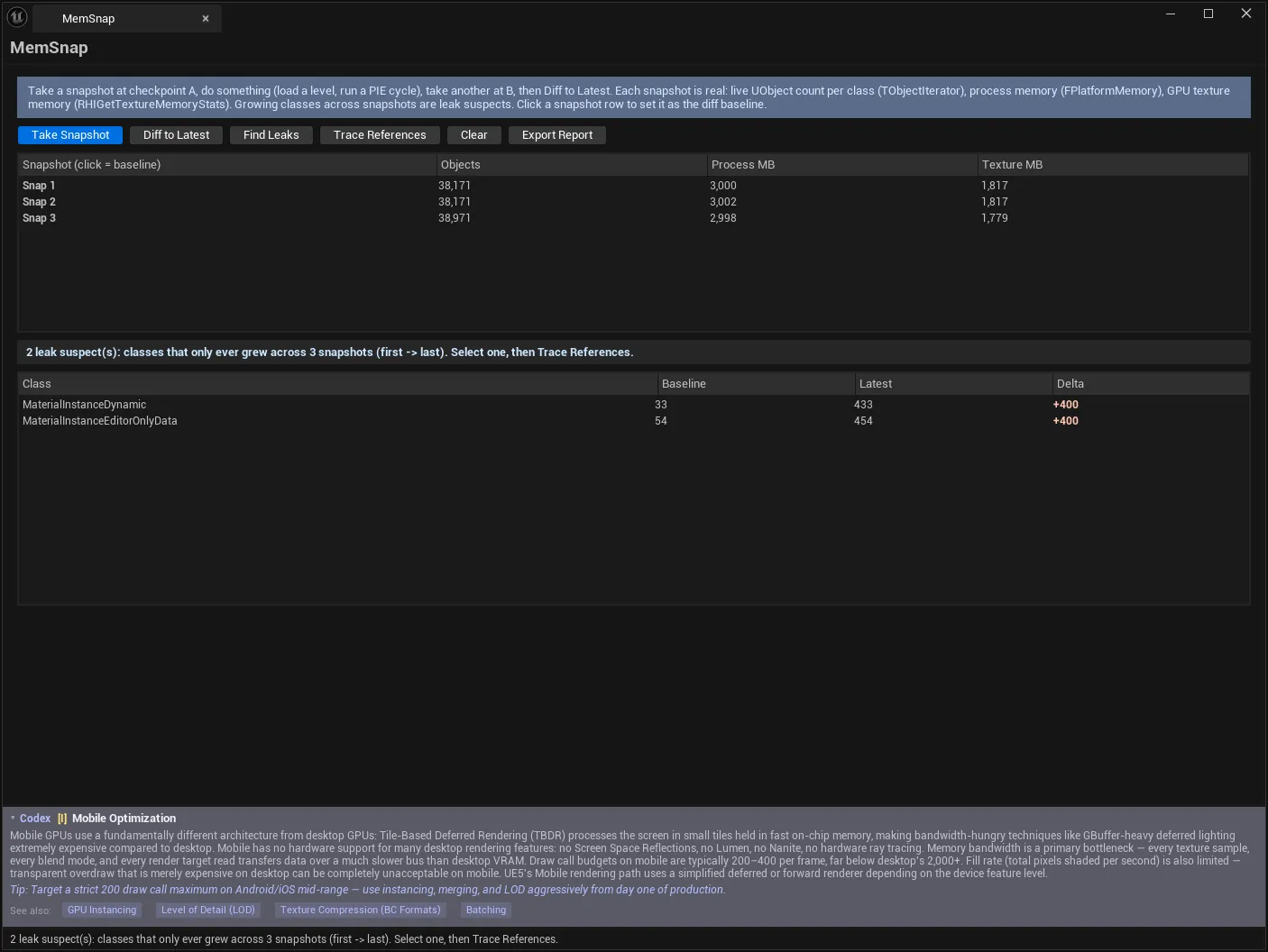
This is a stronger signal than a single diff. A class can grow between two snapshots simply because more of the level loaded; a class that grows across three or more checkpoints and never releases is behaving like a leak. Take snapshots at the same logical point in each cycle — after each level load, or after each PIE run — so the comparison is meaningful.
Trace References: the payoff
Section titled “Trace References: the payoff”Select a class, click Trace References, and the tool prints the shortest reference chains to a live instance to the Output Log, using FReferenceChainSearch:
UNiagaraComponent: 3 shortest reference chain(s) to a live instance(NS_Explosion_01) printed to the Output Log — who holds it alive.This answers the only question that matters once you know what is leaking: what is still pointing at it. Usually it is a UPROPERTY array nobody clears, a delegate binding that outlives its owner, or a manually-managed cache.
If no live instance exists the tool says so — “No live instance of X found” — rather than printing an empty chain.
Workflow: hunting a leak across PIE cycles
Section titled “Workflow: hunting a leak across PIE cycles”- Open the tool in a clean editor state.
- Take Snapshot — checkpoint A.
- Run a full PIE cycle and exit.
- Take Snapshot — checkpoint B.
- Repeat for a third and fourth cycle.
- Find Leaks — the monotonic-growth scan.
- Select the top offender → Trace References.
- Read the chains in the Output Log.
- Fix the retention, then repeat from step 1 to confirm.
- Export Report.
Forcing a GC in GC Pulse before each snapshot makes the comparison cleaner — otherwise you are measuring garbage that simply has not been collected yet, which looks like a leak and is not.
Tips and gotchas
Section titled “Tips and gotchas”- Snapshot at the same logical point each cycle, or normal variation swamps the signal.
- Force a GC before snapshotting to distinguish uncollected garbage from genuine retention.
- Clicking a row sets the baseline. If a diff looks wrong, check which snapshot is selected.
- Find Leaks needs three snapshots, and more is better — two points cannot show a trend.
- Process MB and Texture MB are independent. A texture leak may not move process memory much.
- Trace References prints to the Output Log, not into the panel — that is where the answer is.
- Clear discards everything. There is no partial clear; export first if the session matters.
Related tools
Section titled “Related tools”- GC Pulse — GC pause cost and the UObject capacity ceiling
- HitchScope — catches the hitches memory pressure causes
- StreamDoctor — streaming behaviour behind texture memory growth
- Subsystem Viewer — inspect the subsystems that may be retaining objects
Opens our feedback form in a new tab with the tool name pre-filled.