
No. 1054 AN AnimationEQLabs Pro
Root Motion Studio
Module: Animation · Category: Motion · Tool ID:
RootMotionStudio
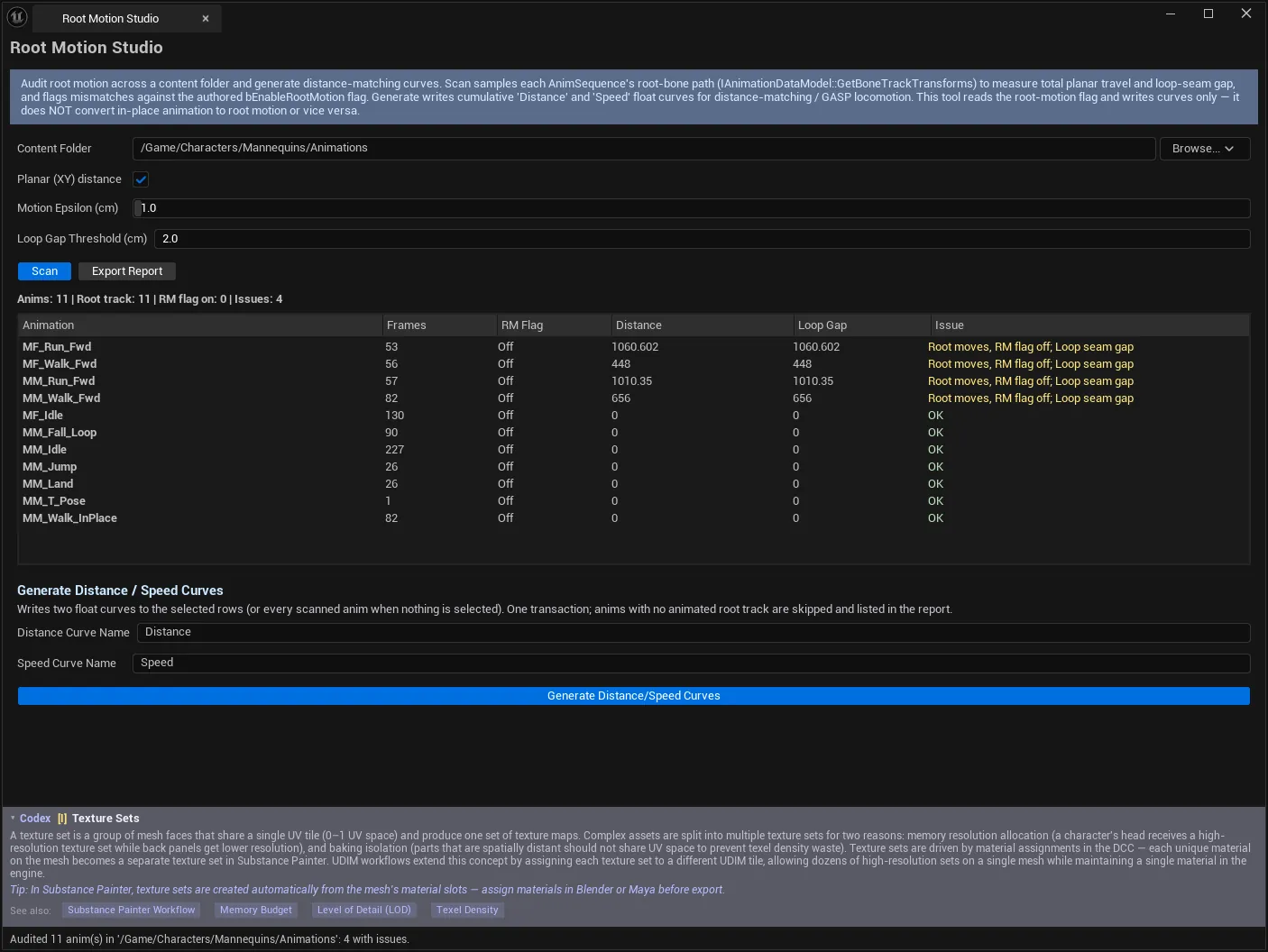
Two jobs in one panel. Audit scans a content folder and reports, per AnimSequence, whether its root-motion flag agrees with what the root bone actually does — the mismatch that produces sliding feet and animations that refuse to travel. Generate writes the Distance and Speed float curves that distance-matching and GASP-style locomotion systems consume.
Every number in the table is measured from the animation data model, not inferred from naming conventions.
When to use it
Section titled “When to use it”- Auditing a locomotion set before wiring up distance matching or GASP
- Hunting the classic mismatch: root-motion flag on, root bone never moves (character plays in place)
- The inverse: root travels but the flag is off (character animates away from its capsule)
- Generating
Distance/Speedcurves in bulk instead of by hand per sequence - Checking loop seams: how far the root is from where it started
What it isn’t for
Section titled “What it isn’t for”- Don’t treat a large loop gap as a defect on traveling clips. A genuine walk-forward should end far from where it began. The threshold exists to be raised for traveling motion.
- Don’t use it to author root motion. It measures and annotates existing animation; it does not create or retarget root tracks.
Opening the tool
Section titled “Opening the tool”- Open the EQLabs Hub and search for root motion (or browse to Animation → Motion).
- Click the tool card.
- Pick a Content Folder, set thresholds, click Scan.
Scan settings
Section titled “Scan settings”| Setting | Notes |
|---|---|
| Content Folder | Folder to scan for AnimSequences. Browse picks from the Content Browser folder tree |
| Planar (XY) distance | Measure horizontal travel only, ignoring vertical bob — the distance-matching convention. Uncheck to include vertical motion in Distance, Speed and loop gap |
| Motion Epsilon (cm) | Total root travel at or below this counts as “no root motion” when classifying a flag-on clip |
| Loop Gap Threshold (cm) | Loop-seam gap above this is flagged |
On Planar vs full 3D
Section titled “On Planar vs full 3D”Leave Planar on for locomotion. Distance matching cares about ground distance travelled; a jog cycle’s vertical bob would otherwise inflate the distance curve and desynchronise the match. Switch to full 3D only when vertical travel is the point — jumps, climbs, vaults.
On the Loop Gap threshold
Section titled “On the Loop Gap threshold”The loop gap is the first-to-last root offset. For an in-place idle it should be near zero. For a walk-forward it is the stride distance, by design. Set the threshold to whatever “shouldn’t have moved” means for the folder you are scanning, and expect traveling clips to exceed any small value — that is not a bug in the clip.
Results table
Section titled “Results table”| Column | Source |
|---|---|
| Animation | The AnimSequence |
| Frames | IAnimationDataModel::GetNumberOfFrames() |
| RM Flag | Authored root-motion flag — UAnimSequence::HasRootMotion() (i.e. bEnableRootMotion) |
| Distance | Cumulative root travel in cm, planar or 3D per the toggle |
| Loop Gap | First-to-last root offset in cm |
| Issue | Classification from flag, distance, loop gap and thresholds |
Issue classifications
Section titled “Issue classifications”| Issue | Meaning | Typical consequence |
|---|---|---|
| RM enabled, root bone not animated | bEnableRootMotion is set but there is no animated root track | The clip plays in place; the movement system gets nothing |
| RM flag on, no root motion | Flag is on, but total travel is at or below Motion Epsilon | Same symptom, different cause — the track exists but doesn’t move |
| Root moves, RM flag off | The root travels, but the flag is off | Motion is baked into the pose and ignored by the movement system — the mesh drifts from the capsule |
| No animated root track | No root track at all | Fine for additive/in-place clips; a problem for locomotion |
| Loop seam gap | First-to-last offset exceeds the threshold | Visible pop at the loop point — or an expected stride on a traveling clip |
The summary line reports the whole picture at a glance:
Anims: 42 | Root track: 38 | RM flag on: 31 | Issues: 7Generating Distance / Speed curves
Section titled “Generating Distance / Speed curves”| Control | Default | Notes |
|---|---|---|
| Distance Curve Name | Distance | Cumulative distance curve |
| Speed Curve Name | Speed | Per-second speed curve |
| Generate Distance/Speed Curves | — | Writes both curves to selected rows, or every scanned anim when nothing is selected |
Selection semantics are worth internalising: with no rows selected, Generate writes to everything that was scanned. That is convenient for a whole locomotion folder and surprising if you meant to do one clip.
Both names must be non-empty and must differ — the tool refuses otherwise rather than writing one curve over the other.
Sequences with no animated root track are skipped, not failed, and listed in the report.
Transaction and saving
Section titled “Transaction and saving”The whole generation runs under one transaction, so a single Undo reverts the entire batch. But:
Curves are written to the assets in memory. You must save the assets to persist them.
Verify in Persona before saving if you want to see what landed.
Export Report
Section titled “Export Report”Export Report writes the current audit as an EQLabs report in JSON, CSV and HTML under Saved/EQLabs/Reports. Run Scan first — there is nothing to export otherwise, and the tool says so rather than writing an empty file.
The generation step also produces its own report recording what was written and what was skipped.
Workflow: auditing a locomotion set
Section titled “Workflow: auditing a locomotion set”- Point Content Folder at the locomotion folder.
- Leave Planar (XY) on.
- Set Loop Gap Threshold high enough that traveling clips don’t flood the results.
- Scan, then sort by Issue.
- Fix genuine flag mismatches in the source assets.
- Select the clips that need curves — or select nothing to do all of them.
- Generate Distance/Speed Curves.
- Save the assets.
- Export Report for the record.
Tips and gotchas
Section titled “Tips and gotchas”- Generate with nothing selected writes to every scanned anim. Select deliberately.
- Curves are not saved automatically. Unsaved assets lose the curves on editor close, which reads as the tool having done nothing.
- A large loop gap on a traveling clip is correct. Raise the threshold instead of “fixing” the animation.
- Motion Epsilon only applies to flag-on clips. It is what separates “flag on but genuinely static” from real motion.
- Planar vs 3D changes Distance, Speed and loop gap together. Re-scan after toggling; don’t compare numbers across modes.
- Undo works, but only until you save. After saving, reverting means restoring the assets from source control.
Related tools
Section titled “Related tools”- Motion Cleanup & Foot Locking — fix sliding feet once the root motion is correct
- Motion & Physics Sync Engine — keep physics in step with root motion
- Animation Auditor — broader animation health, where this is root-motion specific
- Anim Notify Manager — the other bulk annotation pass over a locomotion set
Opens our feedback form in a new tab with the tool name pre-filled.