
Style
Tab: Style — Mirage NPR · Plugin: Cinematic Lab
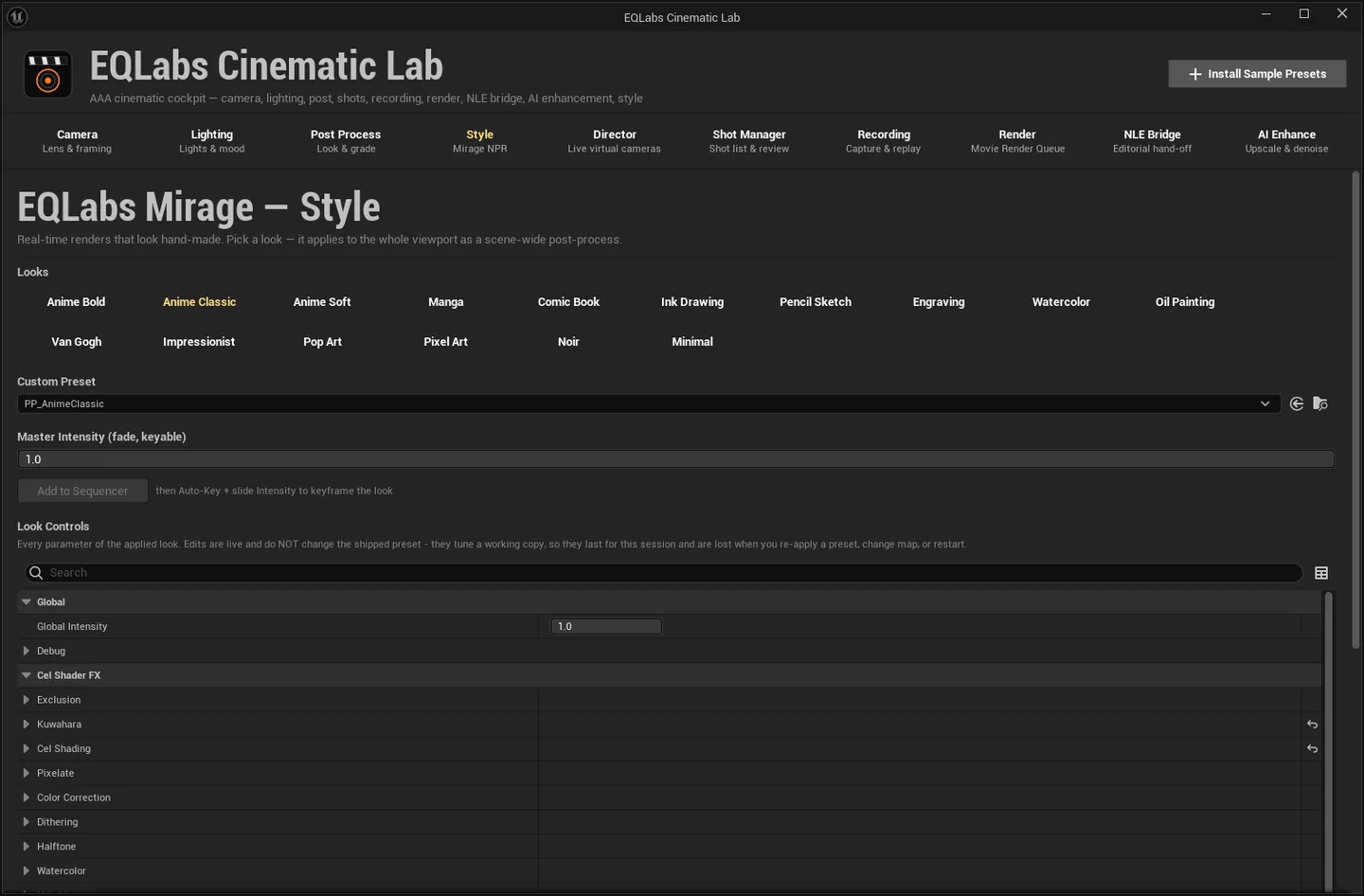
EQLabs Mirage applies a non-photorealistic look to the whole viewport as a scene-wide post-process. Pick a look, fade it with a keyable master, and exclude anything that should stay photoreal.
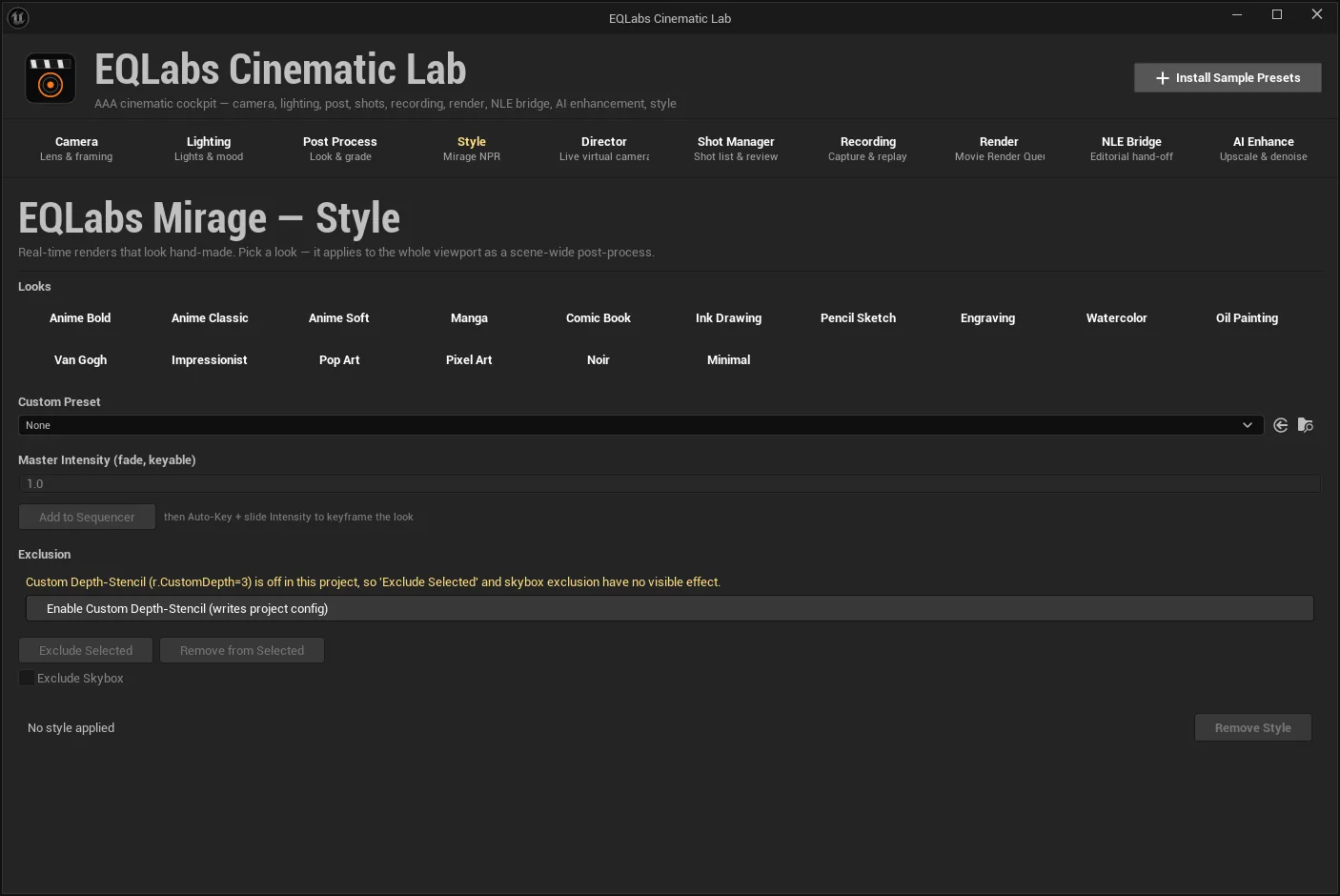
Applying a look
Section titled “Applying a look”The Looks row applies a shipped Mirage look to the viewport in one click. The status line reads
Active: <name>, or No style applied.
Custom Preset takes any Mirage settings asset (UCelShaderPostProcessSettings) — including ones
you author yourself — and applies it scene-wide. The status then reads Active: <name> (custom).
Clearing the field removes the style.
Remove Style deletes the scene-wide Mirage style actor and turns the look off entirely.
Master Intensity: the keyable fade
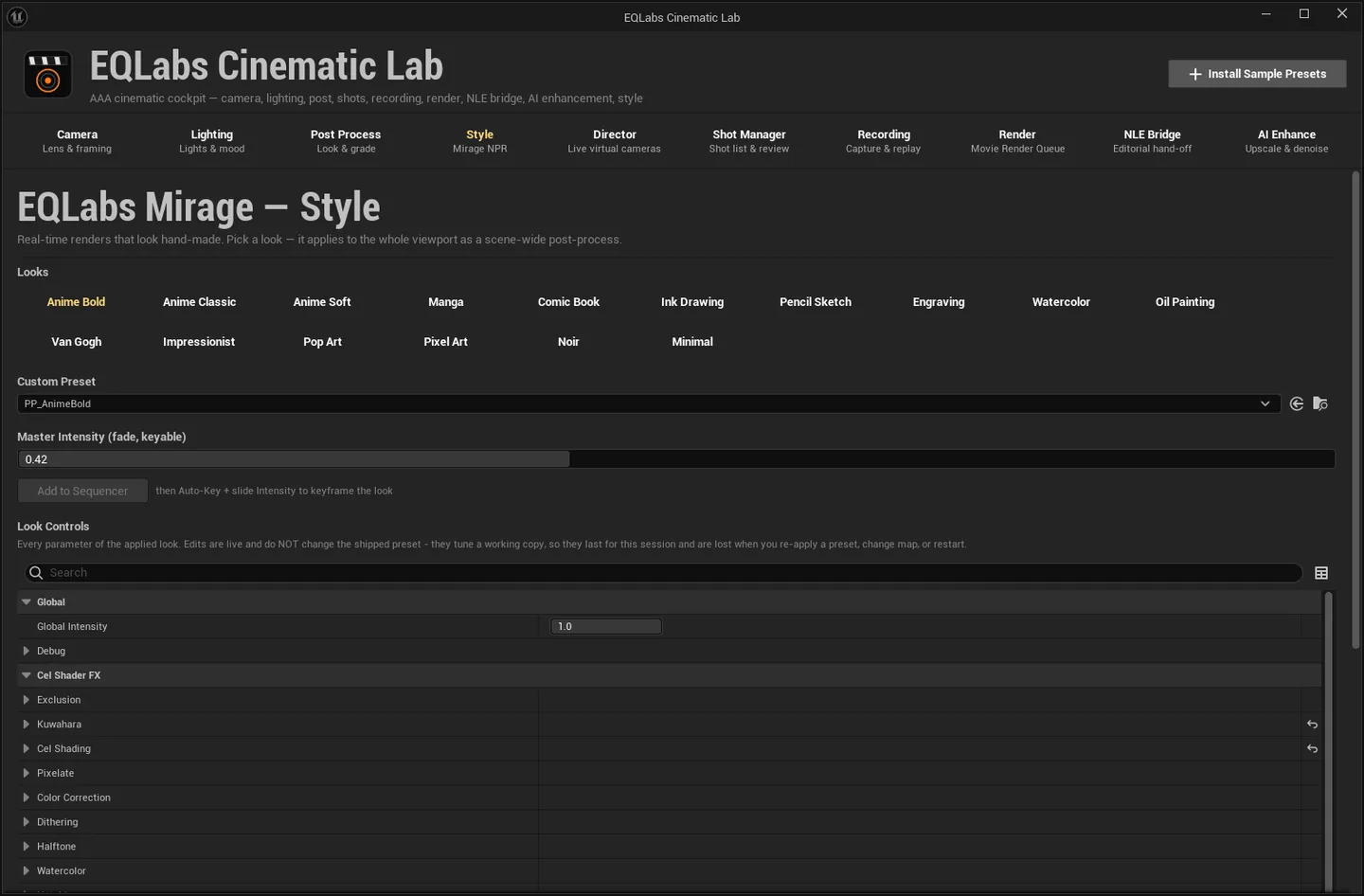
Section titled “Master Intensity: the keyable fade”Master Intensity (fade, keyable) multiplies the whole Mirage stack in (1.0) or out (0.0) on
top of the look’s own authored Global Intensity, which lives under Look Controls → Global. The
two are separate: the master is a fade, the look’s own intensity is part of its authoring.
To key the fade over a shot:
- Add to Sequencer binds the Mirage Style actor into the open Level Sequence.
- Enable the Sequencer’s Auto-Key.
- Slide Global Intensity at different playhead times.
The panel spells that sequence out on the control itself — “then Auto-Key + slide Intensity to keyframe the look” — because the binding step is the one people miss.
Look Controls
Section titled “Look Controls”The selected look’s own parameters, editable in place. Save as Preset… keeps your edits permanently as a new settings asset — without it, edits live only on the current style actor.
Exclusion: keeping things out of the look
Section titled “Exclusion: keeping things out of the look”Three actions:
| Action | What it does |
|---|---|
| Exclude Selected | Select mesh actors in the viewport, then click — adds a Cel Shader Exclude component and turns on the Exclusion stage |
| Remove from Selected | Removes the component; those actors rejoin the Mirage look |
| Exclude Skybox | The sky and far plane render normally while everything else is stylised |
This needs Custom Depth-Stencil, and it fails silently without it
Section titled “This needs Custom Depth-Stencil, and it fails silently without it”Exclusion depends on Project Settings → Rendering → Custom Depth-Stencil Pass = “Enabled with
Stencil” (r.CustomDepth=3). With it off, the component is still added and the stage still turns
on — and nothing changes on screen.
Cinematic Lab does not let that pass quietly:
- The Style tab shows a warning banner: “Custom Depth-Stencil (r.CustomDepth=3) is off in this project, so ‘Exclude Selected’ and skybox exclusion have no visible effect.”
- Next to it, Enable Custom Depth-Stencil (writes project config) writes
r.CustomDepth=3into yourDefaultEngine.iniand enables it immediately. Restart the editor if exclusion still does not take effect. - If you use exclusion anyway, the style manager raises a toast pointing at the same button.
See Getting started & project requirements for this and the other three project settings.
Style travels with the shot
Section titled “Style travels with the shot”The Shot Manager tab’s Capture Look to Shot stores the scene-wide Mirage style alongside the lighting, so a stylised look and the lighting that flatters it travel together and restore together. Restore runs in a single transaction — one Ctrl+Z undoes the whole swap.
- Mirage is scene-wide, not per-object, from this tab. Exclusion is how you carve objects out of it. Per-object cel shading exists in the CelShaderFX runtime module, but the Style tab drives the scene-wide path.
- Distance shadows need a second project setting. The Mirage post-process component’s
DistanceShadow stage samples the global distance field and no-ops when
r.GenerateMeshDistanceFieldsis0, warning in the log rather than failing loudly. - Edits are not saved until you save them. Look Controls changes live on the style actor; Save as Preset… is what makes them permanent.
Opens our feedback form in a new tab with the tool name pre-filled.