
Getting started & project requirements
Read this before deciding a feature is broken. Three of the four settings below fail silently — the tool does what you asked, and nothing appears.
Install
Section titled “Install”Cinematic Lab is delivered as source and builds with your project.
- Copy the plugin into
<YourProject>/Plugins/CinematicLab/. - Launch the project. Unreal offers to build the missing modules — accept.
- The plugin enables five of its own modules and turns on five engine plugins it depends on: Level Sequence Editor, Movie Render Pipeline, Enhanced Input, Takes and OpenColorIO. If any were disabled, restart when prompted.
Optional, but you will want it
Section titled “Optional, but you will want it”Movie Render Queue Additional Render Passes (Epic, ships with the engine, disabled by default) is required for the Object Ids / Cryptomatte pass. Without it that pass produces no matte layers. Cinematic Lab’s render preflight reports this as a BLOCKER rather than letting the render go out silently empty — see Render.
Open the cockpit
Section titled “Open the cockpit”Tools → EQLabs Cinematic Lab. One window, ten tabs across the top.
The header carries Install Sample Presets, which populates the camera body and lens libraries and the lighting presets. Several tabs point at it when their preset dropdowns are empty — the Camera tab’s preset section literally says “Run Install Sample Presets on the launcher header” when it finds none.
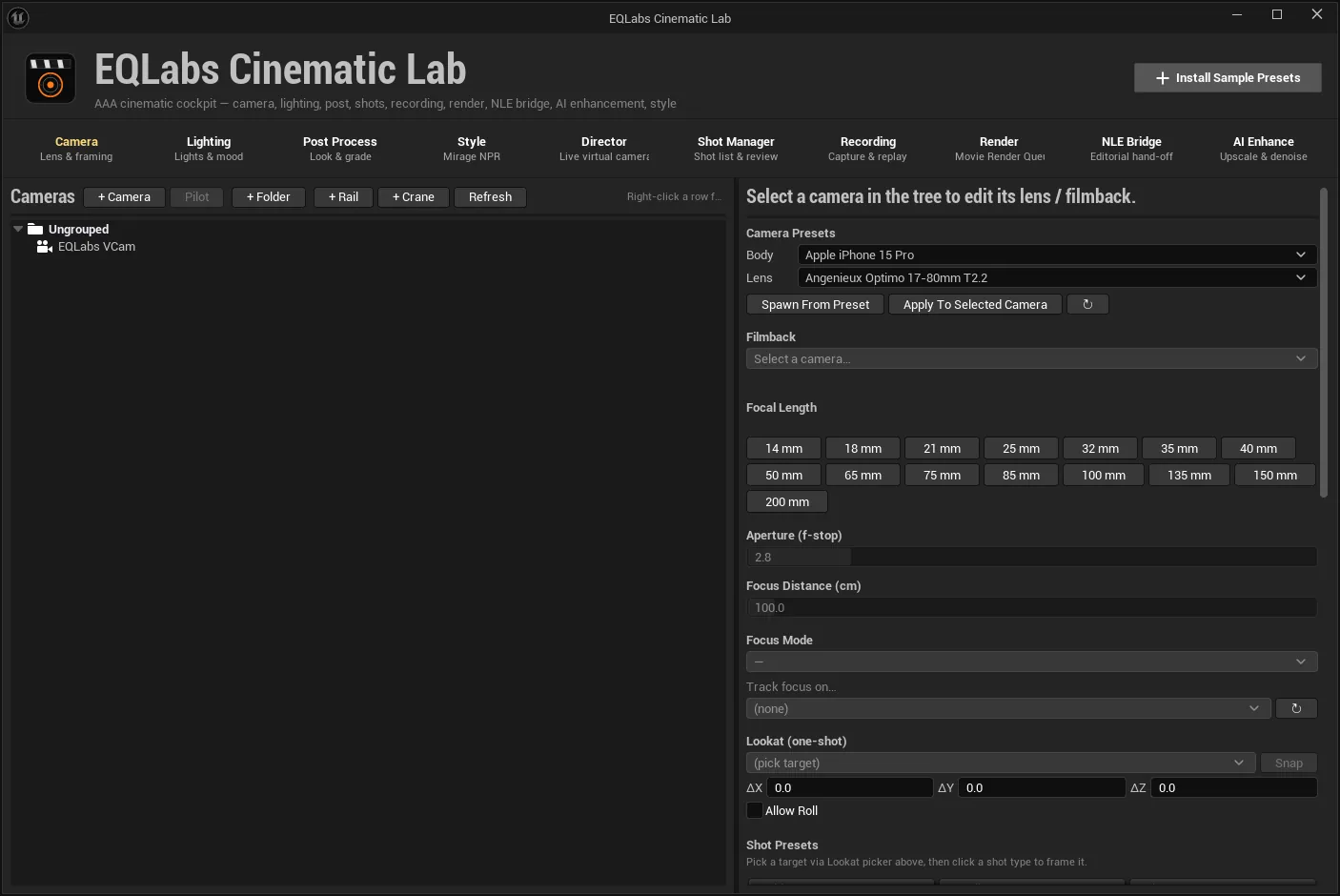
The tutorial below walks through every tab on one scene, from framing the shot to handing it off for the edit.
The four project requirements
Section titled “The four project requirements”1. Custom Depth-Stencil: needed for Style exclusion
Section titled “1. Custom Depth-Stencil: needed for Style exclusion”Project Settings → Rendering → Custom Depth-Stencil Pass = “Enabled with Stencil”
(r.CustomDepth=3).
Without it, the Style tab’s Exclude Selected and Exclude Skybox do nothing visible. The component is added, the exclusion stage turns on, and the render looks exactly the same.
This one is handled for you. The Style tab detects the setting and shows a warning banner with an
Enable Custom Depth-Stencil (writes project config) button that writes r.CustomDepth=3 into
your DefaultEngine.ini and enables it immediately. Restart the editor if exclusion still does not
take effect.
If you use exclusion without it, the style manager also raises a toast rather than staying quiet.
2. Mesh Distance Fields: needed for Mirage distance shadows
Section titled “2. Mesh Distance Fields: needed for Mirage distance shadows”Project Settings → Rendering → Generate Mesh Distance Fields = on
(r.GenerateMeshDistanceFields=1), then restart.
The Mirage post-process component’s DistanceShadow stage samples the global distance field. With
the setting off the stage is a no-op — it warns in the log rather than failing loudly, so watch for
CelShaderFX: DistanceShadow is enabled but 'r.GenerateMeshDistanceFields' is 0.
3. Alpha propagation: needed for a non-opaque render
Section titled “3. Alpha propagation: needed for a non-opaque render”r.PostProcessing.PropagateAlpha must be on, or every frame renders fully opaque and any AOV
that carries alpha is useless to a compositor.
The setting behaves differently by engine version, and Cinematic Lab’s preflight reports whichever is true on the engine you are running:
| Engine | Behaviour | How to turn it on |
|---|---|---|
| 5.4 | The console variable is ECVF_ReadOnly | Project settings only, then restart the editor. No plugin can set it for you, and Cinematic Lab does not pretend otherwise. |
| 5.5+ | Runtime-settable | Project settings, or r.PostProcessing.PropagateAlpha 1 in the console. |
Sky atmosphere and fog force alpha opaque regardless. Turning the setting on is necessary, not sufficient — the preflight says so in the same breath.
The Render tab surfaces this as a WARNING in its preflight banner whenever alpha is off and you are about to render.
4. Deferred shading: assumed by the render passes
Section titled “4. Deferred shading: assumed by the render passes”The AOV catalogue’s deferred passes resolve to Epic’s MoviePipelineDeferredPass_* classes
(Unlit, LightingOnly, ReflectionsOnly and the rest). They are deferred-renderer passes: a project on
the forward renderer will not get them.
Related, and version-dependent: primitive Holdout is Path-Tracer-only on UE 5.4. For a deferred render on 5.4, use Object Id mattes to isolate objects instead. The preflight states this as an INFO item on 5.4 and stays quiet on 5.5+, where deferred holdout exists.
One more first-run step: generate the Prism library
Section titled “One more first-run step: generate the Prism library”The Post tab’s 143 camera effects are built on demand, not shipped pre-generated. Run once per project, in the editor console:
EQLabs.Prism.GenerateLibraryIt is idempotent — re-run it any time; it will not clobber tweaks you have made to a Material
Instance. It creates 143 Material Functions, 143 post-process masters and 143 Material Instances
under /CinematicLab/Prism/.
If the effect browser looks empty, or a Look reports that it could only be partly applied, this command is the fix.
Where Cinematic Lab keeps things
Section titled “Where Cinematic Lab keeps things”| What | Where |
|---|---|
| Prism camera FX stacks | Saved/EQLabs/CinematicLab/CameraFXStack.json, keyed by volume path |
| Lighting and PPV preset libraries | JSON, persisted across editor sessions |
| Generated Prism assets | /CinematicLab/Prism/{Functions,Material,MaterialInstance}/ |
| Imported LUTs | Content/CinematicLab/LUTs/ |
| Screenshots and replay-buffer frames | <Project>/Saved/Screenshots/ and your chosen output directory |
Camera FX stacks are stored by volume path deliberately, so they survive a region being unloaded. Restoring them when the tool opens can only reach volumes that are loaded at that moment — the rest are dressed as they stream in. That is stated in the Post tab itself rather than left as a surprise.
Quick first pass
Section titled “Quick first pass”- Install Sample Presets from the header.
- Camera —
+ Camera, pick a body and lens, then Spawn From Preset. Pilot it. - Lighting — select your subject in the level, then Three-Point Lighting on Selected Actor.
- Post Process —
+ PPV, open Color Grading, and dial the four-axis grade. - Style — pick a Mirage look if you want a stylised render, or skip it.
- Shot Manager — with a Level Sequence open, Capture Look to Shot so the lighting and style travel with that shot.
- Render — read the preflight banner, then Add Active Sequence and Start Queue Render.
Everything above is reversible: shot Look restore runs inside a single transaction, so an entire look swap is one Ctrl+Z.
Opens our feedback form in a new tab with the tool name pre-filled.