
No. 0933 DE DesignEQLabs Pro
Vertex Snap Helper
Module: Design · Category: Level Design · Tool ID:
VertexSnapHelper
An editor mode for precise, gap-free assembly. Unreal’s grid snapping aligns to an abstract grid; this snaps to geometry that actually exists — a vertex, an edge midpoint, a face center, or a socket on a neighbouring mesh. Hold Alt while snapping to place a duplicate instead of moving the original, which turns it into a kitbashing tool as much as an alignment one.
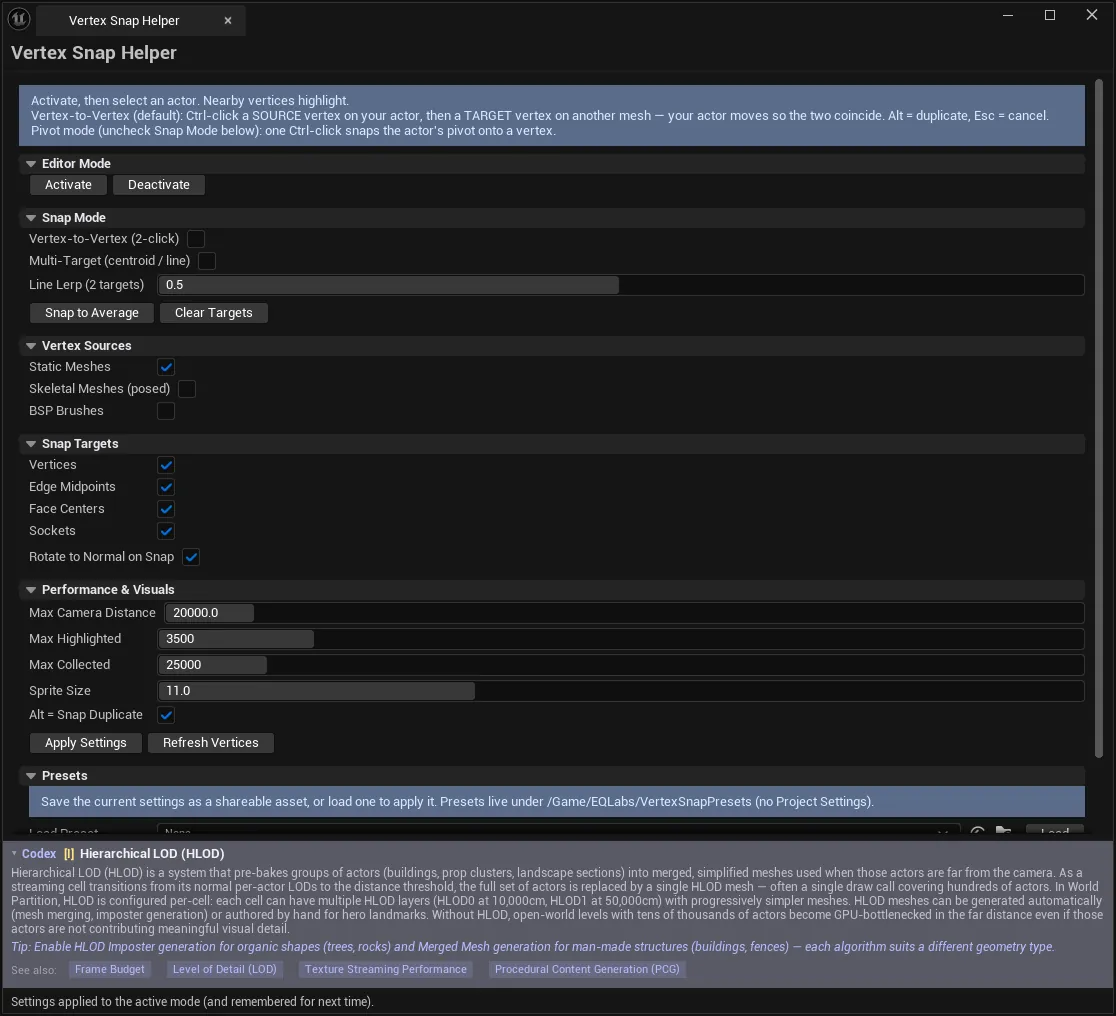
The panel is the settings surface. The snapping itself happens in the viewport.
When to use it
Section titled “When to use it”- Assembling modular kits where seams must be exactly closed: grid snapping leaves sub-unit gaps whenever the kit’s pivots aren’t grid-aligned
- Kitbashing: Alt-snap duplicates a piece straight onto the next attachment point
- Placing props onto irregular surfaces with Rotate to Normal so they sit flat
- Aligning to sockets authored in the DCC, which carry their own orientation
- Positioning something at the midpoint between two features: Multi-Target mode with two picks
What it isn’t for
Section titled “What it isn’t for”- Don’t use it for large-scale layout. This is a precision tool that collects and draws per-vertex data. For moving many actors at once, use Smart Actor Align & Distribute.
- Don’t leave Skeletal Meshes enabled unnecessarily. Posed skeletal vertices are CPU-skinned every refresh, which is markedly heavier than static geometry. It is off by default for that reason.
- Don’t expect Rotate to Normal on vertex targets. Vertices and edge midpoints carry no surface normal. Only Face Centers and Sockets do.
Opening the tool
Section titled “Opening the tool”- Open the EQLabs Hub and search for snap (or browse to Design → Level Design).
- Click the tool card.
- Click Activate to enter the editor mode. The panel’s current settings are pushed to the mode at that moment.
The mode stays active until you click Deactivate or switch to another editor mode. All configuration lives in this panel; there are no Project Settings entries.
Viewport interaction
Section titled “Viewport interaction”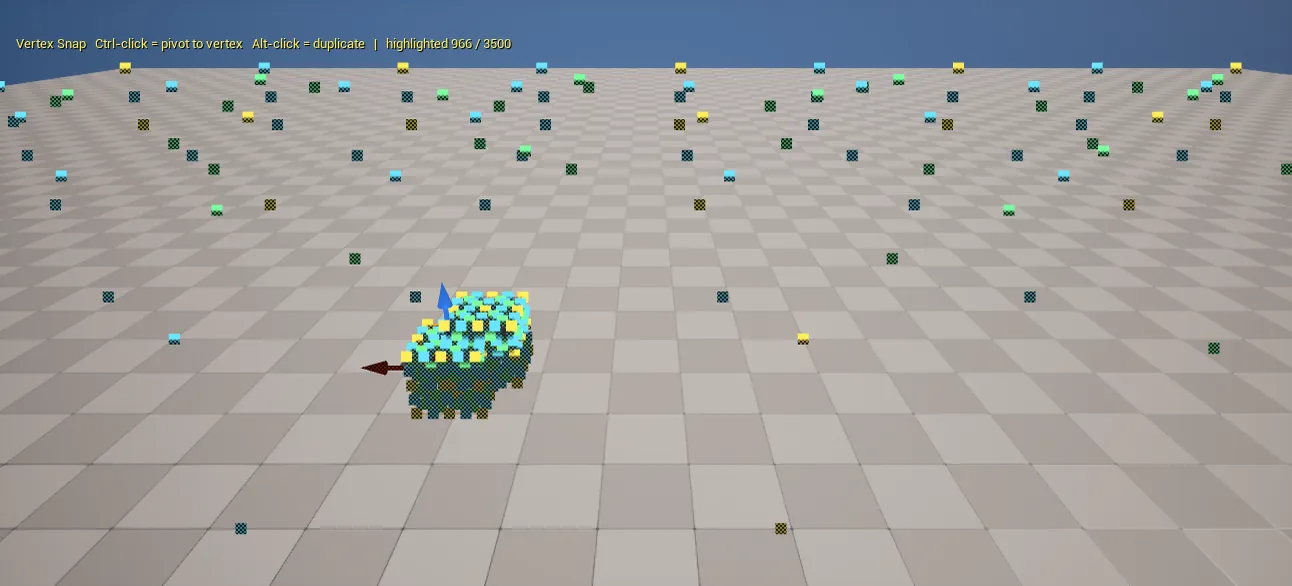
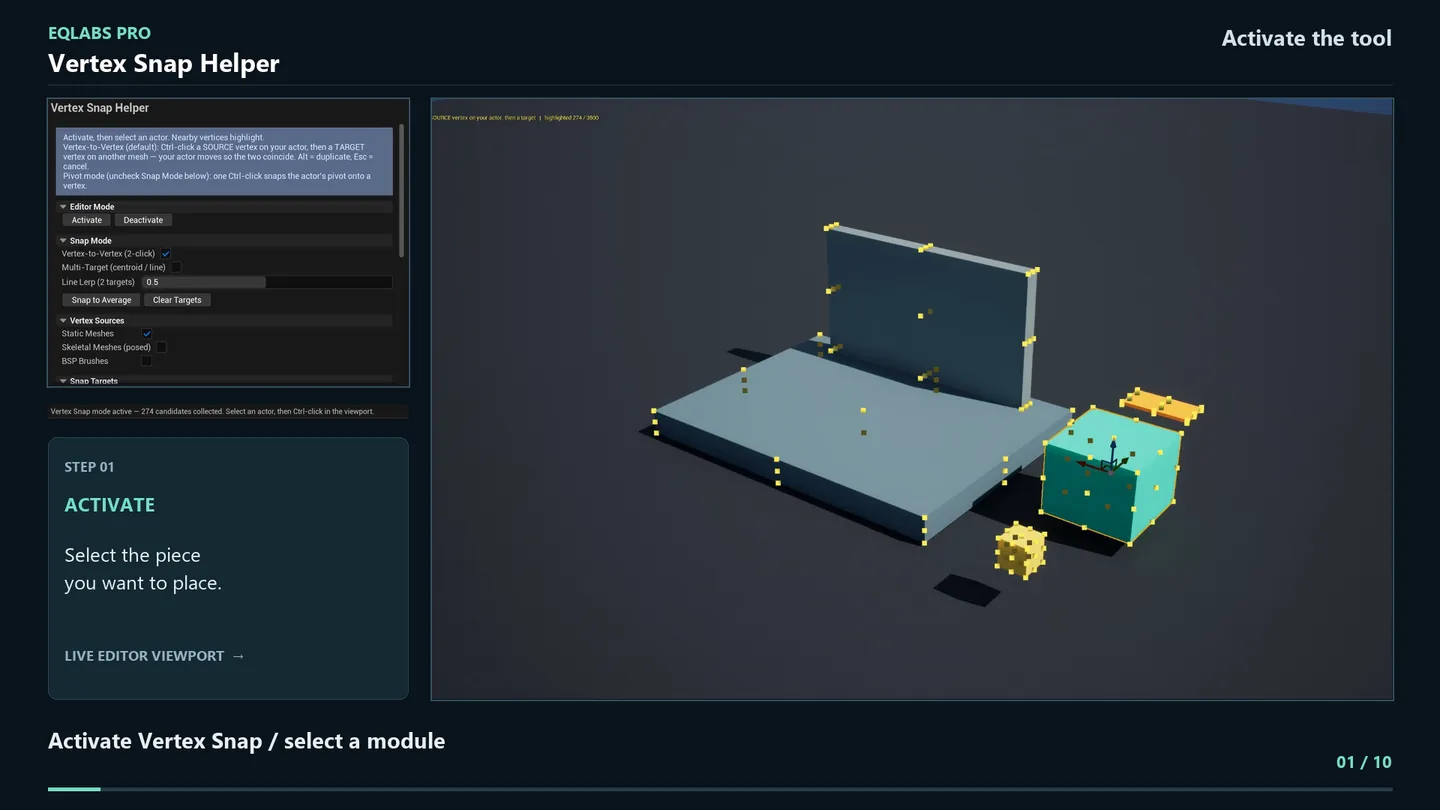
Once the mode is active, snapping is driven entirely from the viewport with the actor you want to move selected.
| Input | Result |
|---|---|
| Ctrl-click a point on the selected actor, then one on another mesh | Move the actor so the two points meet (Vertex-to-Vertex) |
| Ctrl-click a point (Vertex-to-Vertex off) | Snap the selected actor’s pivot onto it |
| Alt-click the target instead | Snap a duplicate of the selection there and leave the original (when Alt = Snap Duplicate is on) |
| Ctrl-click several points (Multi-Target) | Accumulate target picks |
| Enter (Multi-Target) | Snap to the average of the picked targets |
| Esc (Multi-Target) | Clear the accumulated picks |
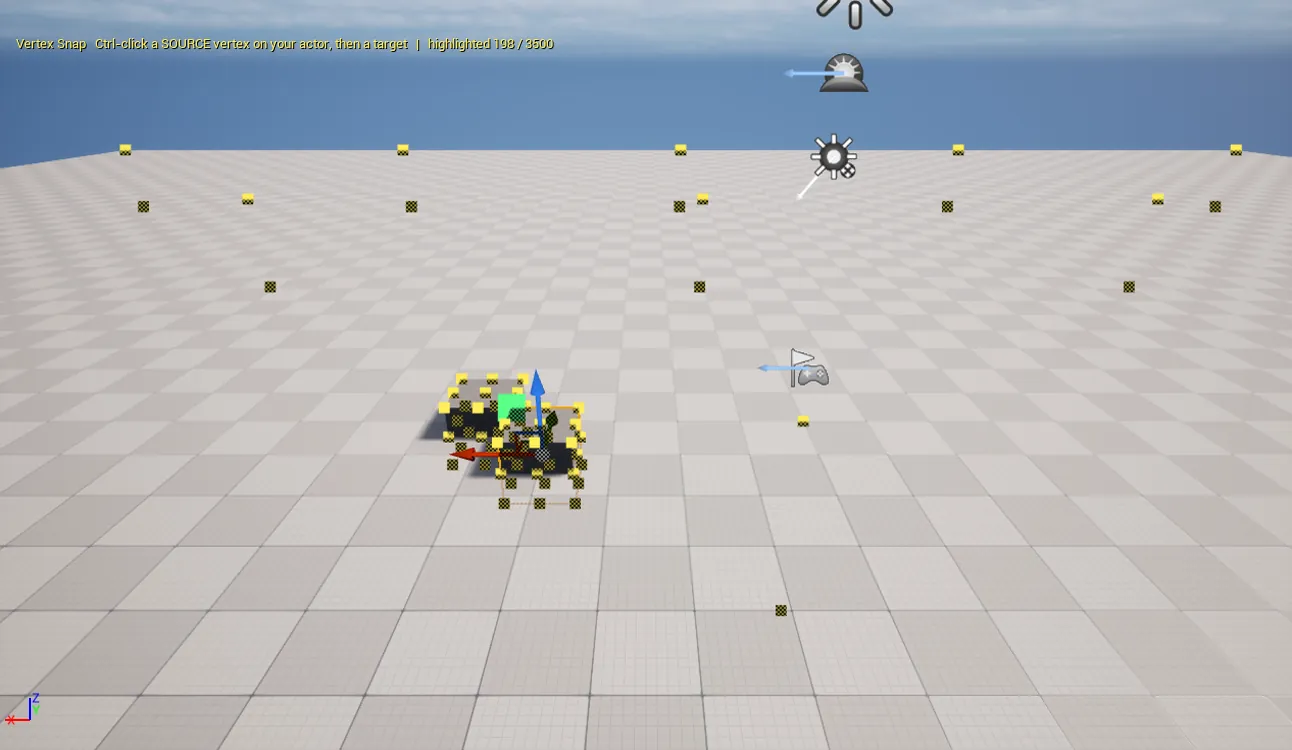
Candidate points are drawn as sprites in the viewport. If you see none, the usual causes are the camera-distance cutoff or a source type that is switched off. See Tips and gotchas.
Snap Mode
Section titled “Snap Mode”Two mutually exclusive modes. Multi-Target overrides Vertex-to-Vertex when both are enabled.
Vertex-to-Vertex (2-click)
Section titled “Vertex-to-Vertex (2-click)”The default. Ctrl-click a point on the actor you are moving to set the source, then Ctrl-click a point on another mesh to set the target. A preview line joins them until you commit, and the actor moves so the two points coincide.
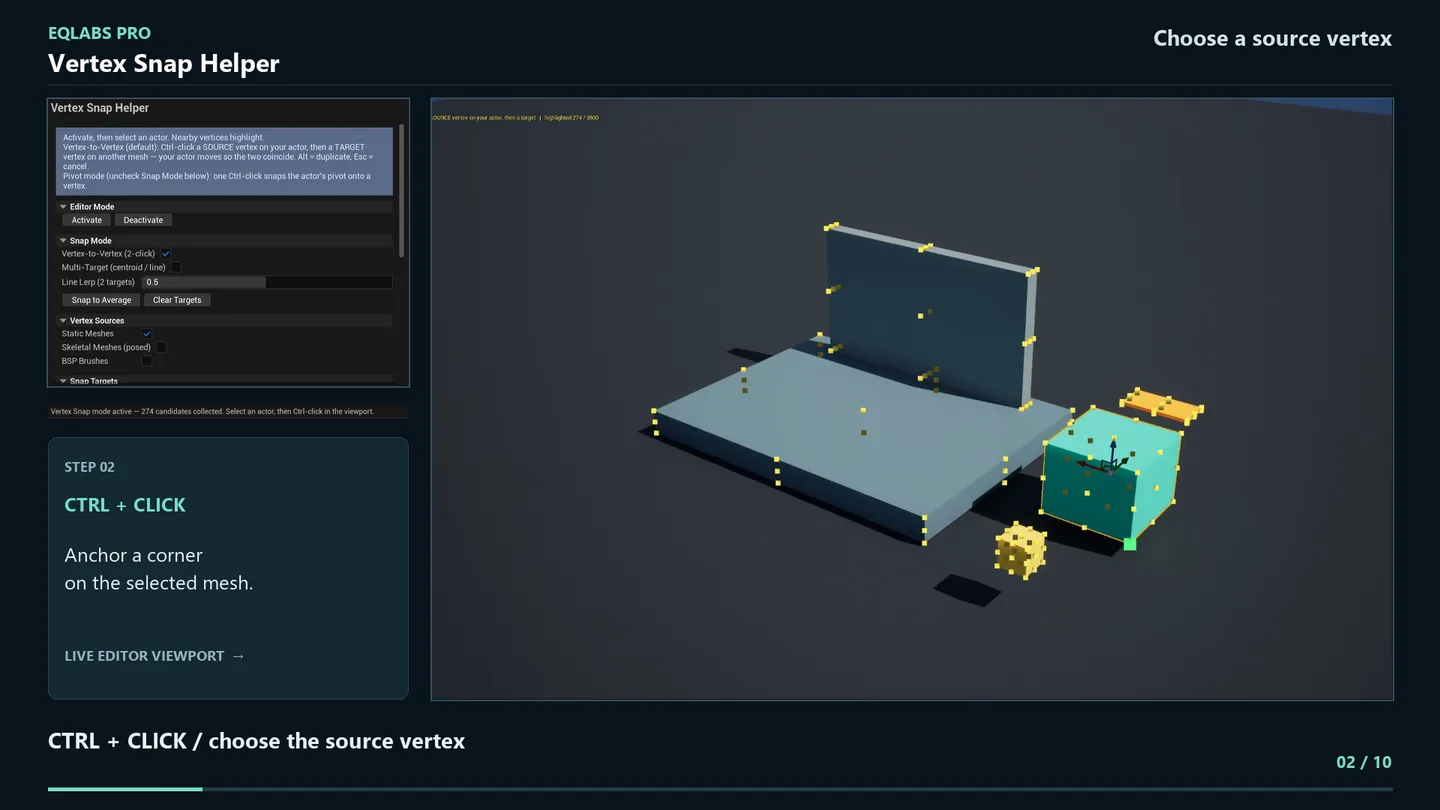
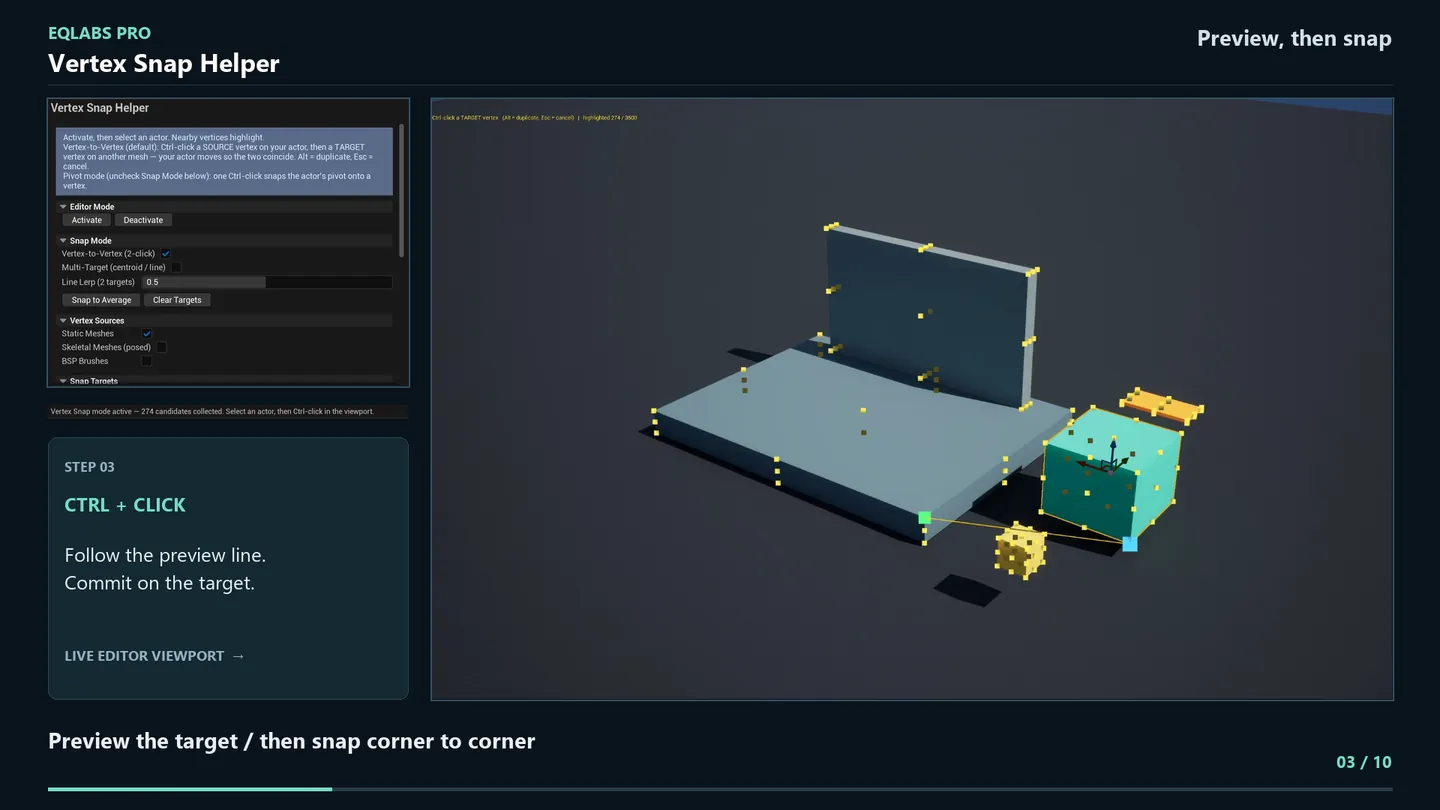
Hold Alt on the second click to leave the original where it is and snap a copy instead.
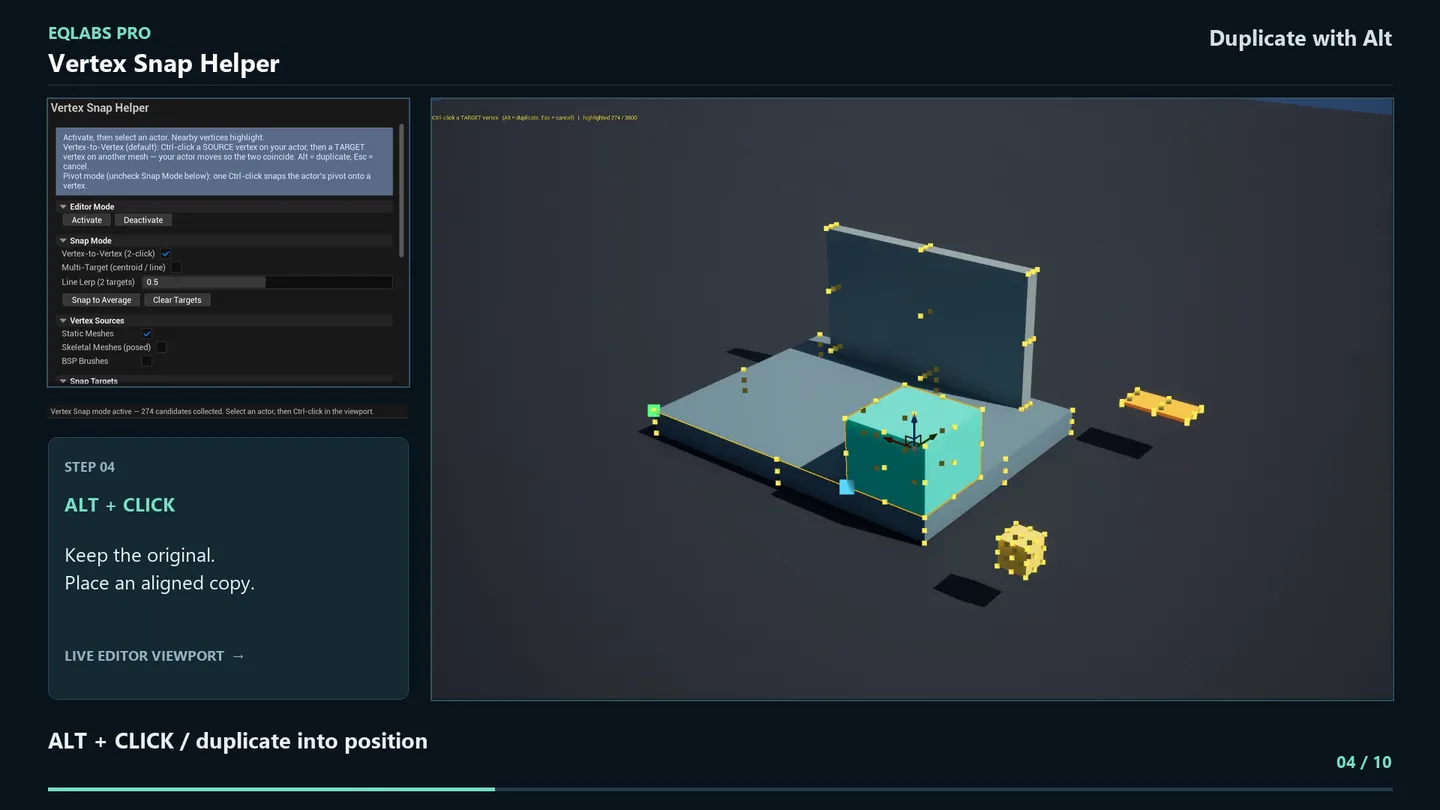
With Vertex-to-Vertex unchecked, a single Ctrl-click snaps the actor’s pivot straight onto the point.
Multi-Target (centroid / line)
Section titled “Multi-Target (centroid / line)”Ctrl-click several target points, then press Enter (or click Snap to Average) to move the pivot to their average position. Esc or Clear Targets resets the picks.
With exactly two targets picked, the snap interpolates along the line between them, controlled by Line Lerp:
| Line Lerp | Result |
|---|---|
0.0 | The first picked target |
0.5 | The midpoint (default) |
1.0 | The second picked target |
This is the practical way to centre something between two features, such as a door in an opening or a beam between two posts.
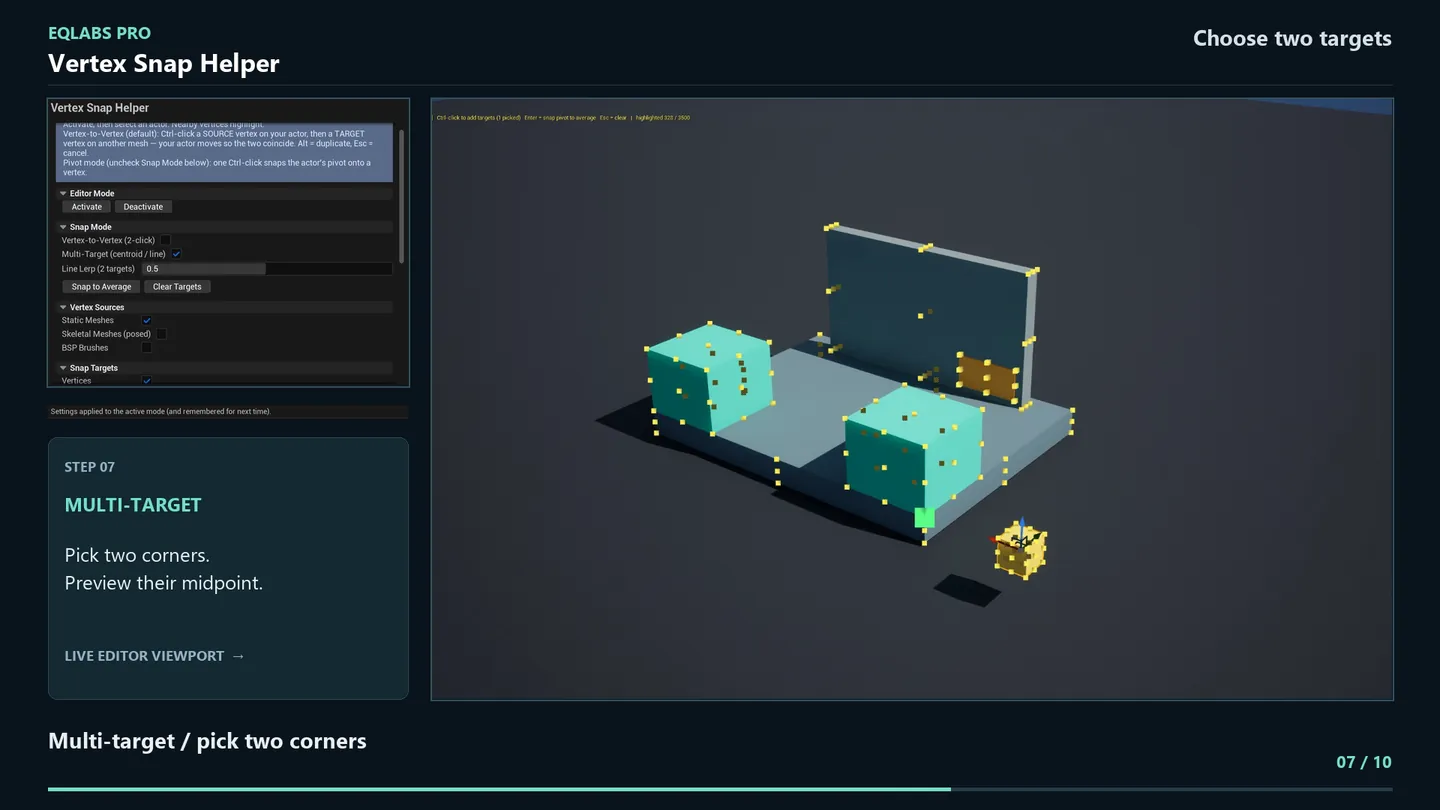
Vertex Sources
Section titled “Vertex Sources”Which components contribute candidate points. Changing these requires Apply.
| Source | Default | Notes |
|---|---|---|
| Static Meshes | On | Vertices from static mesh components |
| Skeletal Meshes (posed) | Off | Posed vertices via CPU skinning; heavier, so opt-in |
| BSP Brushes | Off | Vertices from BSP brush components |
Snap Targets
Section titled “Snap Targets”What kind of point you can snap to. Changing these requires Apply.
| Target | Default | Carries a normal? | Notes |
|---|---|---|---|
| Vertices | On | No | The default and the cheapest |
| Edge Midpoints | Off | No | Static + skeletal. Heavier, so opt-in |
| Face Centers | Off | Yes | Static + skeletal. Enables rotate-to-normal |
| Sockets | Off | Yes | Static + skeletal. Uses the socket’s authored orientation |
Rotate to Normal on Snap
Section titled “Rotate to Normal on Snap”Aligns the actor’s +Z (up) to the target’s outward normal. It only applies to Face Center and Socket targets; vertices and edge midpoints have no normal, so the setting does nothing there.
Know this before you turn it on: it aligns to the actual normal, so a vertical target face has a horizontal normal and tips the object onto its side. That is correct: it is what you want when mounting something on a wall, and not what you want if you expected “flat on the floor”.
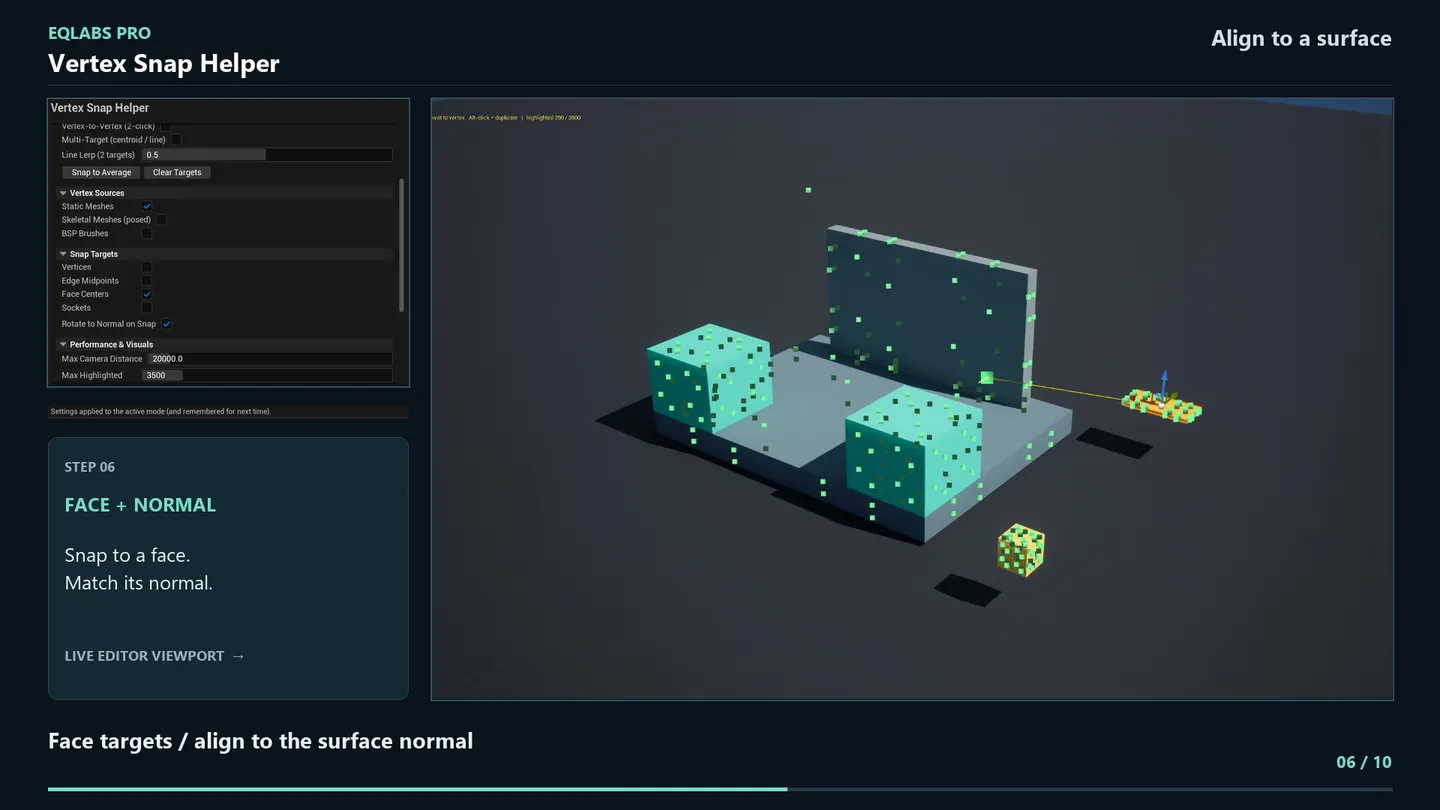
Performance & Visuals
Section titled “Performance & Visuals”| Setting | Default | What it does |
|---|---|---|
| Max Camera Distance | 20000 cm | Vertices farther than this from the camera are skipped entirely |
| Max Highlighted | 3500 | Cap on vertex sprites drawn per frame |
| Max Collected | 25000 | Cap on vertices collected from the world |
| Sprite Size | 6.0 | On-screen size of the vertex points |
| Alt = Snap Duplicate | On | Whether Alt-click duplicates instead of moving |
These are the knobs to reach for when the viewport gets sluggish in a dense scene. Max Collected is the one that bounds the world scan; Max Highlighted only bounds what is drawn.
Presets
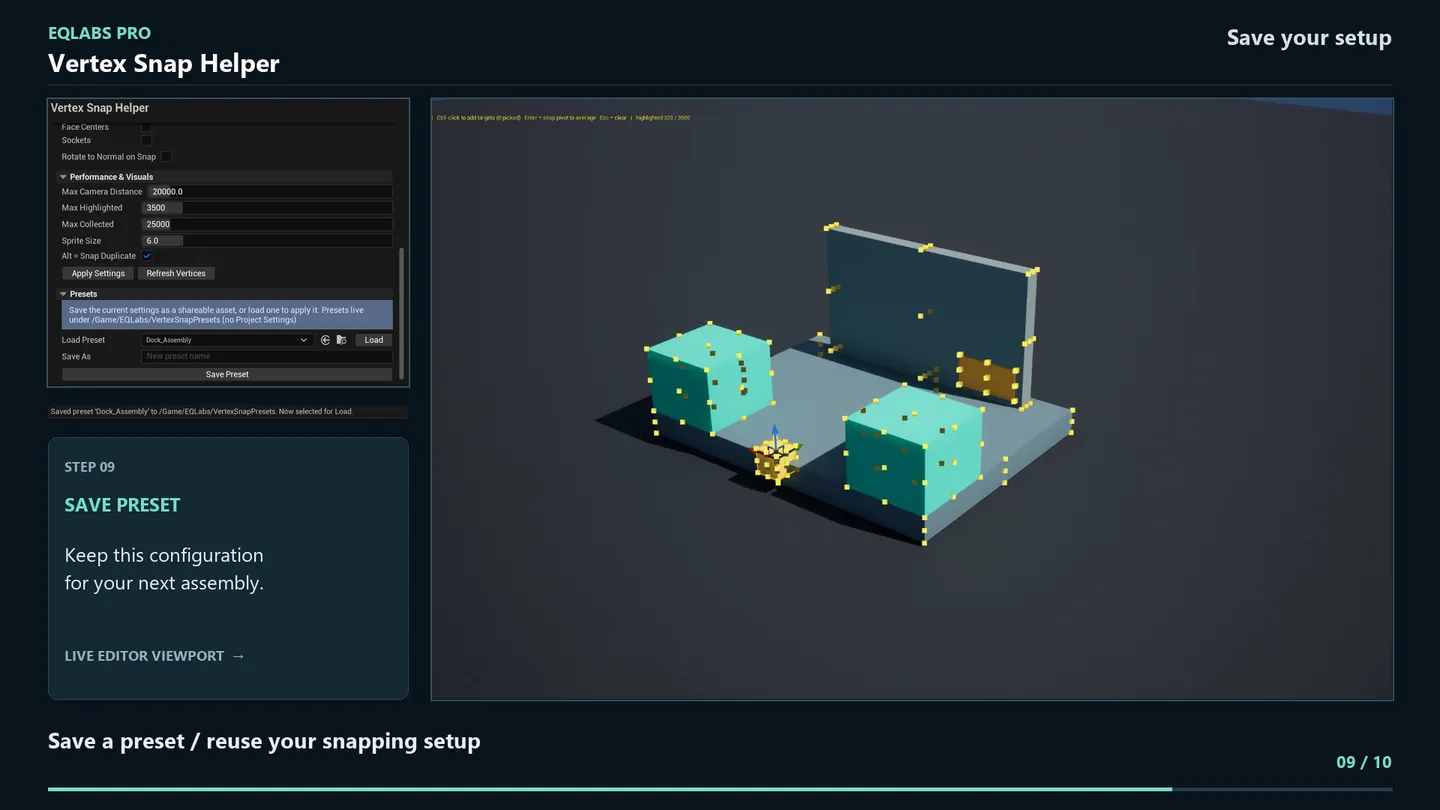
Section titled “Presets”Settings can be saved as UEQVertexSnapPreset data assets. Presets are optional assets, not Project Settings.
- Save As. Name the preset and save. New presets are written to
/Game/EQLabs/VertexSnapPresets. - Load Preset. Pick a preset asset, then click Load. Its settings are copied into the panel and pushed to the active mode.
Beyond presets, the panel remembers your last-used settings across editor restarts on its own.
Actions reference
Section titled “Actions reference”| Button | Effect |
|---|---|
| Activate | Enter the editor mode and push current settings to it |
| Deactivate | Leave the editor mode |
| Apply Settings | Push panel settings to the running mode. Required after changing sources, targets, snap mode or rotate-to-normal. |
| Refresh Vertices | Re-collect candidate points from the world |
| Snap to Average | Multi-Target: snap to the average of picked targets (same as Enter) |
| Clear Targets | Multi-Target: discard picked targets (same as Esc) |
| Load / Save As | Preset load and save |
Tips and gotchas
Section titled “Tips and gotchas”- “I changed a setting and nothing happened.” Most settings are pushed to the mode on Apply, not on edit. If a checkbox seems inert, click Apply Settings.
- No vertex sprites visible? Check, in order, that the mode is Activated, the geometry is within Max Camera Distance, its source type is enabled (skeletal and BSP are off by default), and Max Collected hasn’t been used up by nearer geometry.
- Moved the wrong thing. The snap moves the selected actor’s pivot. If the pivot sits away from the mesh, the mesh lands offset by exactly that amount. That is a pivot problem, not a snapping one.
- Alt-snap and Alt-orbit. Alt is also a viewport navigation modifier. If duplicates appear unexpectedly while orbiting, switch Alt = Snap Duplicate off.
- Skeletal sources are pose-dependent. Points are collected from the current pose, so re-posing or scrubbing invalidates them. Click Refresh Vertices.
- Rotate to Normal on a vertical face lays the object on its side. This is expected; see Rotate to Normal on Snap.
The result
Section titled “The result”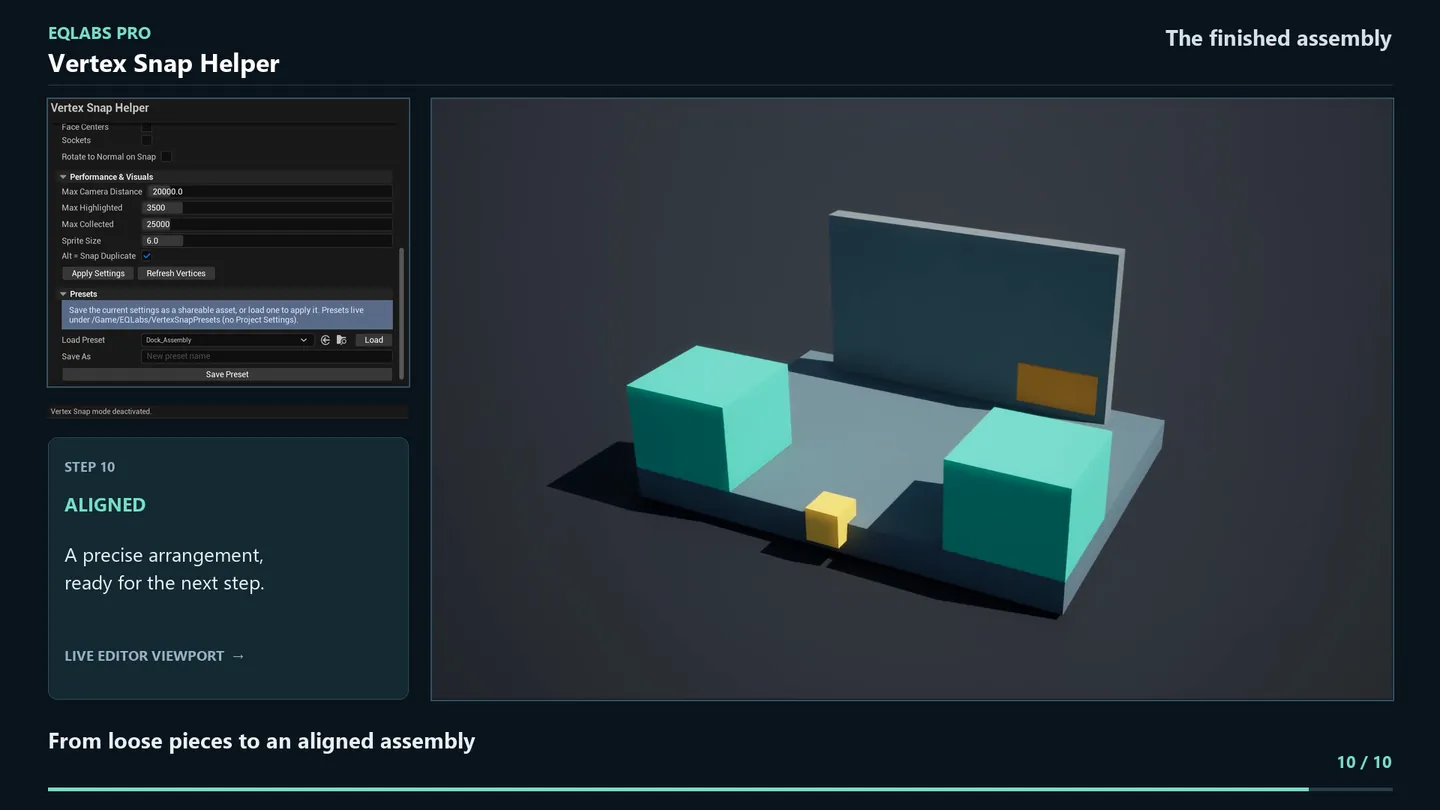
Related tools
Section titled “Related tools”- Smart Actor Align & Distribute — bulk alignment and spacing, where this tool is per-point precision
- Modular Kit Auditor — verifies that a kit’s pivots and bounds are grid-consistent in the first place
- Measurement & Annotation Tool — measure the gap before deciding how to close it
- Blockout Generator — lay out the rough geometry these pieces snap onto
Opens our feedback form in a new tab with the tool name pre-filled.