
Render
Tab: Render — Movie Render Queue · Plugin: Cinematic Lab
Cinematic Lab does not render. Epic’s Movie Render Queue does. This tab configures it, feeds it shots with their captured Looks, and checks your setup before you commit GPU hours to a mistake.
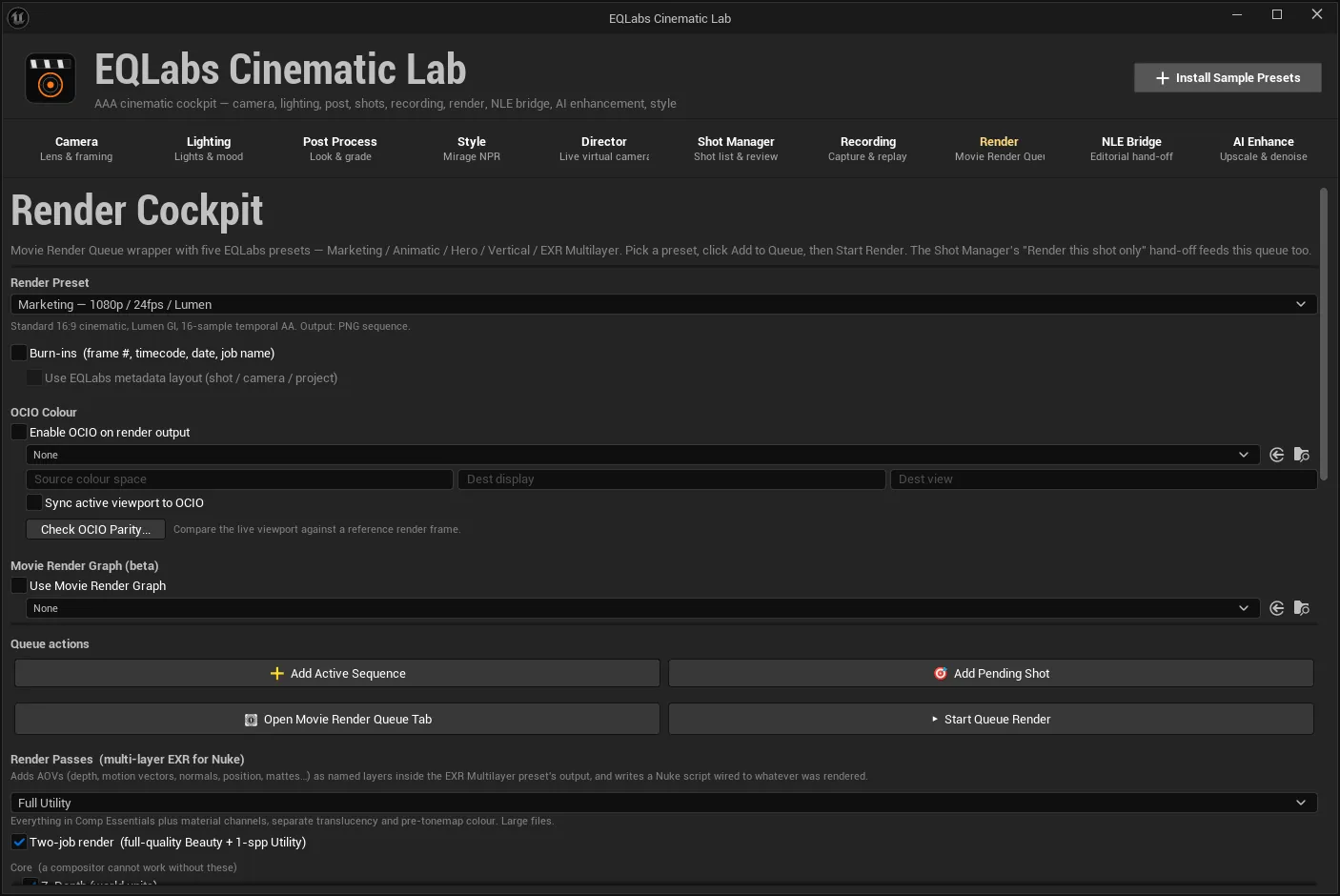
The preflight banner
Section titled “The preflight banner”Read it first. It sits above the queue actions and reports what will go wrong before it does. Items are graded BLOCKER, WARNING or INFO, and it says “Preflight: nothing to report” when there is genuinely nothing.
What it checks, and what each item means:
| Severity | Condition | Why it matters |
|---|---|---|
| BLOCKER | No render passes selected | The render would produce a beauty-only EXR |
| BLOCKER | Object Ids selected but Epic’s Movie Render Queue Additional Render Passes plugin is off | Without it the render silently produces no matte layers |
| WARNING | Alpha propagation off | The render will be fully opaque. The fix text differs by engine — on 5.4 the console variable is read-only, so it names the project setting and says no plugin can set it for you. It also notes that sky atmosphere and fog force alpha opaque regardless |
| INFO | UE 5.4 high-precision output | On 5.4 precision is a single switch covering every AOV, so all passes in the job are written 32-bit and files are larger than on 5.5+ |
| INFO | Lossy EXR compression with data passes present | Compression is forced to ZIP for the render, because EXR compression applies to the whole file, not per layer |
| INFO | UE 5.4 holdout | Primitive Holdout is Path-Tracer-only on 5.4; use Object Id mattes to isolate objects in a deferred render |
| INFO | Object Ids selected | It is an Epic beta pass: translucent objects flatten to an opaque layer, and it does not support screen percentage |
Every one of these is a silent failure mode somewhere else in the industry. Here they are stated before the render starts.
Presets and burn-ins
Section titled “Presets and burn-ins”Render Preset picks the Movie Render Queue configuration.
Burn-ins overlay frame number, timecode, date and job name onto every rendered frame. Great for dailies and review; leave off for final delivery. Skipped for the EXR Multilayer preset.
Use EQLabs metadata layout swaps the stock frame-info burn-in for a cross-tab layout carrying shot name, status, render version, artist, camera, preset and project. It needs the EQLabs burn-in Widget Blueprint, and the control says what happens without it: it falls back to the stock burn-in until that widget is authored. No silent blank.
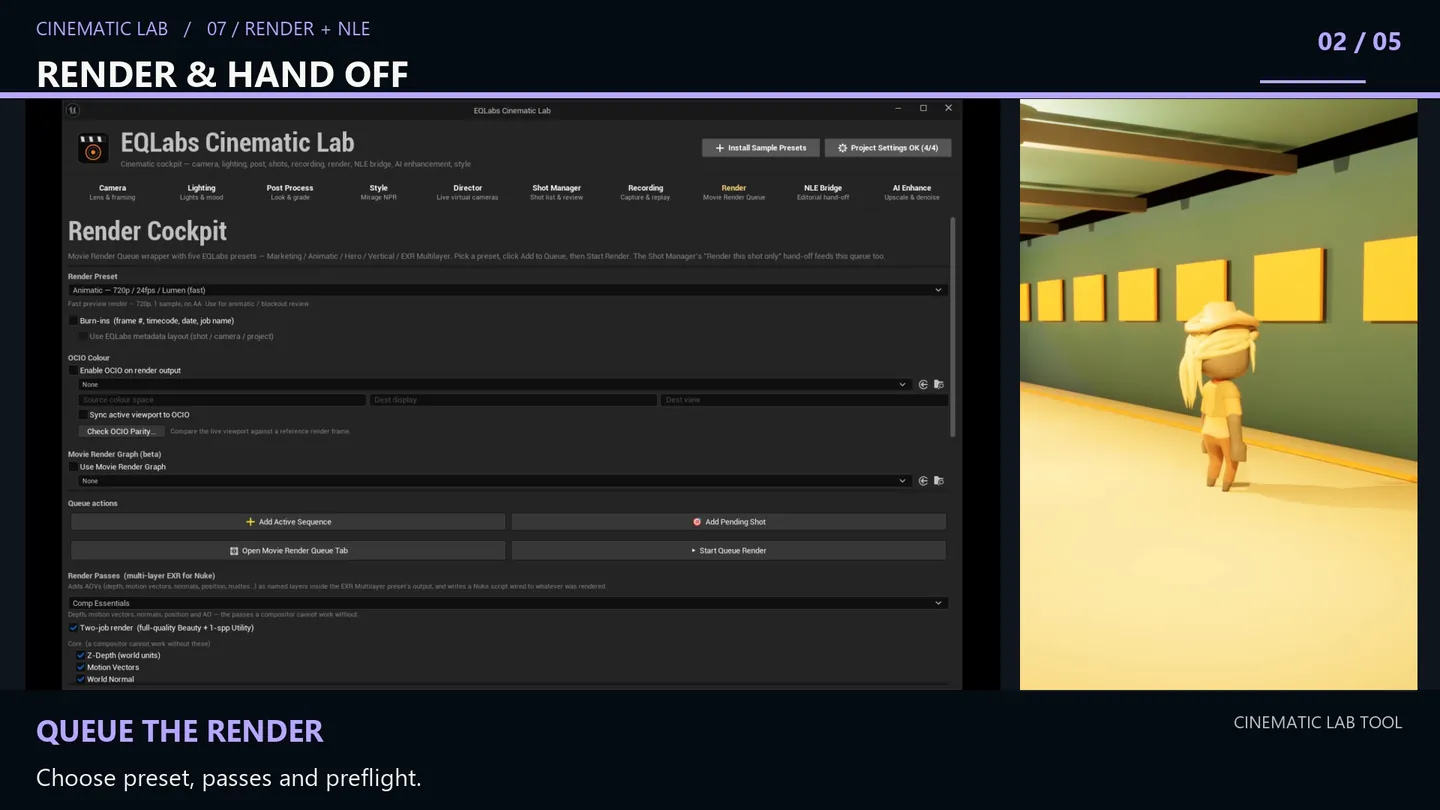
OCIO colour
Section titled “OCIO colour”Enable OCIO on render output applies an OpenColorIO display transform to MRQ output. Set Source colour space, Dest display and Dest view — the names must match your config.
Sync active viewport to OCIO applies the same transform to the editor viewport so what you see matches what you render. Re-toggle after switching viewports.
Check OCIO Parity
Section titled “Check OCIO Parity”The interesting one. It samples the active viewport, compares it against a reference render frame you pick, and reports the mean CIE ΔE:
OCIO parity: mean deltaE <mean> (max <max>) - PASS | WARN (> 2.0)That is a measurement, not an assertion — it tells you whether your OCIO render actually matches your viewport, with a threshold you can argue with. Failure modes are reported specifically: no active viewport, could not read the viewport pixels, could not load or decode the reference image.
Movie Render Graph (beta) renders queued jobs through a Movie Render Graph asset instead of the EQLabs preset config, falling back to the preset when no graph is assigned.
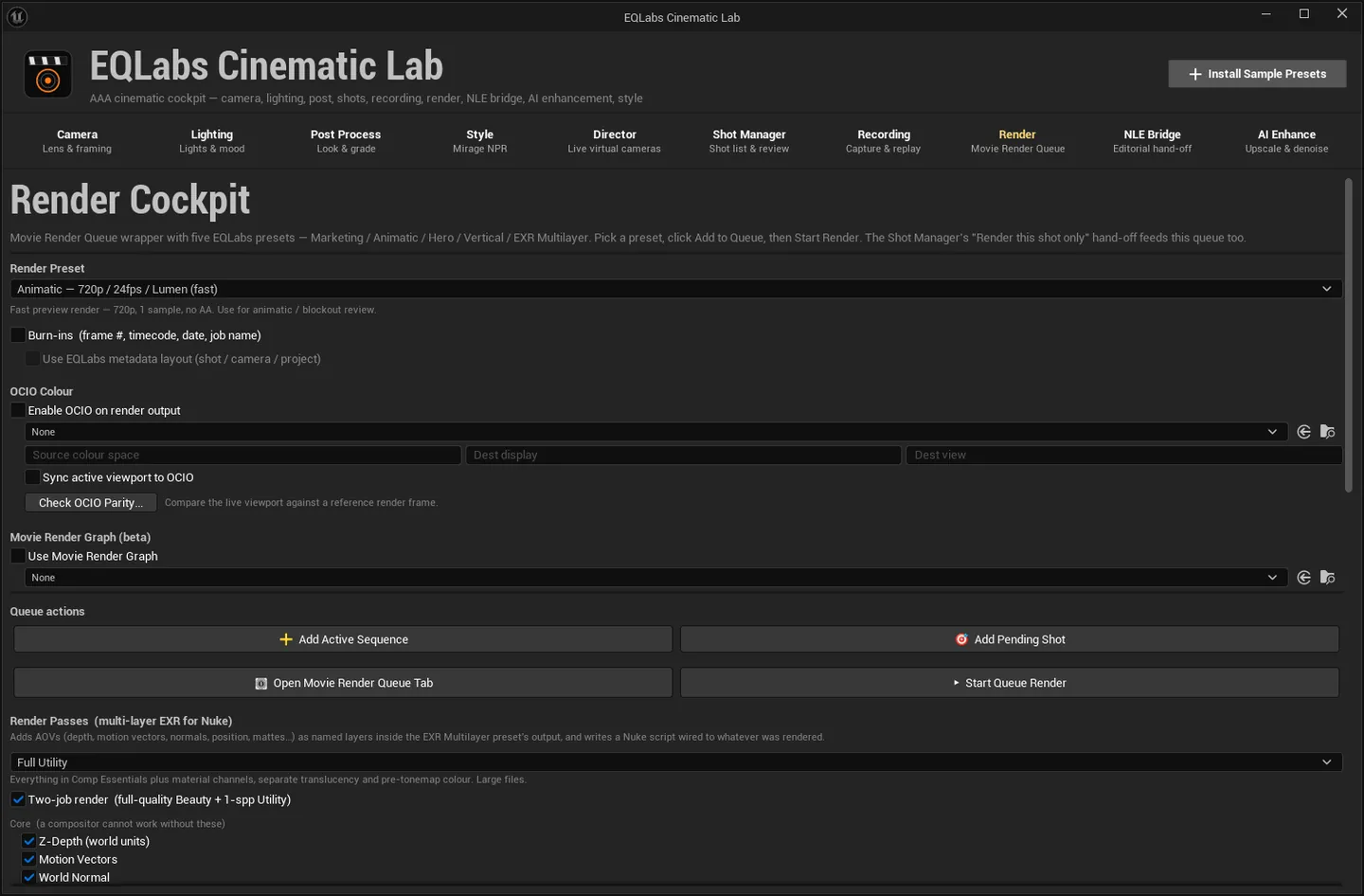
Queue actions
Section titled “Queue actions”| Action | What it does |
|---|---|
| ➕ Add Active Sequence | Add the currently-open Level Sequence with the chosen preset |
| 🎯 Add Pending Shot | Add the shot stashed by Render this shot only in Shot Manager |
| 🪟 Open Movie Render Queue Tab | Epic’s own MRQ window |
| ▶ Start Queue Render | Kick the queue off using the PIE executor |
Status while running: ● Rendering — <done>/<total> done · current: <job>.
Per-shot look renders
Section titled “Per-shot look renders”This is where the Shot Manager’s Look State pays off.
- Render Pending Shot with its Look. Restores the pending shot’s captured Look State (lighting,. Mirage style, virtual camera), then renders only that shot. This clears the current render queue, and the button says so.
- Render All Shots (each with its Look). Renders every non-Hold shot in the active sequence.
one after another, restoring each shot’s Look before its render. Files are named
{Shot}_{Status}_v{Version}. One render pass per shot, so it takes a while — stated on the control, not discovered afterwards.
Dailies
Section titled “Dailies”Render Dailies (all shots, low-res + burn-ins) is a one-click review pass:
- Every non-Hold shot rendered with its Look at the Animatic preset, burn-ins on, into
Dailies/<date>/ - Each shot encoded to H.264 mp4 via the Recording tab’s ffmpeg.
- A
ContactSheet.pngof first frames written.
Watermark stamps review text — e.g. CONFIDENTIAL - Client X — into the burn-in metadata for
every render, drawn centred at low opacity. It needs burn-ins on and the EQLabs layout selected;
leave it empty for none.
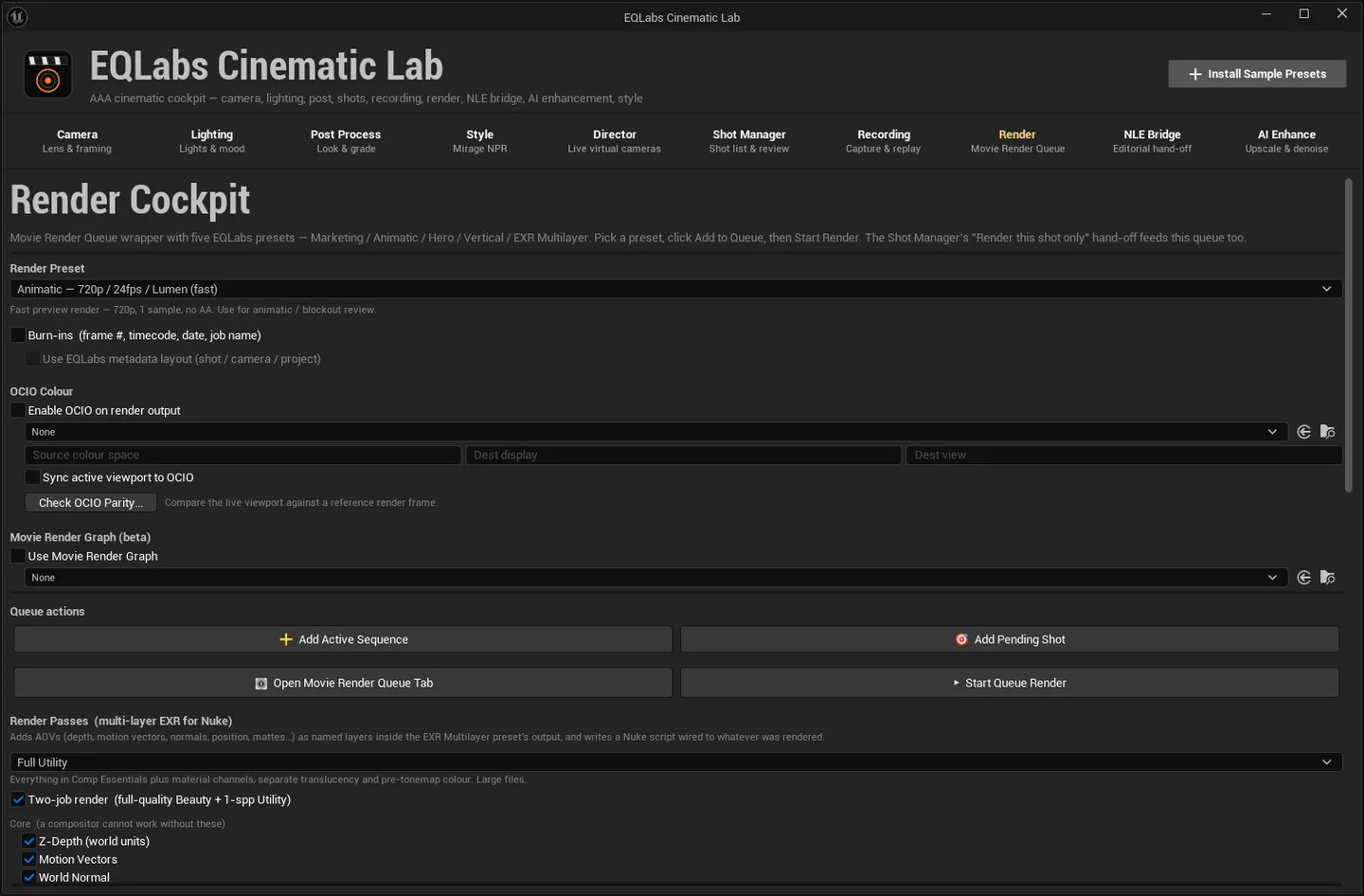
Render Passes: multi-layer EXR for Nuke
Section titled “Render Passes: multi-layer EXR for Nuke”The AOV feature. Passes are grouped by what a compositor actually needs:
| Group | Meaning |
|---|---|
| Core | ”a compositor cannot work without these” |
| Utility | Supporting data passes |
| Material channels | Per-channel material output |
| Reference views | ”expensive; not additive” — Unlit, LightingOnly, ReflectionsOnly and friends |
| Object ids | Cryptomatte-style mattes |
Two-job render (full-quality Beauty + 1-spp Utility) splits the render into two MRQ jobs. Data passes gain nothing from accumulation, so the utility job drops to one spatial and one temporal sample — the split is routable because each pass declares in data whether it needs high precision and whether it must not multisample, rather than being sorted by a hand-maintained list.
Add Multi-Pass Render to Queue queues it. Build Pass Verification Level constructs a level for checking the passes.
EXR handling
Section titled “EXR handling”Output is multi-layer. If any enabled pass requires high precision and the chosen compression is lossy, compression is forced to ZIP — because EXR compression is per file, not per layer, so one lossy setting would corrupt depth and motion for the whole frame.
Encodings are documented, not measured, and the tool says so
Section titled “Encodings are documented, not measured, and the tool says so”Every pass carries an encoding note for the compositor and a bEncodingVerified flag. That flag
is false for every pass, and each tooltip appends:
[Encoding NOT yet verified against a rendered frame.]
The shipped Docs/RenderPasses_Encoding_Spec.md defines exactly what “verified” would mean:
Someone rendered a frame in a real project, sampled the pixel values, and confirmed the units and range match what this document claims.
Nobody has done that yet. What is established is where each pass comes from and what Epic’s material emits — a strong prior, not a measurement. As the spec puts it, a depth pass that is silently in the wrong units looks completely plausible right up until a compositor builds a shot on it.
The preflight’s “unverified encodings” count deliberately covers only post-process-material passes — the ones whose pixel values a compositor reads as data. Reference views and Cryptomatte have no numeric encoding to measure, so counting them would inflate a number you are meant to act on.
Layer names
Section titled “Layer names”Layer naming differs by engine version, and you should never hand-write it:
| Engine | A depth pass lands as |
|---|---|
| 5.4 | FinalImageMovieRenderQueue_WorldDepth |
| 5.5+ | FinalImageDepth |
FEQLabsRenderPassAdapter::PredictLayerNames() is the single source of truth, and both the Nuke
generator and the JSON manifest consume it — so they cannot drift from what the engine actually
writes.
- Read the preflight. Two of its items are BLOCKERs precisely because the corresponding failure is silent.
- The parity check is a real measurement. ΔE against a reference frame, with a stated threshold.
- Encoding claims are labelled unverified everywhere they appear — the manifest, the tooltips and the shipped spec. Treat them as a strong prior until you measure them yourself; §4 of the shipped spec is the procedure.
Opens our feedback form in a new tab with the tool name pre-filled.