
No. 0572 AR ArtEQLabs Pro
Physics Pile Scatter
Module: Art · Category: Scatter · Tool ID:
PhysicsPileScatter
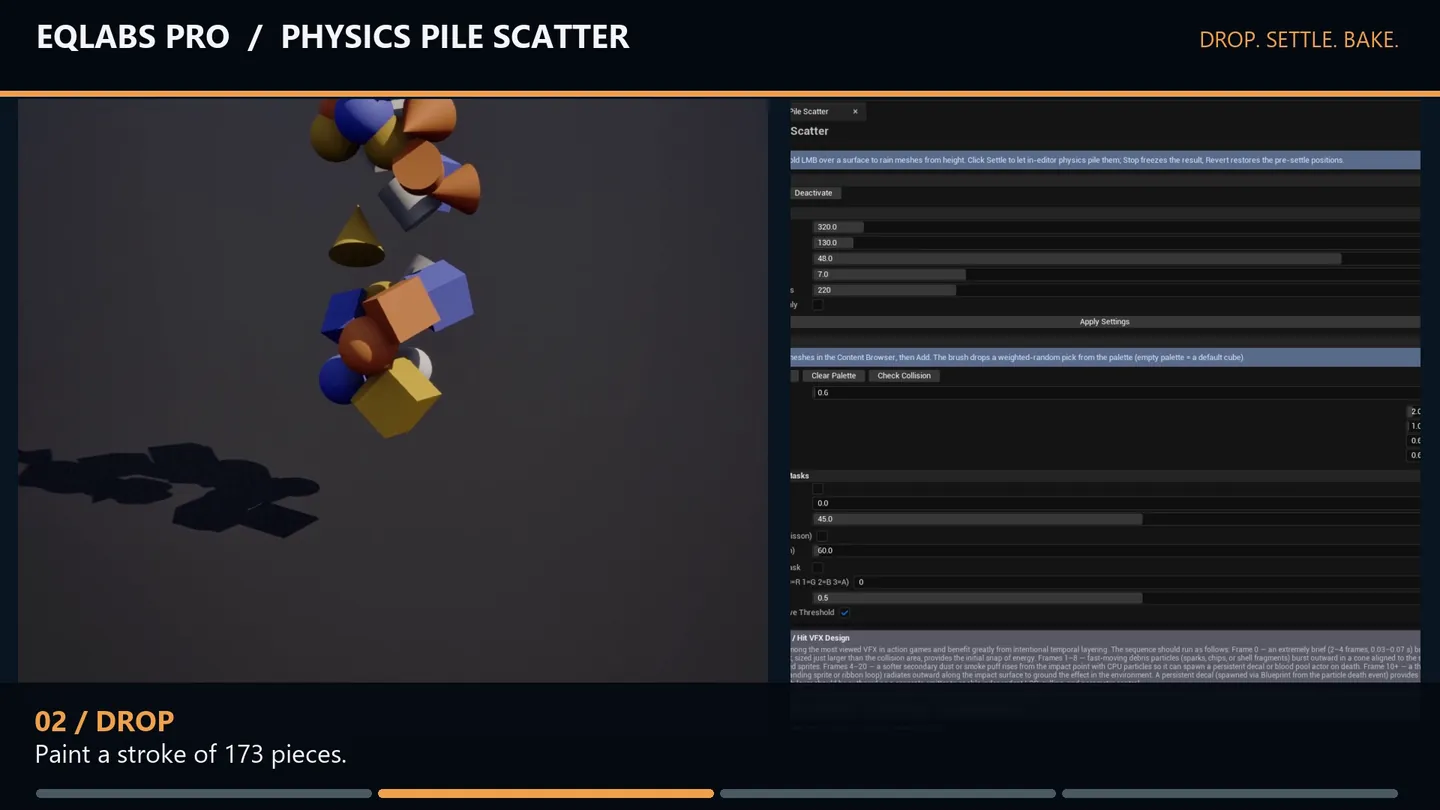
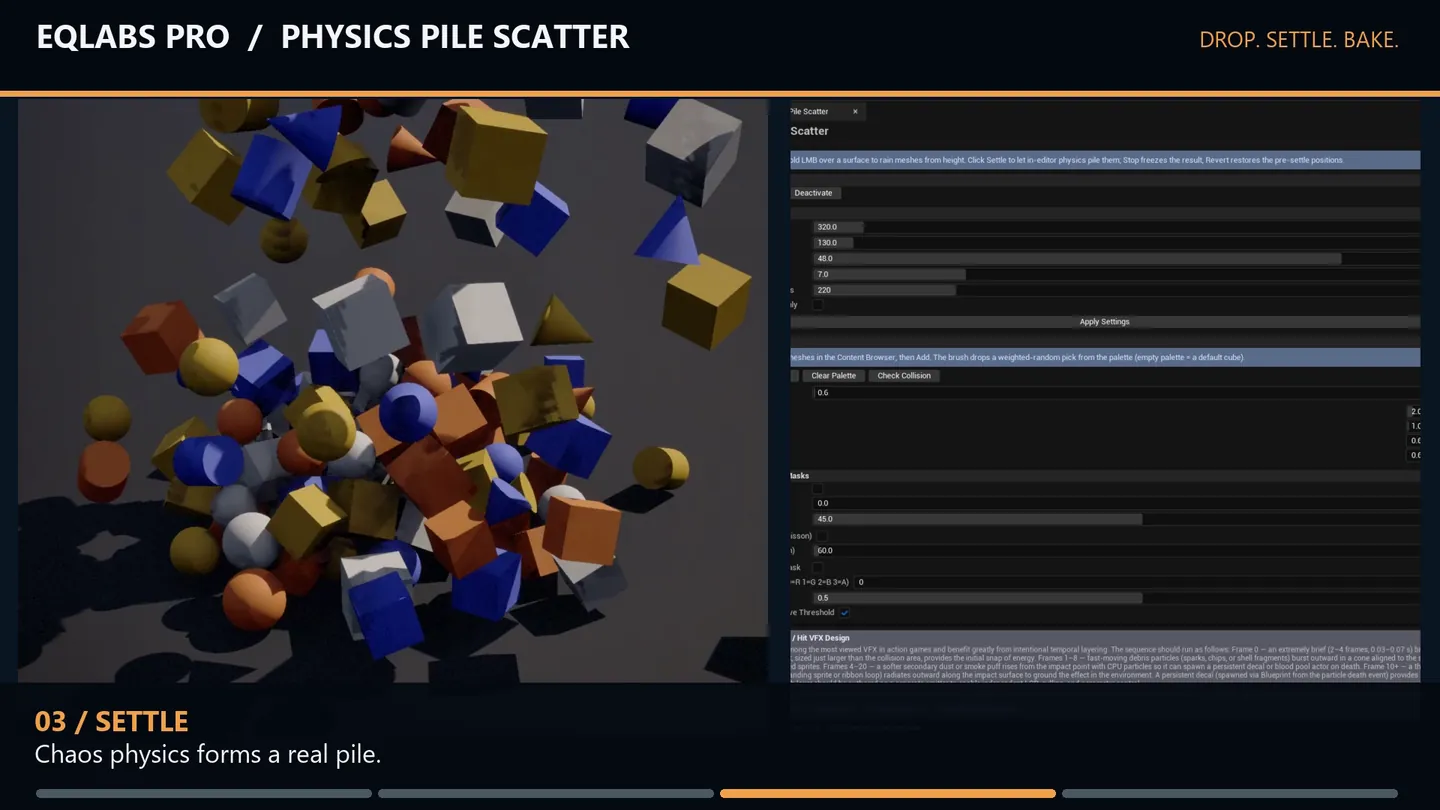
Scatter that obeys physics. Hold the left mouse button over a surface and meshes rain down from height; an in-editor Chaos simulation then settles them into piles that rest against each other and the ground the way real objects do. When the arrangement is right, bake it to a single instanced component.
This is the answer to piles, rubble, debris fields and clutter — the arrangements that look wrong when placed on a grid and take forever by hand.
When to use it
Section titled “When to use it”- Rubble, debris and destruction dressing
- Piles of crates, barrels, sandbags: anything stacked
- Natural scatter that must rest on uneven ground rather than intersect it
- Clutter in corners and against walls, where hand-placement is slow and grid placement looks fake
- Any scatter where inter-object contact is the point
What it isn’t for
Section titled “What it isn’t for”- Don’t use it for foliage. Grass and trees want a distribution tool, not a physics sim — use Procedural Scatter Suite.
- Don’t use it for precise placement. The whole point is that physics decides. For exact positions use Vertex Snap Helper.
- Don’t drop thousands of bodies. There is a hard cap for a reason; work in passes and bake between them.
Opening the tool
Section titled “Opening the tool”- Open the EQLabs Hub and search for scatter or
pile(or browse to Art → Scatter). - Click the tool card.
- Click Activate, then hold LMB over a surface in the viewport to rain meshes.
If activation fails, another editor mode is blocking it — the tool says so rather than silently doing nothing.
The workflow
Section titled “The workflow”Activate → build a palette → hold LMB to drop → Settle → Bake to Instances| Action | Effect |
|---|---|
| Drop & Simulate | Drop with simulation running |
| Settle | Run the physics settle on what has been dropped |
| Stop | Freeze meshes where they are — undoable |
| Revert | Restore meshes to their pre-settle transforms |
| Clear Dropped | Remove all dropped meshes — undoable |
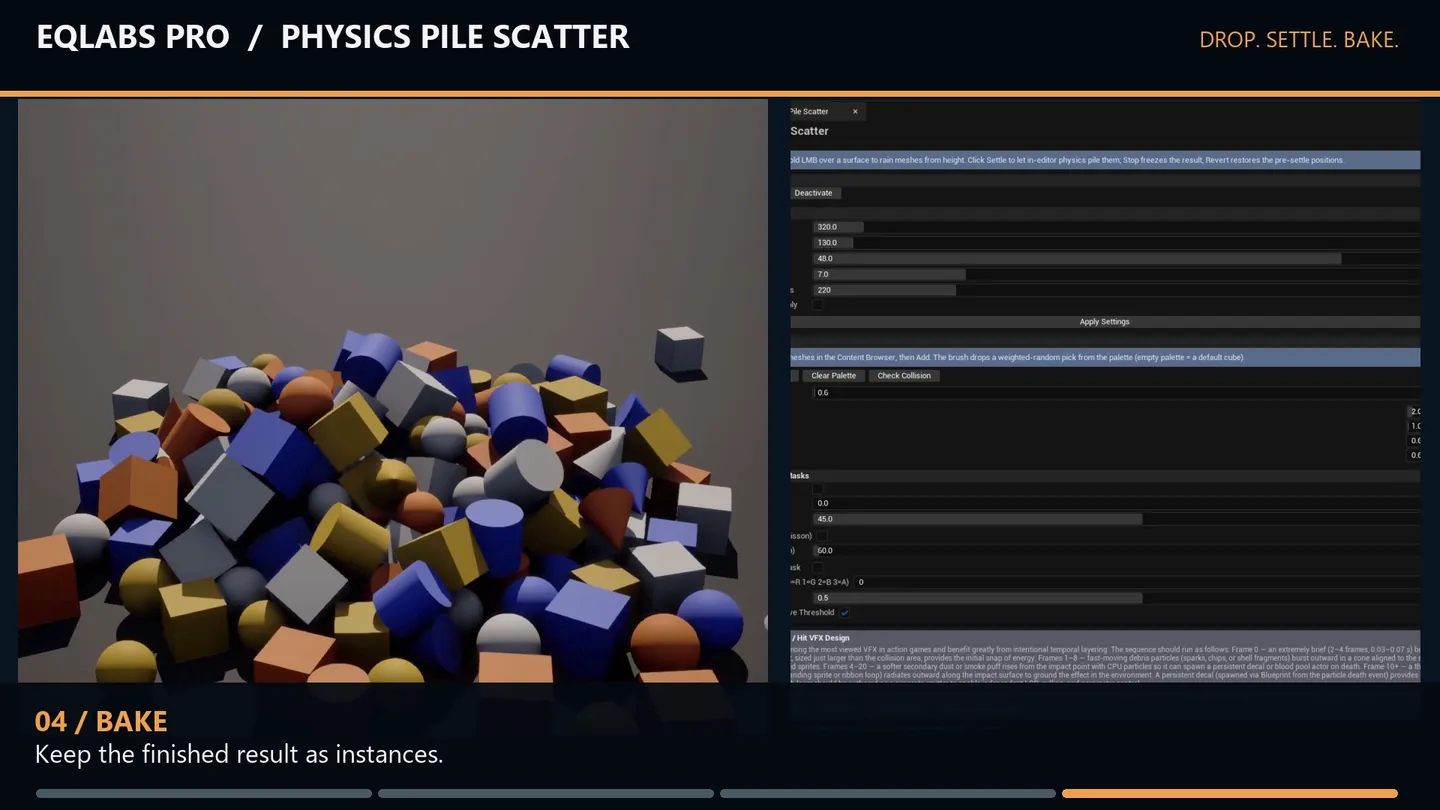
| Bake to Instances | Merge into one instanced component — 1 draw call, undoable |
Revert is the safety net worth knowing about. A settle that goes wrong — everything sliding into a heap — is one click from undone, back to where the meshes landed.
Mesh Palette
Section titled “Mesh Palette”| Control | Notes |
|---|---|
| Add Selected | Adds static meshes selected in the Content Browser |
| Add Weight | Relative weight for newly added meshes — edit per-row afterwards |
| Clear Palette | Empties it — drops fall back to a default cube |
| Check Collision | Verifies the palette meshes have usable collision |
Weights are relative pick probabilities, editable per row. A palette of one crate at weight 1 and one plank at weight 4 gives roughly four planks per crate.
Run Check Collision before a big drop. Physics scatter depends entirely on collision; meshes without it fall through the world or interpenetrate. The check reads the active mode’s palette, so activate first.
An empty palette is not an error — drops fall back to a cube, which is genuinely useful for blocking out a pile’s silhouette before committing to art.
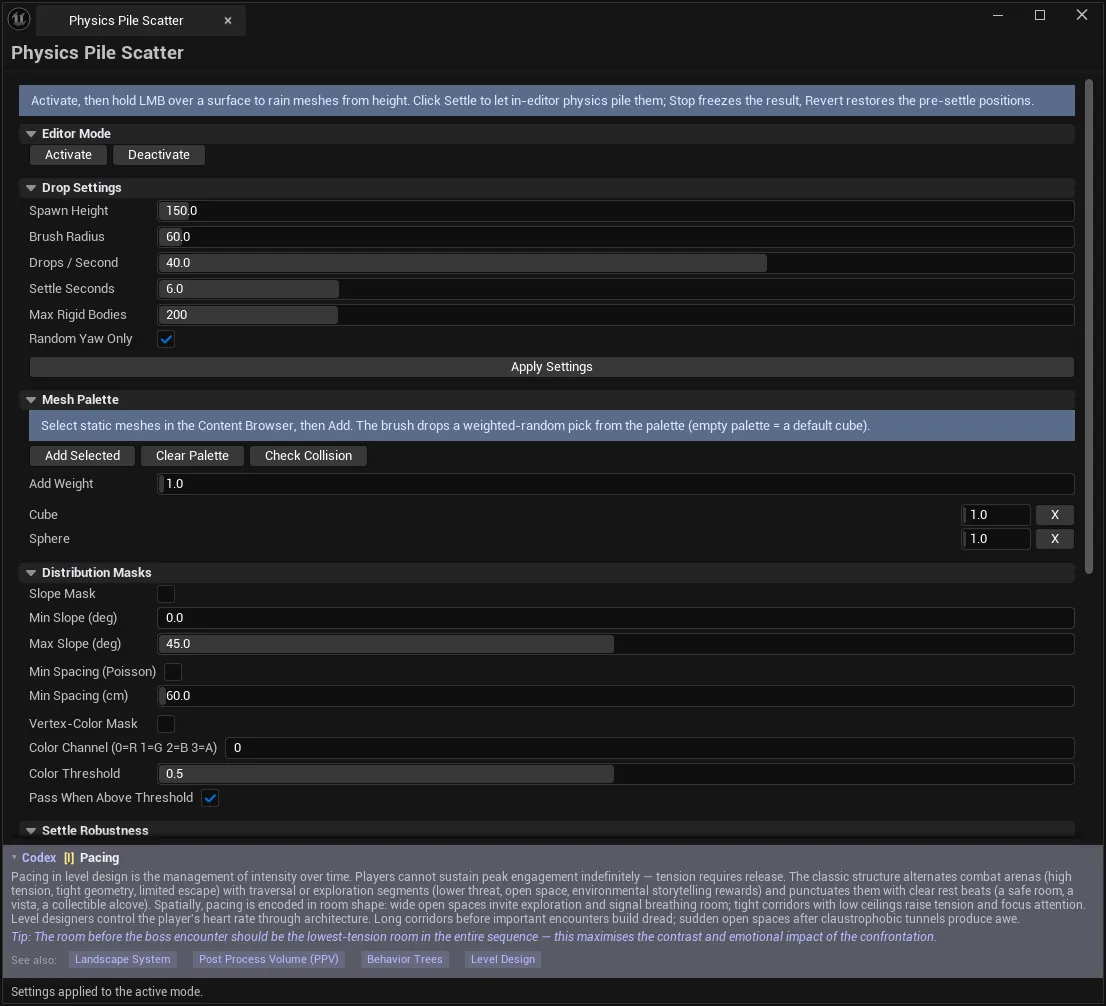
Drop Settings
Section titled “Drop Settings”| Setting | Notes |
|---|---|
| Spawn Height | Drop height above the surface (cm) |
| Brush Radius | Horizontal jitter radius of the drop brush (cm) |
| Drops / Second | Meshes spawned per second while the brush is held |
| Settle Seconds | Max time the simulation runs before freezing |
| Max Rigid Bodies | Hard cap on simultaneous dropped meshes — performance safety |
| Random Yaw Only | On: randomise yaw only. Off: full 3-axis rotation |
Random Yaw Only is the switch that decides what kind of pile you get. Yaw-only keeps objects upright — right for crates, barrels, anything with a clear “up”. Turn it off for rubble and debris that should land at any angle.
Stacking behaviour
Section titled “Stacking behaviour”Drops whose footprints overlap earlier drops in the same stroke are stacked one mesh-height higher each. A held brush therefore rains a column, not a scattered layer — which is how you build a tall pile rather than a flat one.
Changing these settings requires Apply Settings to push them to the active mode. Settings are also applied automatically on Activate. If a change seems to do nothing, click Apply.
Distribution Masks
Section titled “Distribution Masks”Three independent filters controlling where drops are accepted. All require Apply after changing.
Slope Mask
Section titled “Slope Mask”Only deposit where local ground slope falls within a range. The ground is re-traced under each drop, so this respects real geometry rather than a heightmap approximation.
| Setting | Notes |
|---|---|
| Min Slope (deg) | Lowest accepted slope. 0 = flat ground |
| Max Slope (deg) | Highest accepted slope. 90 = vertical wall |
Use it to keep debris out of steep terrain, or to place it only on slopes.
Min Spacing (Poisson)
Section titled “Min Spacing (Poisson)”Rejects a drop when an accepted drop is closer than the spacing, measured as ground-plane distance.
| Setting | Notes |
|---|---|
| Min Spacing (cm) | Minimum ground-plane distance between drops |
Because it is measured on the ground plane, it thins coverage without preventing stacking — objects can still pile vertically.
Vertex-Color Mask
Section titled “Vertex-Color Mask”Only drop where the ground mesh’s painted vertex colour passes a test — paint the terrain to author where scatter lands.
| Setting | Notes |
|---|---|
| Color Channel | 0=R 1=G 2=B 3=A |
| Color Threshold | Channel threshold, 0..1 |
| Pass When Above Threshold | On: drop where channel ≥ threshold. Off: where channel ≤ threshold |
This is the most controllable of the three — it turns scatter placement into a painting task, and the same painted mask can drive several passes with different palettes.
Settle Robustness
Section titled “Settle Robustness”The section that tames the classic physics-scatter explosion, where overlapping drops launch each other across the level.
| Setting | Notes |
|---|---|
| Max Separation Speed | Per-body depenetration clamp (cm/s). Low (~100) makes overlapping drops ease apart instead of launching. Raise if piles feel sticky |
| Settle Linear Damping | Bleeds linear energy so bodies stop sliding. Higher = calmer |
| Settle Angular Damping | Bleeds spin. Higher = less tumbling |
| Settle Substeps | Solver advances per editor tick. More = more stable contacts, slightly slower. 4 is a good default |
If a pile explodes, Max Separation Speed is the first knob. If it instead looks glued together and refuses to spread, that same value is too low.
Presets
Section titled “Presets”Saved as UEQPileScatterPreset assets under /Game/EQLabs/PileScatterPresets. A preset carries both the drop settings and the mesh palette, which is what makes it shareable.
| Control | Notes |
|---|---|
| Load Preset / Load | Copies settings + palette into the panel and the active mode |
| Save As / Save Preset | Saves current settings + active mode’s palette. Name is auto-sanitised |
Activate the tool before loading a preset, or the palette half is not restored — you get the settings without the meshes.
Baking
Section titled “Baking”Bake to Instances merges the dropped and settled meshes into a single instanced component — one draw call — and is undoable.
Bake when the arrangement is right. Leaving hundreds of individual actors in the level is the expensive way to ship a pile.
Tips and gotchas
Section titled “Tips and gotchas”- Apply Settings after changing anything. Masks and drop settings live in the panel and are pushed to the mode on Activate/Apply.
- Check Collision before dropping. Meshes without collision fall through the world.
- Revert undoes a bad settle back to the drop positions — reach for it before Clear.
- A held brush builds a column, not a carpet. Same-stroke overlaps stack by mesh height.
- Explosions mean Max Separation Speed is too high; sticky piles mean it’s too low.
- Activate before loading a preset, or the palette is skipped.
- The Max Rigid Bodies cap is a performance guard. Work in passes and bake between them rather than raising it far.
- Settling is timed. If a pile is still moving when Settle Seconds runs out it freezes mid-motion — raise the limit or damping.
Related tools
Section titled “Related tools”- Procedural Scatter Suite — rule-based scatter for foliage and large-area coverage
- Foliage Placement Analyzer — audit placement density after scattering
- Vertex Color Painter — paint the masks this tool reads
- Vertex Snap Helper — precise placement, where this is deliberately physical
Opens our feedback form in a new tab with the tool name pre-filled.