
No. 1216 CO CoreEQLabs Pro
Unreal I/O
Module: Core · Category: I/O · Tool ID:
UnrealIO
The import half of Unreal I/O. Instead of dragging an FBX into the Content Browser and hoping, this runs a profile-driven pipeline: classify the file, resolve which profile applies, preflight it, import to a staging area, validate against rules, apply safe fixes, then publish to its destination with provenance recorded.
The point is that the same file imported by two people on two machines lands identically — and that a file which shouldn’t be imported gets stopped before it pollutes the project.
The export half is Unreal I/O — Export.
When to use it
Section titled “When to use it”- Any repeatable import path from a DCC: Houdini, Maya, Blender, 3ds Max, ZBrush, Substance
- Bulk intake: a folder or a drag-dropped batch of meshes and textures
- Enforcing naming and material conventions at the point of entry rather than auditing later
- When you need provenance: what file, what settings, when, by whom
- Previewing what an import would do before it does it
What it isn’t for
Section titled “What it isn’t for”- Don’t use it for one-off throwaway imports into a scratch folder — the pipeline’s value is consistency, and it costs a little setup.
- Don’t use it to repair already-imported assets. It governs the boundary. For assets already in the project, use the relevant repair tool (e.g. USD & Interchange Repair Kit).
Opening the tool
Section titled “Opening the tool”- Open the EQLabs Hub and search for import or
io(or browse to Core → I/O). - Click the tool card.
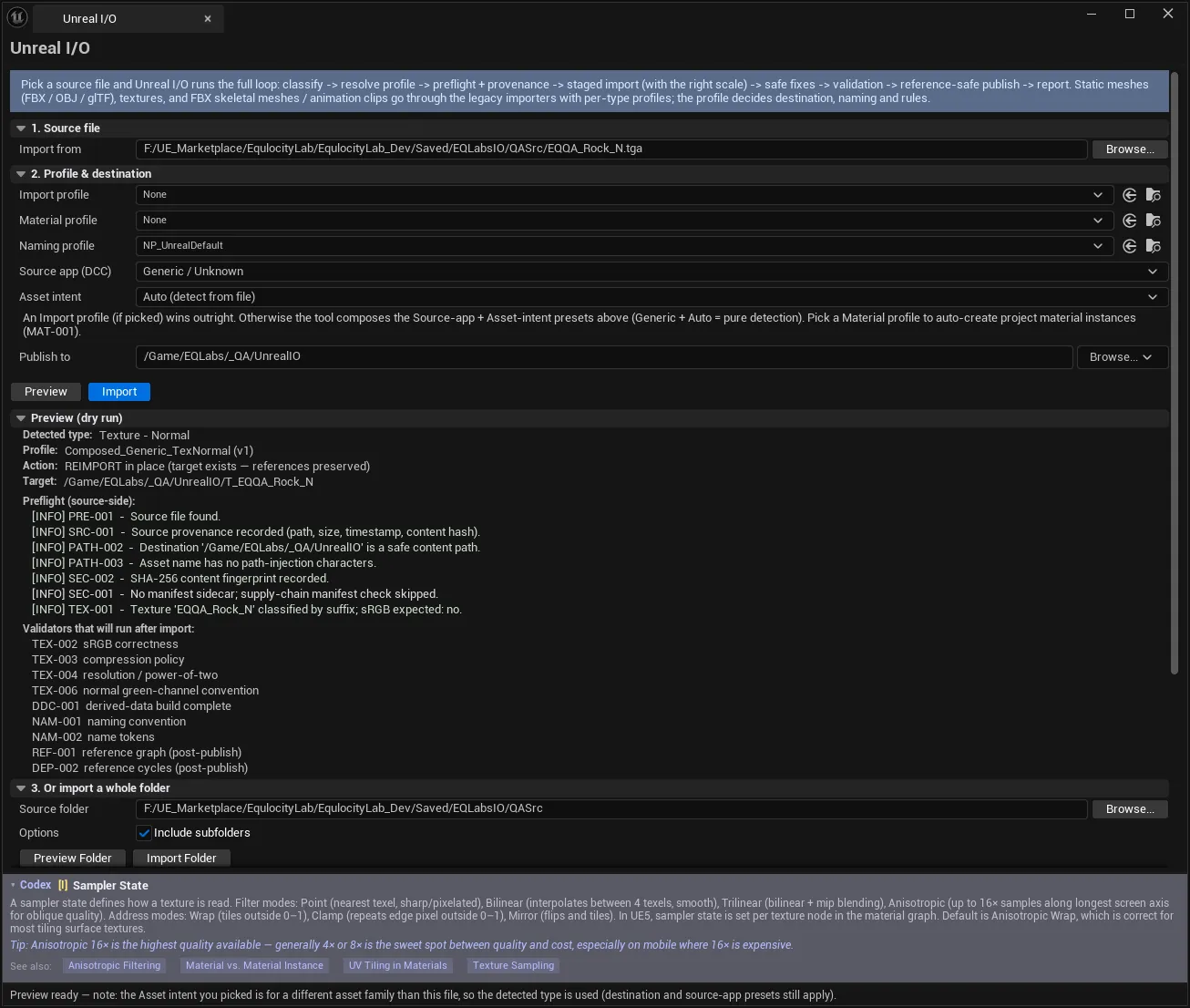
The panel is laid out as a numbered flow: 1. Source file → 2. Profile & destination → 3. Or import a whole folder, with staged multi-file intake and recent reports below.
The pipeline
Section titled “The pipeline”Every import runs the same loop:
classify → resolve profile → preflight → staged import → validate → safe fixes → publish → provenance| Stage | What it does |
|---|---|
| Classify | Determines DCC source and asset type from the file |
| Resolve profile | Picks the governing profile (see below) |
| Preflight | Checks the file before importing — this is what can block |
| Staged import | Imports to a staging area, not straight to the destination |
| Validate | Runs the profile’s rules against the staged asset |
| Safe fixes | Applies fixes the profile marks as safe, recorded as Auto-Fixed |
| Publish | Moves the validated asset to its destination path |
| Provenance | Records source file and settings on the published asset |
Staging is the important part: a file that fails validation never reaches your content folder.
1. Source file
Section titled “1. Source file”| Control | Notes |
|---|---|
| Import from | Path to an FBX/OBJ/glTF mesh or a texture |
| Browse… | File picker — supports multi-select, which stages files as a batch |
2. Profile & destination
Section titled “2. Profile & destination”| Control | Notes |
|---|---|
| Import profile | An explicit profile. If picked, it wins outright |
| Material profile | How materials are mapped |
| Naming profile | Naming convention applied on publish |
| Source app (DCC) | Generic / Unknown, Houdini, Maya, Blender, 3ds Max, ZBrush, Substance |
| Asset intent | The asset type — prop, modular, Nanite hero, texture role, character, animation |
| Publish to | Content path the validated asset lands in, overriding the profile default |
How the profile is resolved
Section titled “How the profile is resolved”This is the one piece of behaviour worth understanding before you use the tool:
- An explicit Import profile wins outright. Everything below is ignored.
- Otherwise the tool composes the Source-app preset with the Asset-intent preset.
- Generic + Auto means pure detection — the classifier decides everything.
So if an import isn’t behaving as you expect, check whether an Import profile is selected and silently overriding your Source-app and Asset-intent choices.
Why Source app matters
Section titled “Why Source app matters”DCC presets carry the conventions that cause the classic import bugs:
| Property | Values |
|---|---|
| Source unit | Centimeter, Meter, Inch, Foot |
| Up axis | Z-up (Unreal, 3ds Max) · Y-up (Maya, Houdini) |
| Handedness | Left-handed (Unreal) · Right-handed (Houdini, Maya) |
A Maya export imported as Generic is the reason a mesh arrives rotated 90° and 100× the wrong size. Setting the DCC is usually enough to fix both.
Asset types
Section titled “Asset types”Static Mesh — Prop · Static Mesh — Modular · Static Mesh — Nanite Hero · Texture — Base Color · Texture — Normal · Texture — ORM / Masks · Skeletal Mesh — Character · Animation Clip
Texture roles matter for correctness, not just naming: a normal map imported as Base Color gets the wrong colour space and compression.
Preview vs Import
Section titled “Preview vs Import”| Button | Effect |
|---|---|
| Preview | Dry run — shows type, profile, destination and rules without creating anything |
| Import | Runs the pipeline on the selected file |
Preview is the habit worth forming. It reports the resolved type, the chosen profile, the destination, and — critically — whether the file would be BLOCKED at preflight, all without touching the project.
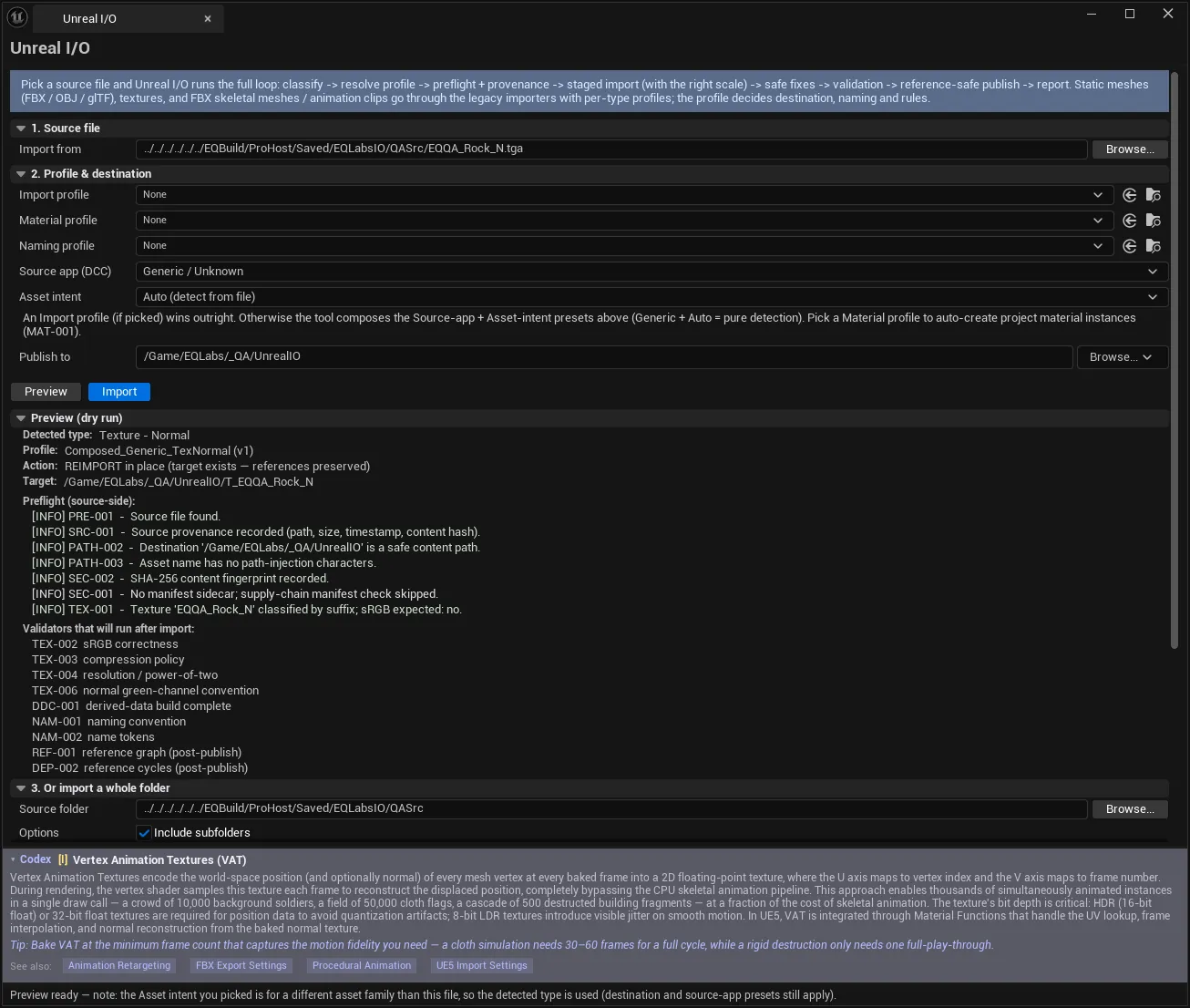
3. Folder import
Section titled “3. Folder import”| Control | Notes |
|---|---|
| Source folder | Folder of meshes and/or textures |
| Include subfolders | Recurse |
| Preview Folder | Dry-run every supported file: type, destination, and would-block |
| Import Folder | Run the import loop on every supported file, publishing to the destination above |
Preview Folder before Import Folder, always. It is the difference between discovering that half a folder is blocked now versus after it has run.
Multi-file intake
Section titled “Multi-file intake”Drag files from your file browser onto the panel, or multi-select in Browse. Staged files import together as a batch.
| Button | Effect |
|---|---|
| Import selected | Import all staged files as a batch to the destination above |
| Clear | Empty the staged list |
Results
Section titled “Results”Per-rule results, each with a status:
| Status | Meaning |
|---|---|
| Passed | Rule satisfied |
| Failed | Rule violated |
| Skipped | Not applicable to this asset |
| Auto-Fixed | Violated, and the pipeline applied a safe fix |
And a severity:
| Severity | Meaning |
|---|---|
| Info | Recorded, no action needed |
| Warning | Worth attention; does not stop the import |
| Blocker | Stops the import |
| Exception Required | Blocked unless an explicit exception is granted |
Exception Required is the deliberate escape hatch: rather than tempting people to disable a rule permanently, the pipeline demands a recorded exception for this specific case.
Results offer one-click navigation to the published assets.
Reports and provenance
Section titled “Reports and provenance”Import runs write reports to Saved/EQLabsIO/Reports.
| Control | Effect |
|---|---|
| Recent reports | List of recent runs |
| Refresh | Rescan the report folder |
| Open folder | Open the report folder in your file browser |
Published assets carry provenance — the source file and settings that produced them — which is what makes a later re-import reproducible rather than a guess.
Tips and gotchas
Section titled “Tips and gotchas”- An explicit Import profile overrides Source app and Asset intent silently. First thing to check when a profile isn’t behaving.
- Preview costs nothing and answers the real question. “would this be blocked?” — before anything is created.
- Wrong scale or rotation is almost always a DCC preset problem, not an import bug. Set Source app before debugging further.
- Textures imported under the wrong role get the wrong colour space. Normal maps are the usual casualty.
- Blocked files are not partially imported. Staging means nothing reaches the destination — that is the design.
Generic + Autois pure detection. Good for exploration, less predictable for a production pipeline where an explicit profile is the point.
Related tools
Section titled “Related tools”- Unreal I/O — Export — the export half of the same pipeline
- USD & Interchange Repair Kit — repair assets already in the project
- Ship Lab — release-time readiness, where this is intake-time
- Project Health Dashboard — project-wide state after assets have landed
Opens our feedback form in a new tab with the tool name pre-filled.