
No. 0472 AR ArtEQLabs Pro
Flowmap Painter
Module: Art · Category: Paint · Tool ID:
FlowmapPainter
Paint direction, not colour. Drag across a mesh in the viewport and the tool records the direction of each stroke into a UV-space vector field, then bakes it to a flowmap texture your materials can advect with — water flowing round a rock, wind combing through foliage, a cape settling in a direction, flame tips licking upward.
Painting happens on the actual mesh in the level, so what you paint is what the surface gets, without round-tripping through a 2D package and guessing at the UV layout.
When to use it
Section titled “When to use it”- Water flow around obstacles, down a riverbed, or through a channel
- Wind direction through foliage and grass cards
- Fabric: capes, banners, cloth that should read as draping in a direction
- Hair and fur direction
- Fire and smoke, where flame tips need to lick a particular way
- Anywhere a material advects a texture and the direction must follow the surface
What it isn’t for
Section titled “What it isn’t for”- Don’t use it to author a flowmap for a mesh you don’t have in the level. Painting is viewport-based and needs a selected Static Mesh actor.
- Don’t use it where a procedural flow field would do. For water surfaces driven by simulation, Fluid Lab generates flow directly.
Opening the tool
Section titled “Opening the tool”- Open the EQLabs Hub and search for flowmap or
flow(or browse to Art → Paint). - Click the tool card.
- Select a Static Mesh actor in the level.
- Click Begin Painting, then LMB-drag across the mesh.
Almost every control is gated on an active session. Without one the tool tells you plainly — “Click Begin Painting first” — rather than appearing to work.
If you click Begin Painting with nothing suitable selected: “No Static Mesh actor selected — pick one in the level and click Begin Painting again.”
Status
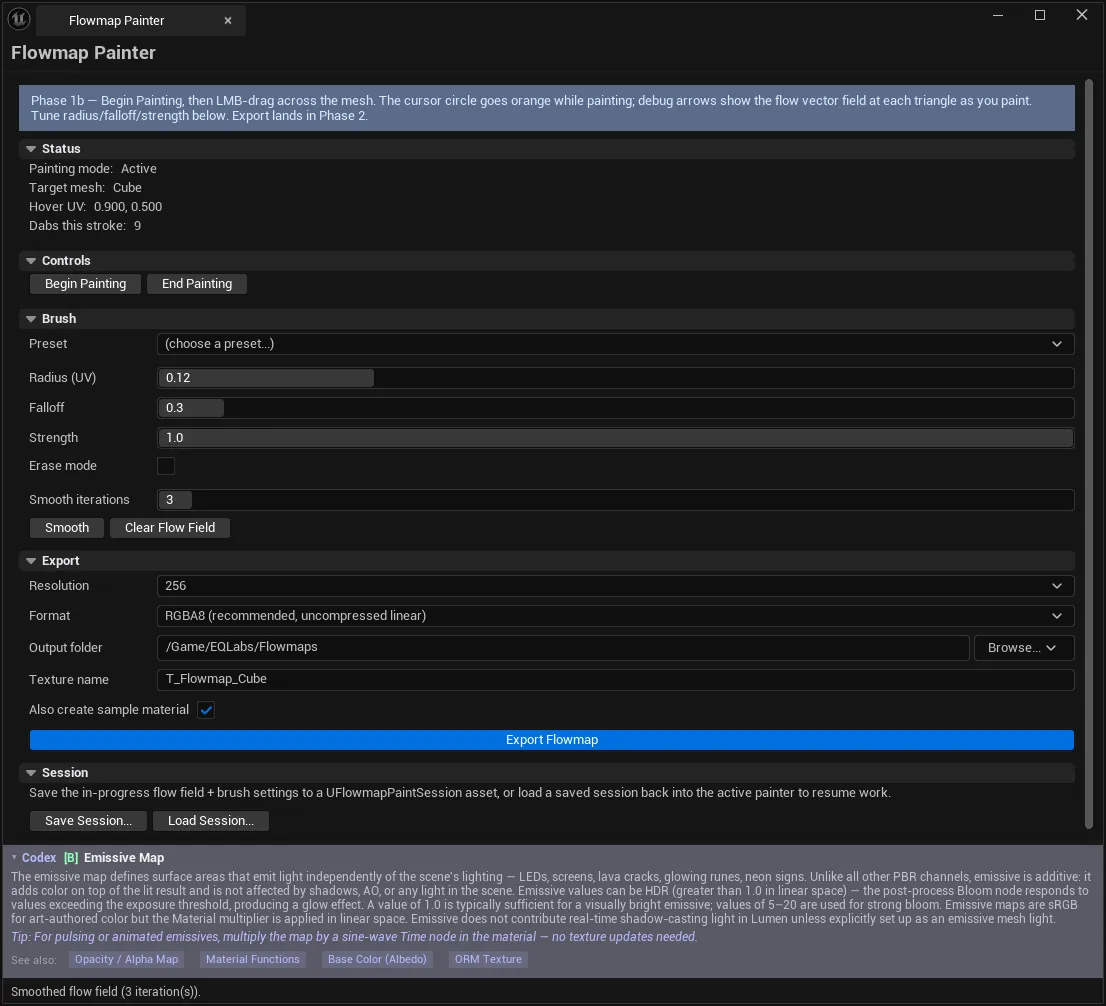
Section titled “Status”The Status block is the feedback loop while painting.
| Readout | Meaning |
|---|---|
| Painting mode | Active / Inactive |
| Target mesh | The mesh being painted, or a prompt to select one |
| Hover UV | UV coordinate under the cursor |
| Dabs this stroke | How many dabs the current stroke has laid down |
Hover UV is the one to watch. It tells you where on the texture you are actually painting, which is how you catch a mesh whose UVs overlap or are laid out differently than you assumed — the flowmap will have those same overlaps.
Painting
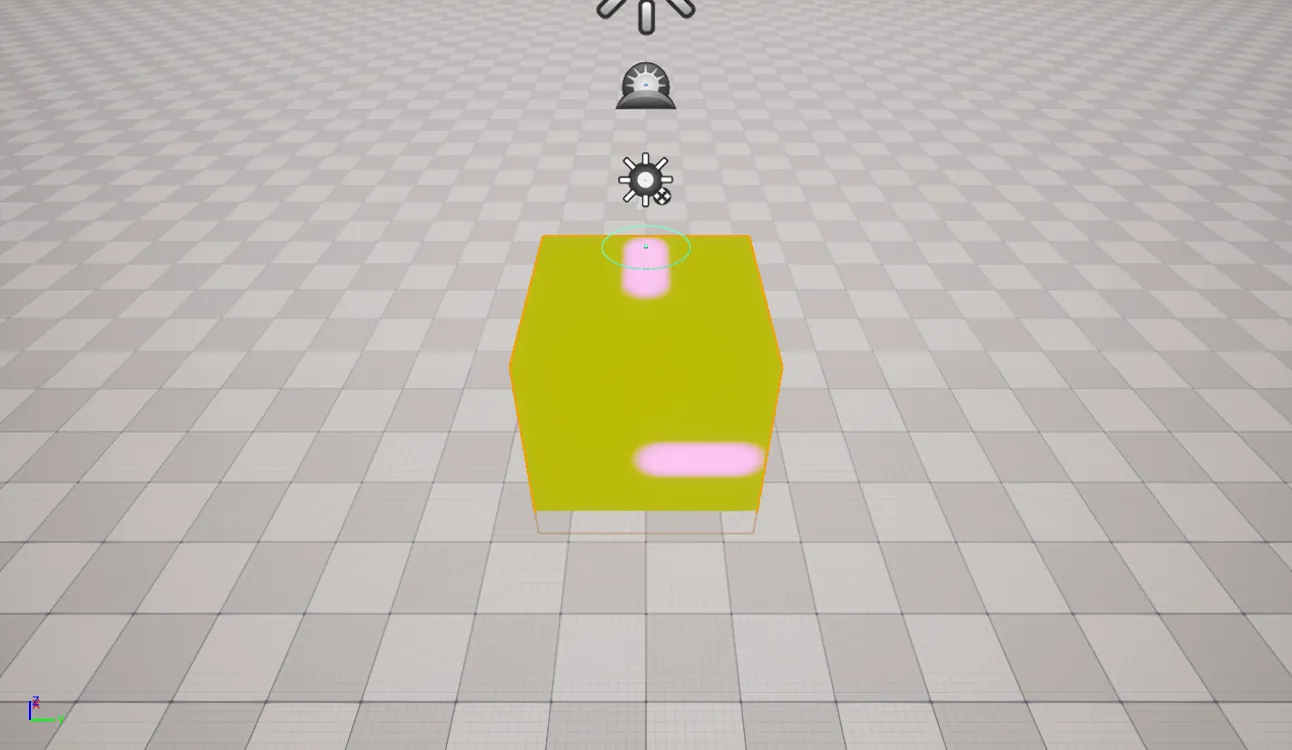
Section titled “Painting”Hold LMB on the mesh and drag. The drag direction sets the flow direction; the cursor circle shows the brush footprint.
| Control | Notes |
|---|---|
| Begin Painting | Starts a session on the selected Static Mesh actor |
| End Painting | Ends the session |
| Setting | Range | Notes |
|---|---|---|
| Radius (UV) | 0.001 – 0.5 | Brush radius in UV space, not world space |
| Falloff | — | Edge softness of the dab |
| Strength | — | How strongly each dab overwrites existing flow |
| Erase mode | — | Removes flow instead of adding it |
Radius is UV-space, which is why the same brush covers a different amount of surface on differently-scaled UV islands. If the brush feels enormous on one part of a mesh and tiny on another, the mesh has non-uniform texel density — worth checking with UV & Texel Suite.
Presets
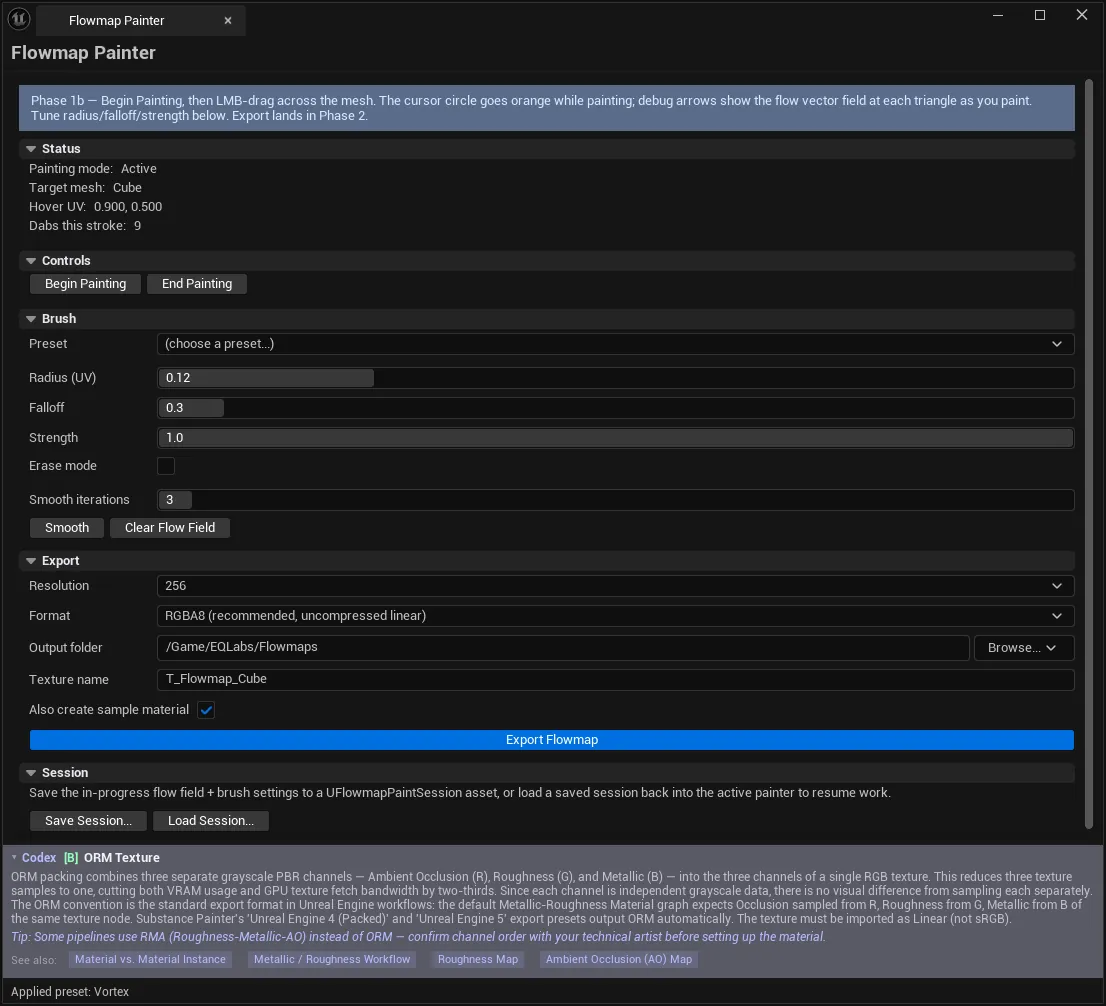
Section titled “Presets”Six curated brush configurations tuned for common workflows:
| Preset | For |
|---|---|
| Stream | River-like flow |
| Vortex | Eddies and swirls |
| River Bend | Wide curves |
| Wind Sweep | Broad airflow |
| Cape Drop | Fabric drape |
| Fire Lick | Sharp flame tips |
Presets overwrite Radius, Falloff and Strength. Erase mode stays as you left it — so applying a preset mid-erase does not silently put you back into painting.
Presets need an active session: they push values into the running session’s brush.
Smoothing and clearing
Section titled “Smoothing and clearing”| Control | Notes |
|---|---|
| Smooth iterations | How many 3×3 Gaussian relaxation passes per Smooth click |
| Smooth | Applies the relaxation |
| Clear Flow Field | Wipes the field |
Smoothing is the difference between a hand-painted field and one that reads as a coherent current. Hard direction changes between adjacent dabs produce visible tearing when a material advects along them; a couple of relaxation passes resolve it. Over-smoothing flattens the field toward uniform, so work in small increments and look at the result.
Export
Section titled “Export”| Setting | Notes |
|---|---|
| Resolution | Output texture resolution |
| Format | RGBA8 (recommended), RGBA16F (high precision), or RGBA8 (mobile fallback) — all uncompressed linear |
| Output folder | Long-package path, e.g. /Game/EQLabs/Flowmaps |
| Texture name | Defaults to T_Flowmap_<MeshName> |
| Also create sample material | Generates a paired M_FlowmapSample_<Name> with the flowmap pre-bound |
| Export Flowmap | Bakes the field to a UTexture2D |
Choosing a format
Section titled “Choosing a format”| Format | Use when |
|---|---|
| RGBA8 (recommended) | The default. Uncompressed linear — correct for nearly all work |
| RGBA16F (high precision) | Authoring at very high precision, or when 8-bit banding shows in long advection |
| RGBA8 (mobile fallback) | Mobile targets |
On BC5. BC5 is the canonical flowmap format in general, and in v2.0.2 the export button’s tooltip still describes the options as “BC5 / R16G16 / R8G8”. On UE 5.4 that is not what ships: BC5 compression requires the Normal-Map semantic tag (
TC_BC5came later), so the slot exports as uncompressed RGBA8 — the same disk layout as R8G8 but correctly tagged as linear colour. The tooltip is corrected in the next release; the dropdown labels were always accurate.If you need real BC5 compression in production, export as normal and then set the texture asset’s Compression Settings to
Normalmapin the Content Browser.
Also create sample material is worth using on a first export — it gives you a material with the flowmap already wired, so you can see the flow working before integrating it into a real shader.
Sessions
Section titled “Sessions”Work in progress can be saved as a UFlowmapPaintSession asset, carrying the flow field and the brush settings.
| Control | Notes |
|---|---|
| Save Session… | Saves the in-progress field + brush settings |
| Load Session… | Restores a saved session |
Both require an active session. Sessions are how you leave a complex flowmap half-finished and come back to it — the exported texture is the output, but the session is the editable source.
Treat the session as the master. The baked texture cannot be meaningfully re-edited; the session can.
Workflow: flow around a river rock
Section titled “Workflow: flow around a river rock”- Select the rock in the level → Begin Painting.
- Apply the Stream preset.
- Drag along the water’s path, following the surface around the rock.
- Switch to Vortex and add eddies behind it.
- Smooth once or twice to remove tearing between strokes.
- Save Session… before exporting.
- Set format BC5, tick Also create sample material, Export Flowmap.
- Check the sample material, then wire the texture into the real shader.
Tips and gotchas
Section titled “Tips and gotchas”- Everything needs an active session. Presets, Smooth, Clear, Save all refuse without one and say so.
- Radius is UV-space. Uneven texel density makes the brush change apparent size across the mesh.
- Watch Hover UV to catch overlapping UVs. Painting one island paints its overlapping twin too.
- Smooth in small steps. Relaxation is cumulative and over-smoothing flattens the field.
- In v2.0.2 the export tooltip names BC5/R16G16/R8G8 while the dropdown offers RGBA8/RGBA16F/RGBA8. Trust the dropdown — on 5.4 the “BC5” slot ships uncompressed. Set Compression Settings to
Normalmapafterwards if you need real BC5. The tooltip is corrected in the next release. - Save the session, not just the texture. The texture is not re-editable.
- Erase mode persists across preset changes, by design. Check it if painting seems to remove flow.
Related tools
Section titled “Related tools”- Flow Map Studio — generation and inspection of flow maps, where this is hand authoring
- Fluid Lab — simulation-driven flow for water surfaces and rivers
- Layered Texture Paint Suite — the other viewport painting tool
- UV & Texel Suite — diagnose the UV density that makes a UV-space brush behave unevenly
Opens our feedback form in a new tab with the tool name pre-filled.