
Director
Tab: Director — Live virtual cameras · Plugin: Cinematic Lab
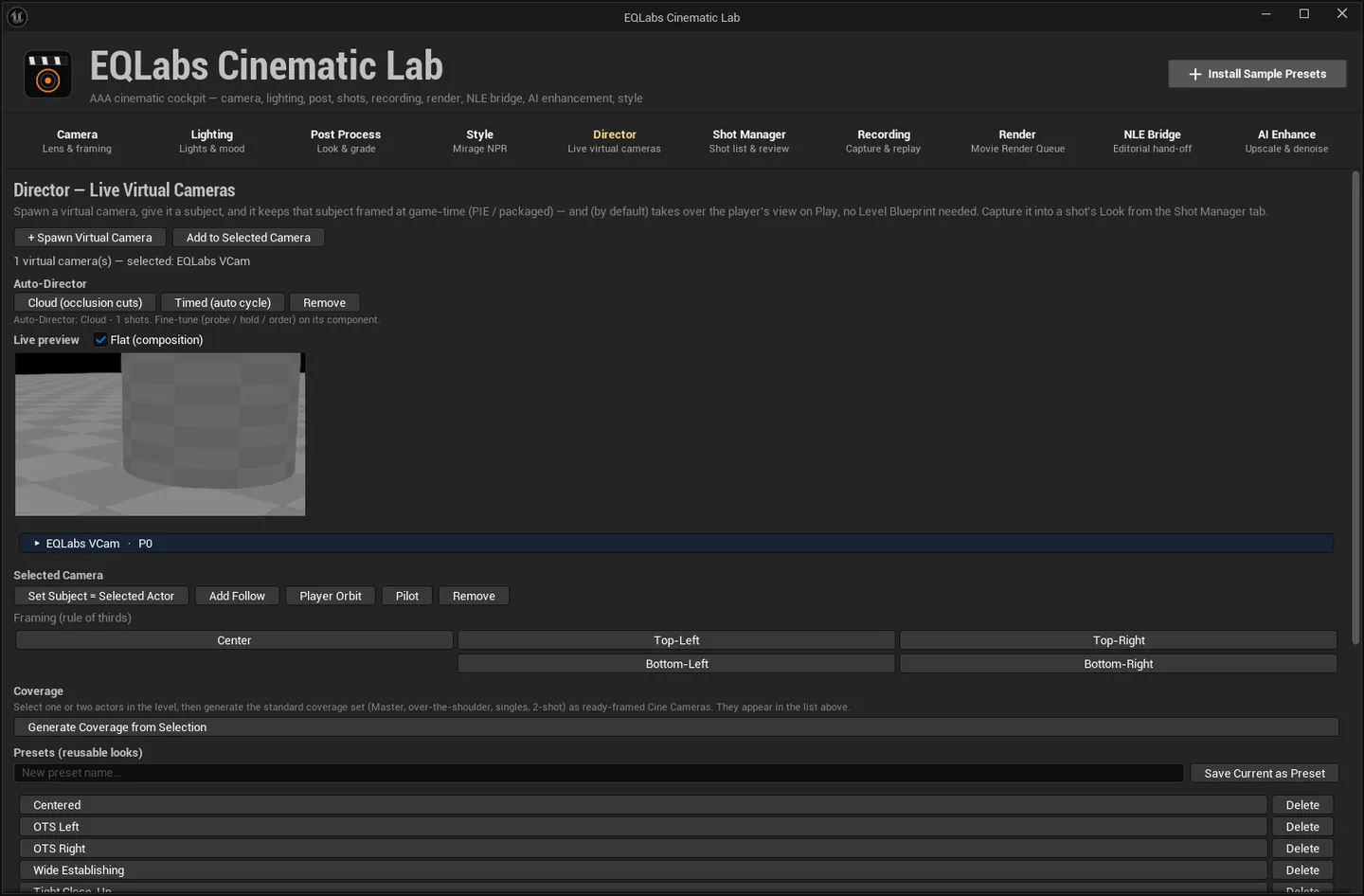
Everything on this tab runs at game time — PIE and packaged builds — not just in the editor viewport. Spawn a virtual camera, give it a subject, and it keeps that subject framed while the game runs. By default it also takes over the player’s view on Play, with no Level Blueprint wiring.
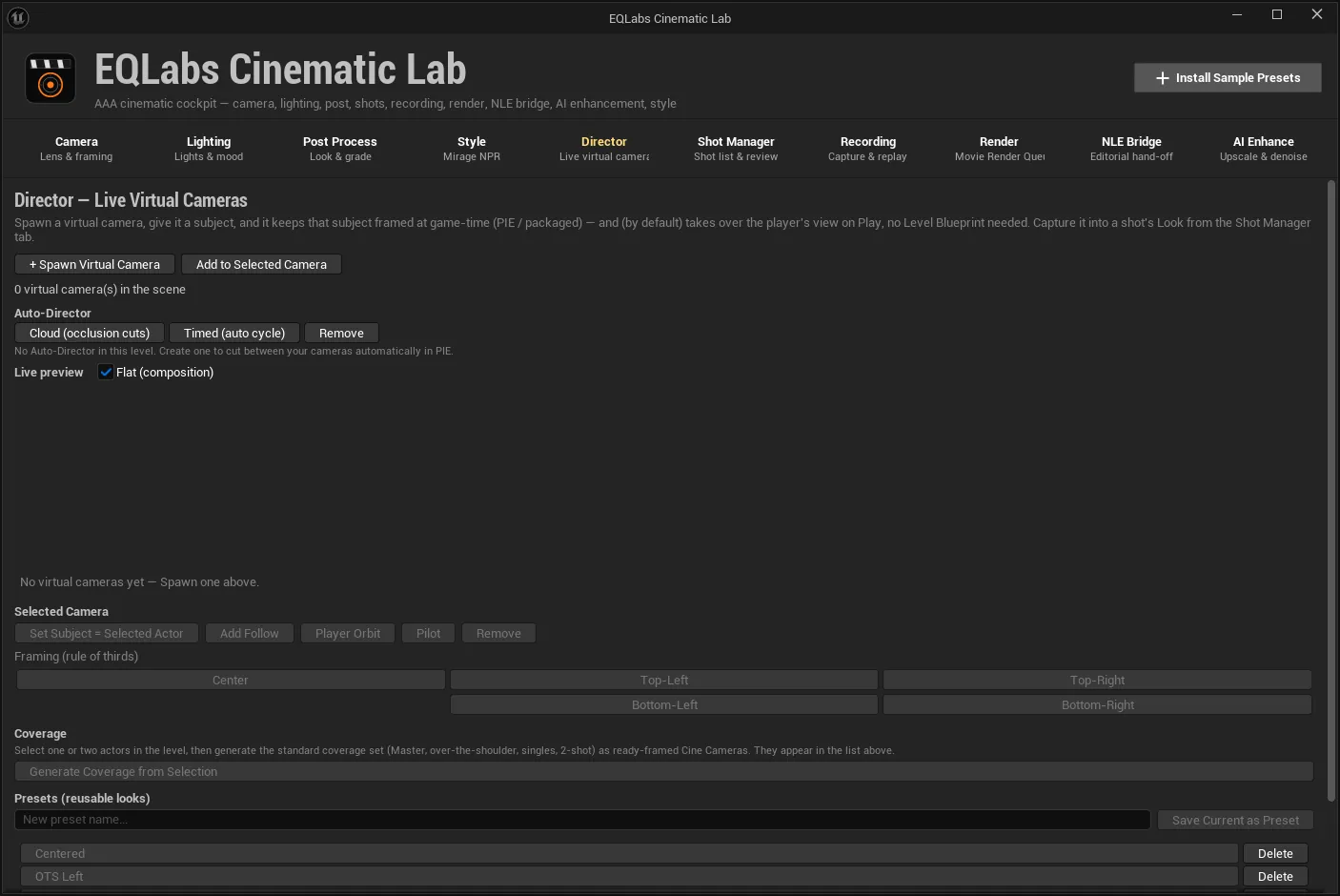
Virtual cameras
Section titled “Virtual cameras”| Action | What it does |
|---|---|
| + Spawn Virtual Camera | Spawn a Cine Camera at the viewport with a virtual-camera component attached |
| Add to Selected Camera | Attach a virtual-camera component to a Cine Camera Actor you already have |
| Pilot | Lock the viewport to that camera to see through it |
| Remove | Remove the virtual-camera component — the Cine Camera Actor stays |
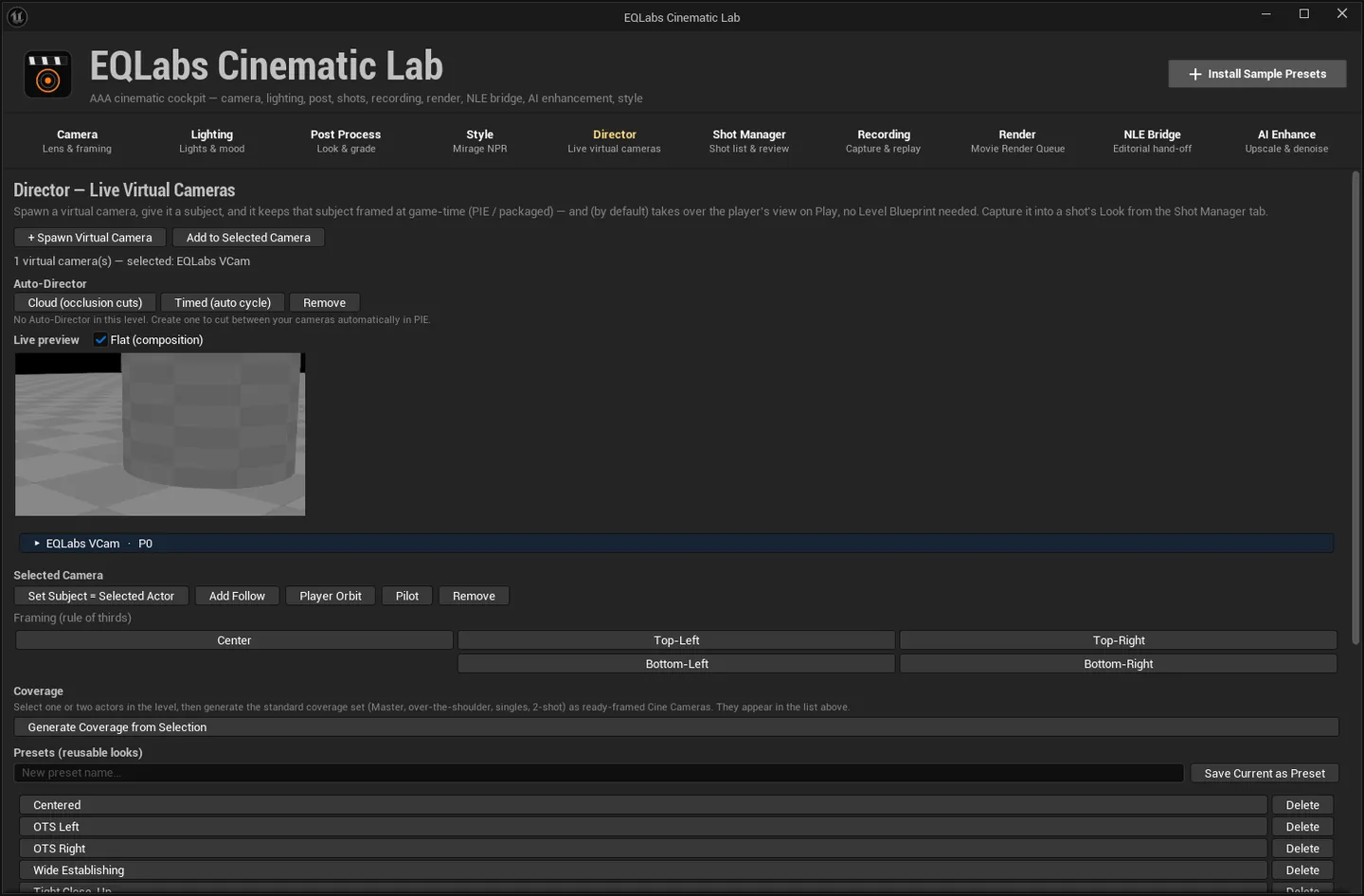
The list shows every virtual camera with its P# — its Camera Director priority. Higher wins
at runtime. The footer reads <n> virtual camera(s) — selected: <name>.
Giving a camera a subject
Section titled “Giving a camera a subject”Set Subject = Selected Actor frames the actor currently selected in the level. It must be a non-camera actor.
That alone makes the camera aim at the subject. Two additions change how it behaves:
- Add Follow. The camera also follows the subject’s position, not just its aim. Adds a. Follow component, configurable under Configuration.
- Player Orbit. Turns it into a third-person player camera. The follow switches to Orbit and. an Enhanced-Input control is added, so in PIE the player steers yaw and pitch with the mouse and zooms with the wheel, auto-recentering after idle. Sensitivity, limits and recenter behaviour live on the Orbit Player Control component, where you can also assign your own Input Action and Mapping Context for gamepad.
Framing
Section titled “Framing”A rule-of-thirds picker: Center, Top-Left, Top-Right, Bottom-Left, Bottom-Right.
Live preview
Section titled “Live preview”Flat (composition) renders a clean composition view with no eye adaptation, atmosphere or bloom. Off gives the full lit render. Use flat when you are judging framing rather than look.
Coverage generator
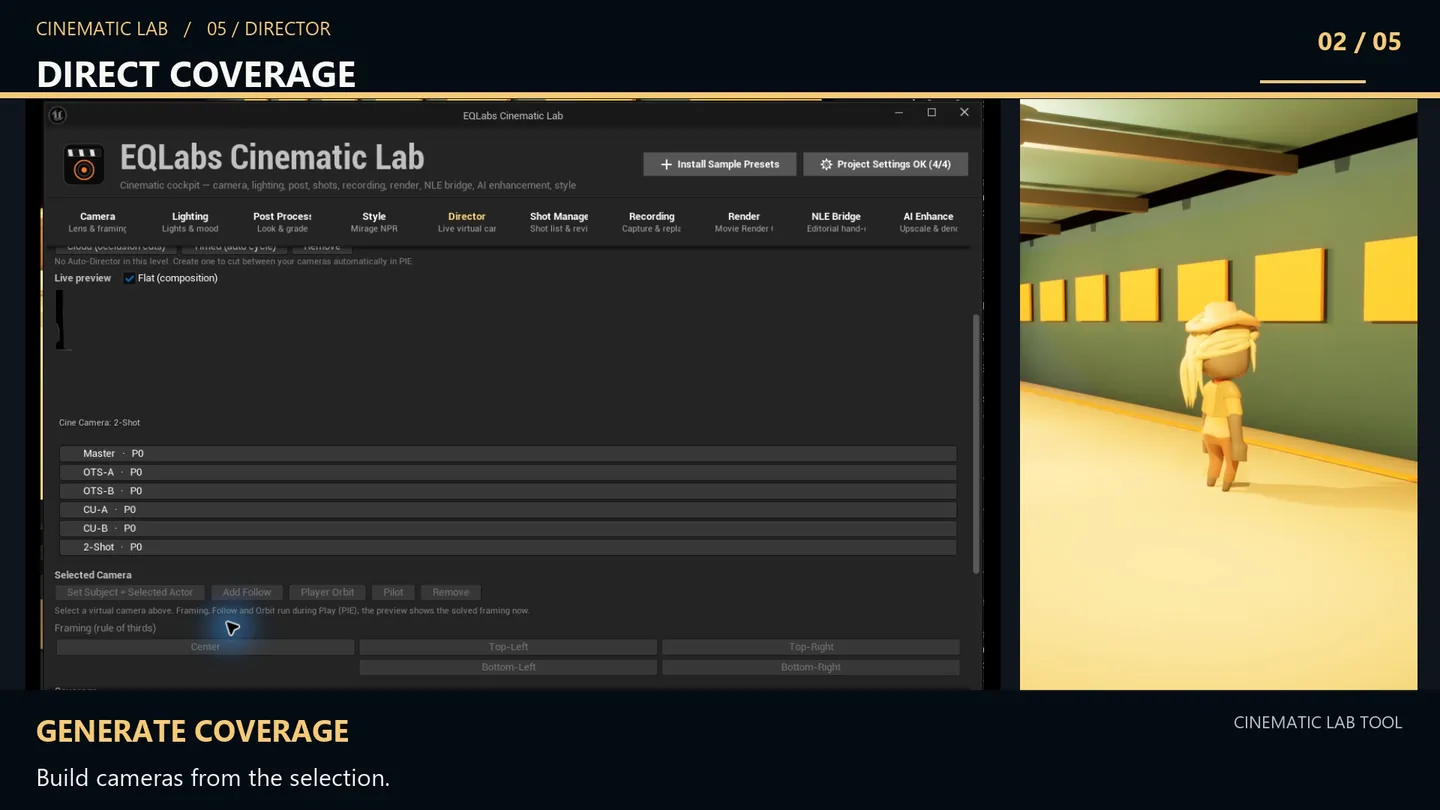
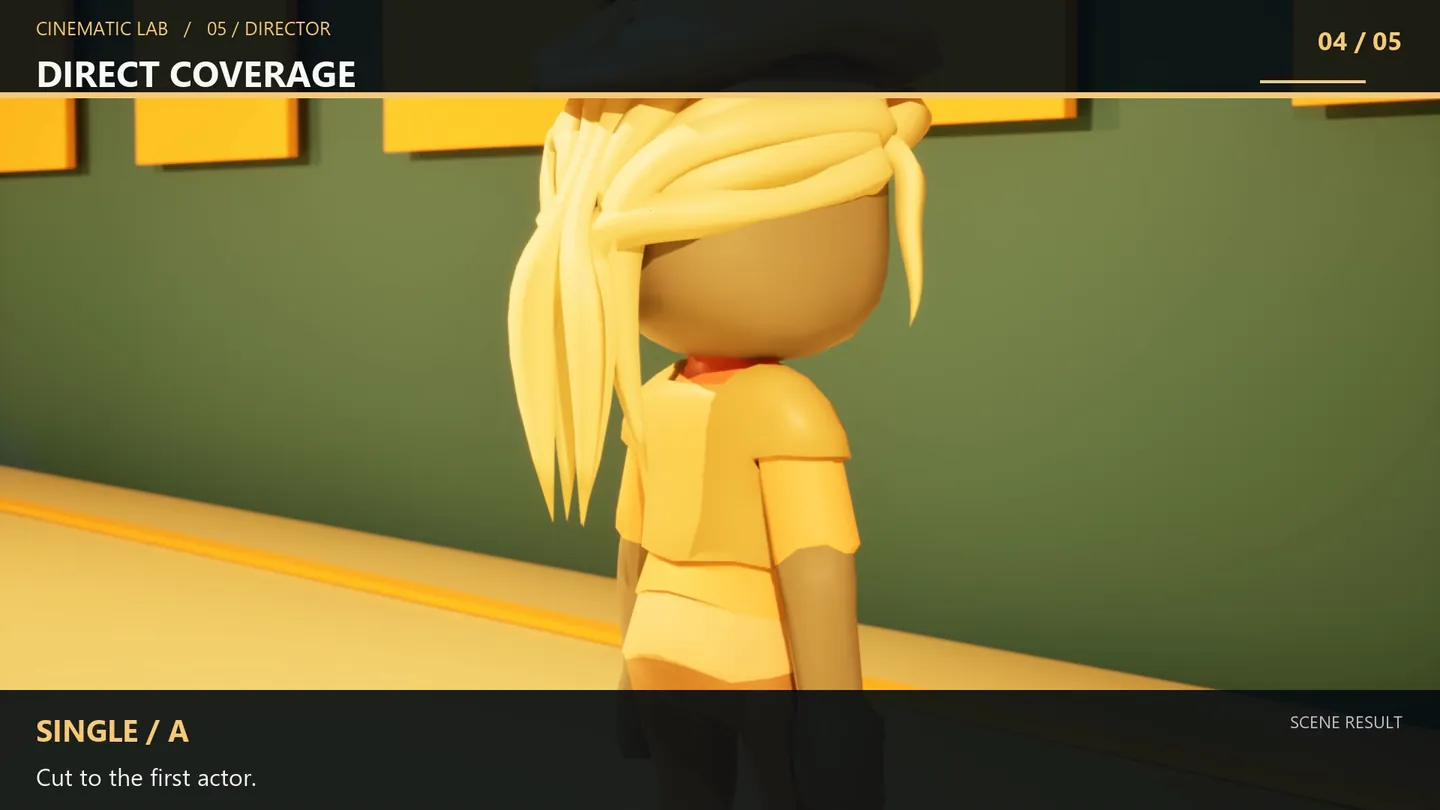
Section titled “Coverage generator”Select one or two actors in the level, then Generate Coverage from Selection spawns the standard coverage set as ready-framed Cine Cameras: Master, over-the-shoulder, singles and a 2-shot — six angles.
Angles that need a second subject are skipped when only one actor is selected. The result line
reports how many were actually generated (Generated N coverage camera(s)) rather than implying you
got all six.
Composition presets
Section titled “Composition presets”Save Current as Preset saves the selected camera’s composition — not its subject — as a reusable preset. Applying one sets the composition on the selected camera and leaves its subject unchanged.
That separation is the point: a preset is a way of framing, not a specific shot.
Auto-Director
Section titled “Auto-Director”An actor that cuts between your virtual cameras during PIE. Two modes:
Cloud (occlusion cuts)
Section titled “Cloud (occlusion cuts)”The current shot holds while its camera has a clear line to its subject, and cuts to the first unblocked camera when the view is occluded.
Probe radius and minimum hold time live on the EQLabs Auto-Director component. Reorder its Shots list to express preference — the “first unblocked camera” is first in that order.
Timed (auto cycle)
Section titled “Timed (auto cycle)”Holds each camera for its duration, advances down the list, and wraps. Hold times live on the component.
Both buttons create or refill the level’s Auto-Director with every virtual camera, so adding cameras and clicking again picks them up. Remove deletes the Auto-Director actor; the cameras keep their own priorities.
The status line reads Auto-Director: <mode> - <n> shots — or, when there is none,
“No Auto-Director in this level. Create one to cut between your cameras automatically in PIE.”
- This is a runtime feature. Virtual cameras, follow, orbit and the Auto-Director are driven by
the
CinematicLabRuntimemodule and work in a packaged build, not only in the editor. - Priority and order do different jobs.
P#decides which camera wins when several are active at once; the Auto-Director’s Shots order decides which it cuts to. - Removing the component keeps the camera. Clicking Remove on a virtual camera strips the virtual-camera behaviour and leaves the Cine Camera Actor in the level.
- Virtual cameras can be captured into a shot’s Look State from the Shot Manager tab, so restoring a shot can put it back on its framing.
Opens our feedback form in a new tab with the tool name pre-filled.